Table of Contents
TABLE OF CONTENTS
- Step 1. Set your Default Billing Day for the Centre
- Step 2. Check the Billpayer Profiles
- Step 3. Inviting Families
Step 1. Set your Default Billing Day for the Centre
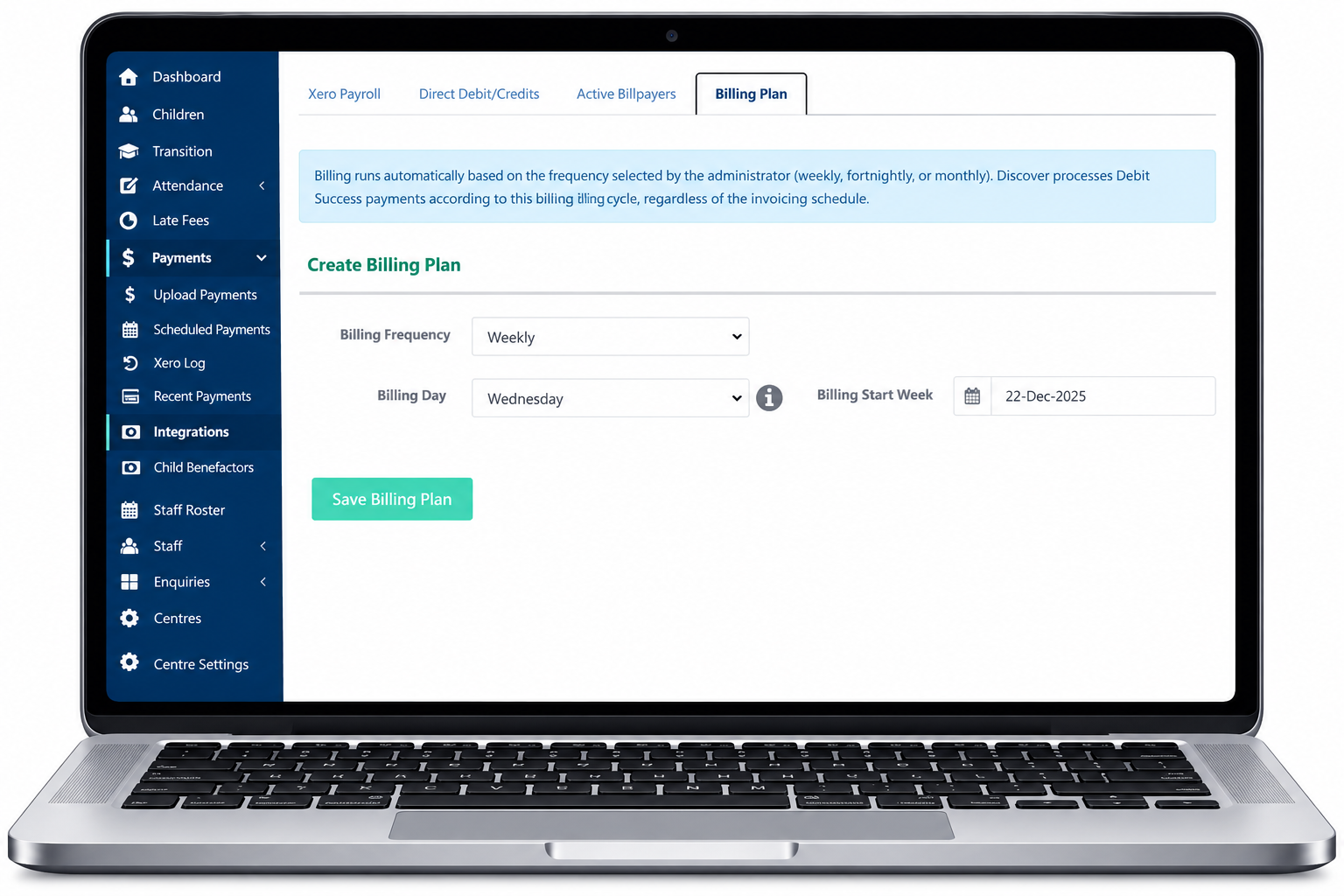
- Select the Payments Screen
- Integrations
- Billing Plan
- and select your service’s default billing day
We recommend selecting the day after you run your invoices.
This allows payments to be processed and cleared before the following week’s invoice run.
In the example below, the service is billed weekly on a Wednesday
Step 2. Check the Billpayer Profiles
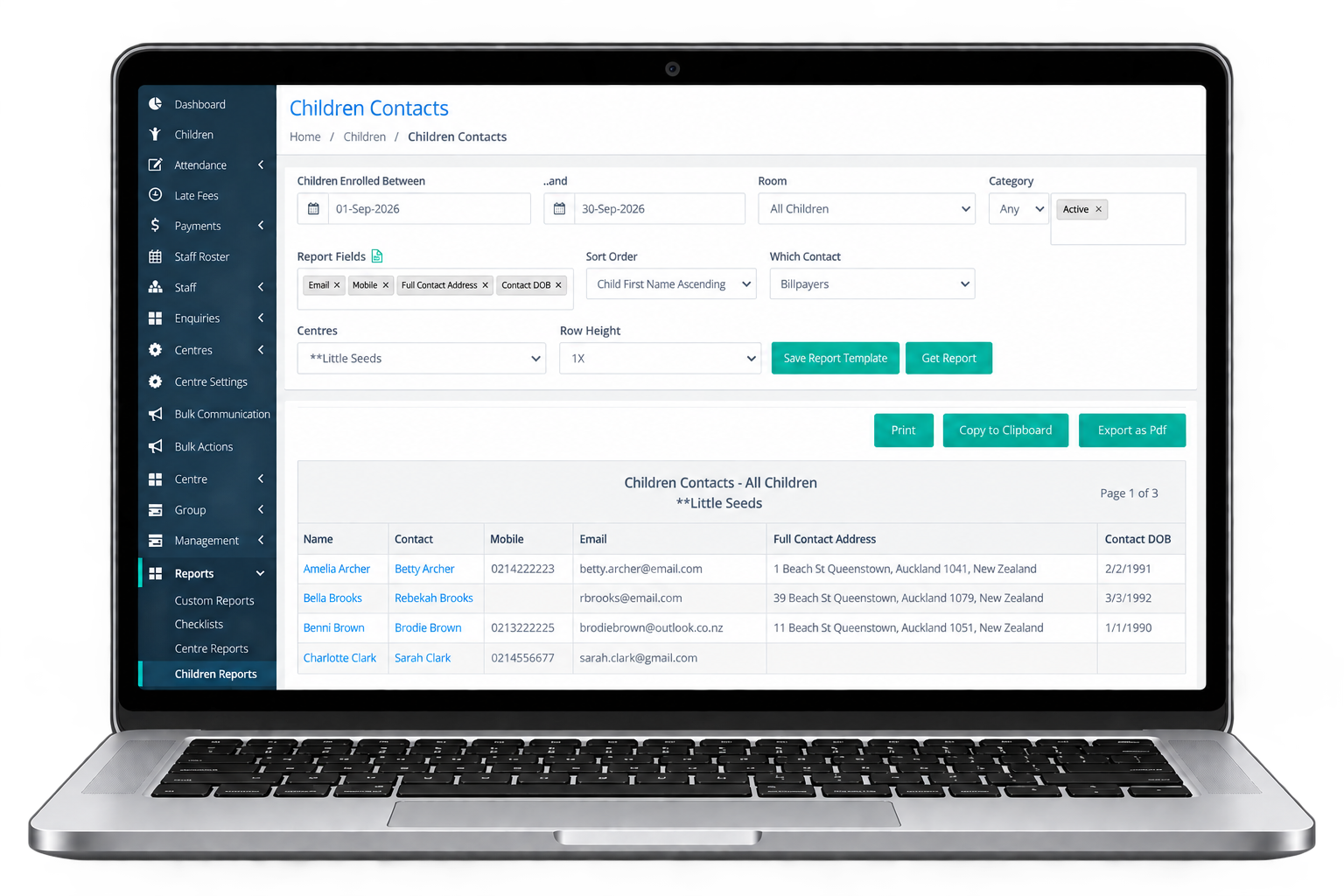
Go to Reports
Children Reports
Contact Report
Select the required date range.
Under Report Fields, select:
- Mobile
- Address
- Date of Birth
“Which Contact”: select Billpayer
Each Billpayer MUST include:
First & last name
Home address (City, Suburb, Country)
Phone number (10 digits, no country code)
Date of birth
Email address
If any information is missing, collect it from the family and update the Billpayer Profile before continuing otherwise you will not be able to enter the billing details for the family.
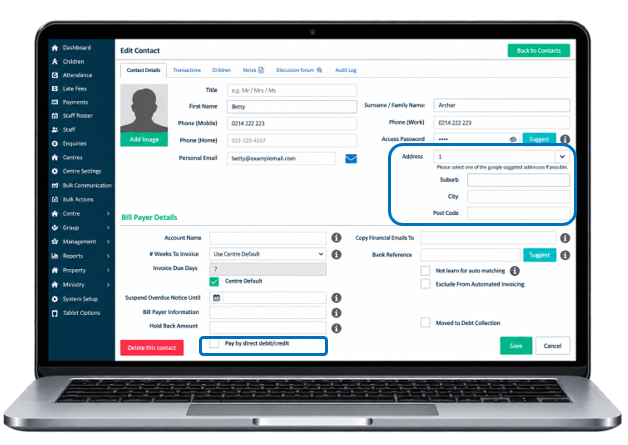
To Update the Billpayer Profile and enable Direct Debit:
- Go to the Children menu.
- Open the child’s record and select the Billpayer.
- Enter any missing information
- Ensure all fields of the address are complete
- Tick Pay by Direct Debit/Credit Card.
- If required, enter a Payment Limit.
- Click Save.
Custom Individual Billing Day (alternative path):
Child Record > Contacts > Billpayer > Contact Details > Billpayer Details → Payment Plan
Step 3. Inviting Families
There are 3 different ways families can set up their payment details
3.1. Provide the families DDR Forms
You provide your families with a DebitSuccess Form, and they return it filled out. You then enter this manually into Discover. See here for Instructions
3. 2. The Active Billpayers Tab that sends an Email to all families to set up their Billing Information
Send an email to your families in Bulk and have them fill in their billing information by clicking on the link. See here for Instructions.
Sample Email from Discover: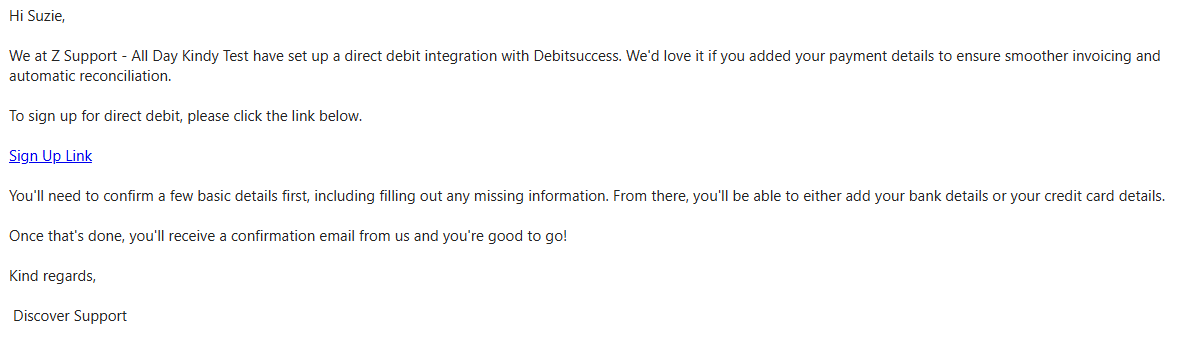
3.3 Via the Home App
If you are not using the Home App for your Centre you will need to action this first.
See here.
Once the admin tasks are complete, you can invite the families to the Home App
See here
and Parents can enter their account information following these steps.
Your Onboarding Specialist will provide a Parent Pack with this information for your Families.
Was this article helpful?
That’s Great!
Thank you for your feedback
Sorry! We couldn't be helpful
Thank you for your feedback
Feedback sent
We appreciate your effort and will try to fix the article