Payments by Xplor is a tool that can be used to automate the collection of childcare payments. It can ensure consistent cash flow, help you to manage overdue accounts and reduce the time that you might spend undertaking administrative duties.
There are a number of settings that need to be configured in advance of Payments by Xplor being implemented at your service.
Firstly, navigate to Invoice Settings (Centre Setup > Centre Settings > Invoice Settings) where you will be presented with the following options:
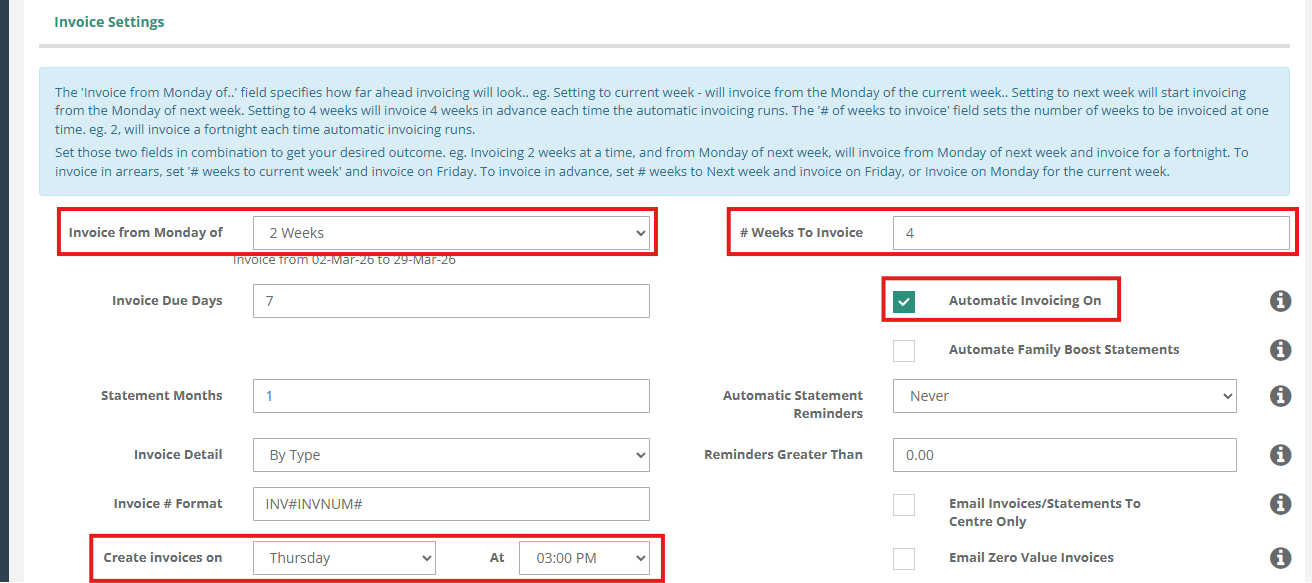
Payment automation will work best when Automatic Invoicing On has been selected / is ticked. With this setting enabled, enrolment invoices will be created based on these following highlighted settings:
- Invoice from Monday of: Outlining the time period that you wish to invoice (e.g., previous week, current week, next week).
- # Weeks to Invoice: How many weeks will be invoiced at one time.
- Create Invoices on: The day and time that your invoices will be automatically generated and sent to your families.
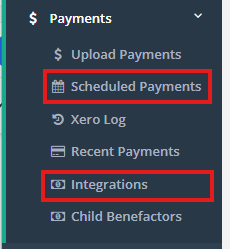
Once Payments has been activated for your service, you will find that there are additional menu items available to you through Payments. Scheduled Payments and Integrations:
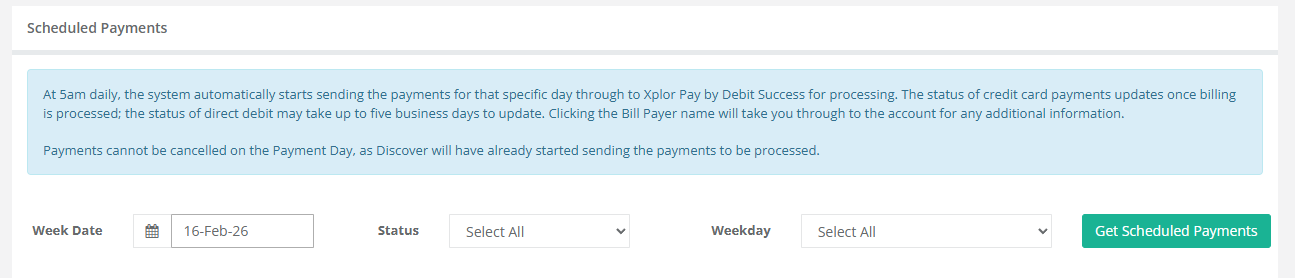
Scheduled Payments will provide you with a reporting function that presents all scheduled directdebit payments on a weekly basis. Here, can see the status of each payment visible in the report (pending, cancelled, sent, failed and not sent).
Integrations will provide you with two key menu items relating to Payments - Active Bill Payers and Billing Plan.
Active Bill Payers provides a list of all Billpayer contacts at your service that have Pay by direct debit/credit activated within their profile. You will be presented with a list outlining each Bill Payer, their Email, any Missing Details on their profile and an Action opportunity to send them a Payments sign-up link to their selected email.
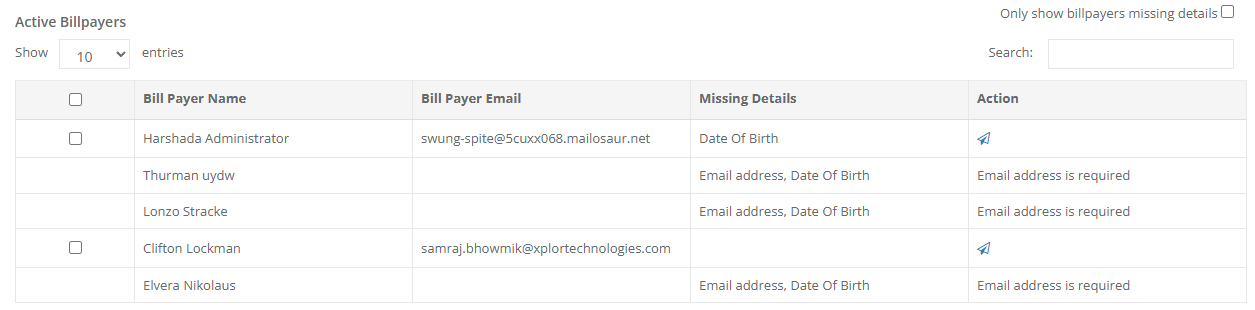
Bill payers must have an email address linked to their Contact Profile in Discover before an online sign-up link can be sent.
Billing Plan allows you to create your service's default billing cycle for Payments.
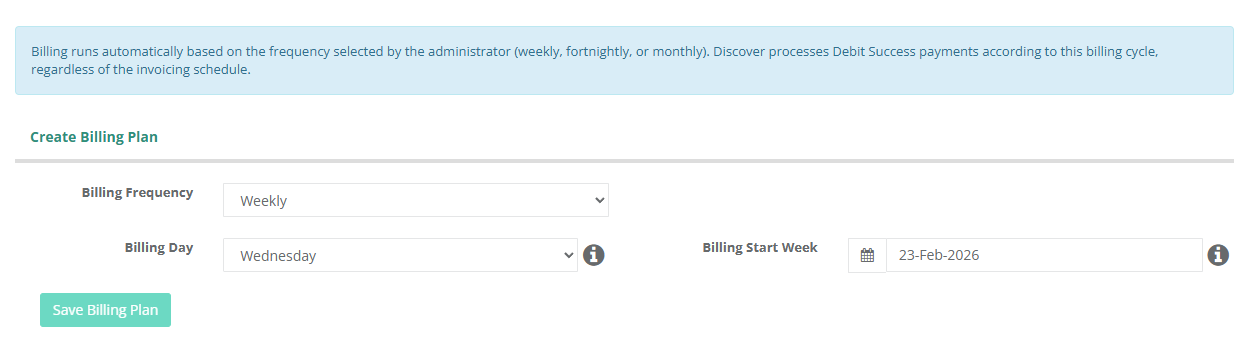
Here you can select your Billing Frequency (Weekly, Fortnightly or Monthly), Billing Day and the Billing Start Week. Payments will be scheduled according to the chosen billing frequency, commencing from the selected Billing Start Week.
Once your desired Invoicing Settings have been chosen via Centre Setup > Centre Settings > Invoice Settings and a Billing Plan has been selected via Payments > Integrations > Billing Plan, we can begin connecting families to Direct Debit.
To begin connecting your families for Direct Debit payments, you must navigate to a Bill Payer Profile via the Children Menu. There, you will find the Bill Payer Details section:
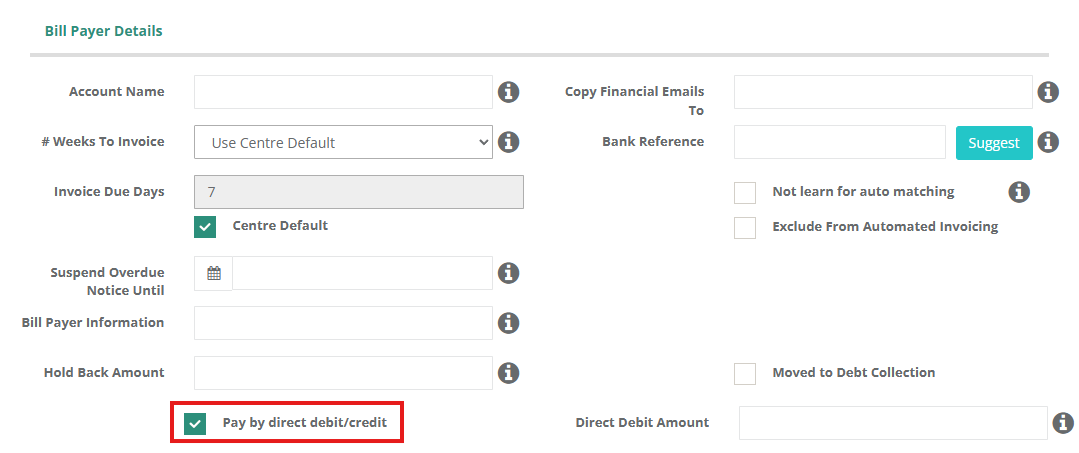
Select Pay by direct debit/credit and navigate to the bottom of the profile and save the change. This option must be selected / ticked for a Bill Payer to be present within the Active Bill Payer Menu within Payments > Integrations.
Within Bill Payer Details you will also find Direct Debit Amount. Any value in this field will become the regular amount a parent on a payment plan willpay by direct debit, instead of the amount currently outstanding on their account.
The Direct Debit Amount feature is a useful tool when attempting to gradually reduce a large, overdue balance on a parent account, or to ensure ongoing payments of a less than usual amount if a family is in strife. This field can remain empty, however, when a direct debit is processed it will attempt to debit the entirety of the outstanding balance in one single transaction.
Once Pay by direct debit/credit has been enabled, navigate to Payment Methods within the Bill Payer Profile:
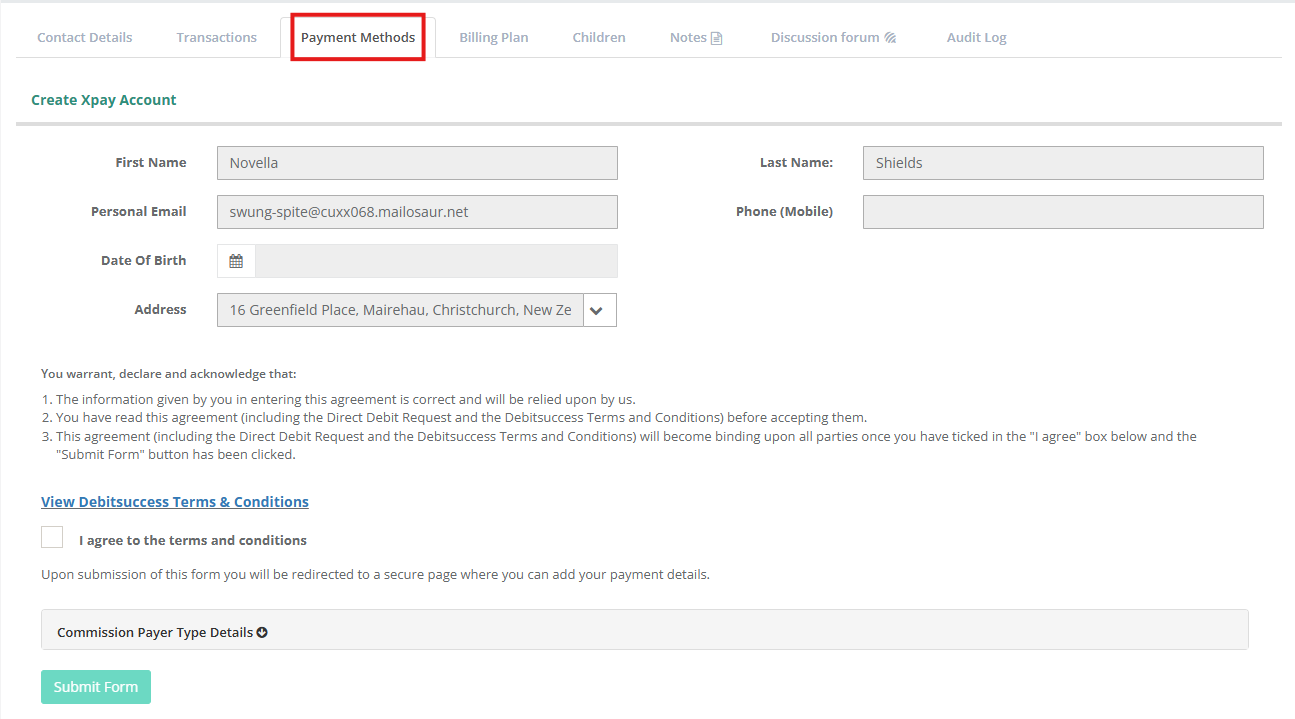
Here you will be presented with an option to Create Xpay Account. An Xpay account must created and the Debit Success Terms & Conditions must be agreed to before payment information can be added.
Payment information can be added in two ways to the Bill Payer Profile.
- A Bill Payer can return a signed paper Direct Debit Request (DDR) form to the service. On this form, they will input their details (including, address, contact numbers, and chosen payment method). Once a signed form is return, I agree to the terms and conditions can be selected and the form can be submitted. At this stage, an administrator can use Create Payment Method to input their preferred payment method.
- A digital sign-up email can be sent to the linked email address on the Bill Payer profile via the Integrations menu. The Bill Payer will have the opportunity here to view and agree to the Terms & Conditions and add their preferred payment information. Once completed, this information will sync directly with Discover and be viewable in the profile.
Once the Terms and Conditions have been agreed to, there will be two further menu options available:
- List Payment Method - A list of all of the payment methods used for this profile. Here, you can also change the primary account selected based on Bill Payer preference if there is more than one method recorded.
- Create Payment Method - Here, you can manually add either Bank Account or Credit Card information to a Bill Payer profile.
Was this article helpful?
That’s Great!
Thank you for your feedback
Sorry! We couldn't be helpful
Thank you for your feedback
Feedback sent
We appreciate your effort and will try to fix the article