Welcome to Discover!
This is the Extended Guide, that will take you through every single setting that you could set up for your service.
In this guide, you’ll customise your settings so Discover fits your centre’s unique needs helping you manage tasks faster and more confidently.
Milestone Table Of Contents
Milestone 1. Set the Foundation Extended Version
Milestone 1.2 Set Up the Service / Settings Tabs
Milestone 1.3 Set the Foundation - Templates
Milestone 1.4 Setting up your Service / Centre Calendar
Milestone 1.5 Set the Foundation - Digital Enrolment Form (Optional Task)
Milestone 1. Set the Foundation Extended Version
Your Onboarding Specialist has set up your first user.
- You will need to go to: Discover Log In
- Select Forgot Password
- Enter your Email address & Select Submit
- This will send you an email to set up your Password.
- Go back to here: Discover Log In
- log in with your email address and password you have just created.
Whether you have had a data migration or are a brand new Discover Centre,
Milestone 1 Tasks need to be completed by every centre that Onboards.
To set up any other Discover Log ins you require for your Service:
- Go to the Staff Screen
- Select the Staff Record
- Enter the Staff Members Email address In the field labelled "System Login Email"
- Scroll to the bottom and save.
Then the Staff member needs to follow the same process:
- Go to: Discover Log In
- Select Forgot Password
- Enter your Email address & Select Submit
- This will send them an email to set up your Password.
- Go back to here: Discover Log In
- and log in with their email address and password they have created
Centre vs Service
Depending on your license type, Discover uses Centre or Service interchangeably.
Whether you’re centre-based, home-based, or other licensed types, your onboarding specialist will have imported your details accordingly.
This guide covers all key settings — some are mandatory, others are optional depending on your setup.
TABLE OF CONTENTS
Centre Details Tasks
- Step 1: Check Your Centre/Service Details
- Step 2: Customise Optional Visuals
- Step 3: Roster Settings (Mandatory for Centre-based services)
- Step 4: Waitlist Settings (Optional)
- Step 5: Tablet Settings (Optional)
- Step 6: Transition Settings (Optional)
- Step 7: Enrolment Settings (Optional)
- Step 8: Invoice Settings
- Step 9: Early & Late Fee Settings (Optional)
- Step 10: Bonds (Optional)
- Step 11: Payments & Integrations
- Step 12: Website Widgets (Optional)
- Step 13: Ministry of Education (MOE) Settings
- Step 14: Report Options
Step 1: Check Your Centre/Service Details
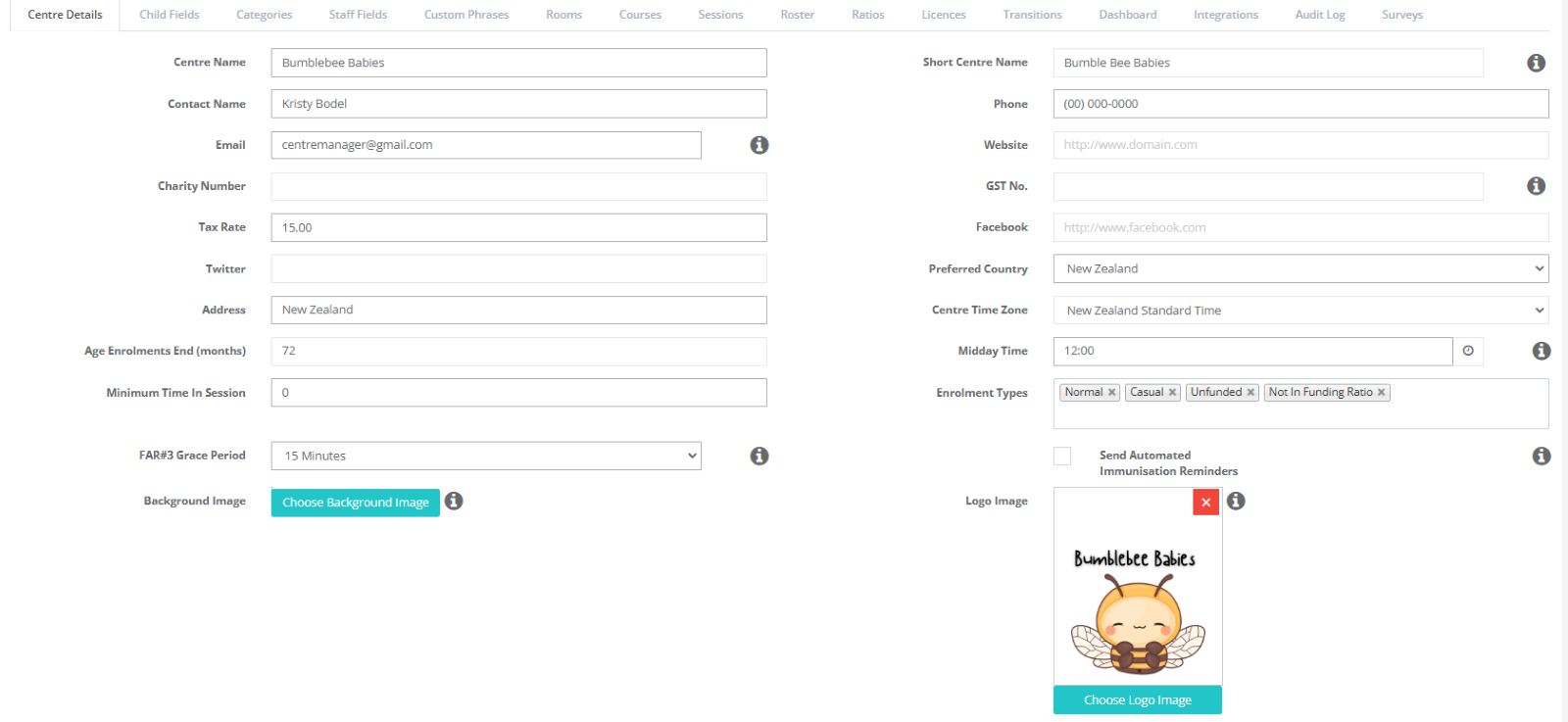
Login to Discover and go to Centre/Service Set Up > Centre/Service Details.
Review all information
Centre name, email (make sure your new Centre email is set here),
Address, phone number, licence info, etc.
Hover over the info icons (i) for helpful tips on each field.
** Please note: You need to update the Email address for the following fields in the Centre/Service Settings Page:
Centre Details: Email Add your Email here
Scroll down to Payments Xero Integration: Email Xero Results to add your email here
Scroll down to Send Emails from the following Accounts: Name, Accounts Name, Marketing Name - You can add the same email address for all 3 OR have a different email address for each option.
Email Notification to: Child leaving notification to Add your email here
Website Widget: Email Enquiries / apps to: Add your email here
If this is not updated, the email communications from Discover will go to the email address that signed up for Onboarding.

Step 2: Customise Optional Visuals
Background Image: Upload an image that appears on the tablet during digital sign-in.
Centre/Service Logo: Upload your logo to show on tablets and Discover areas.
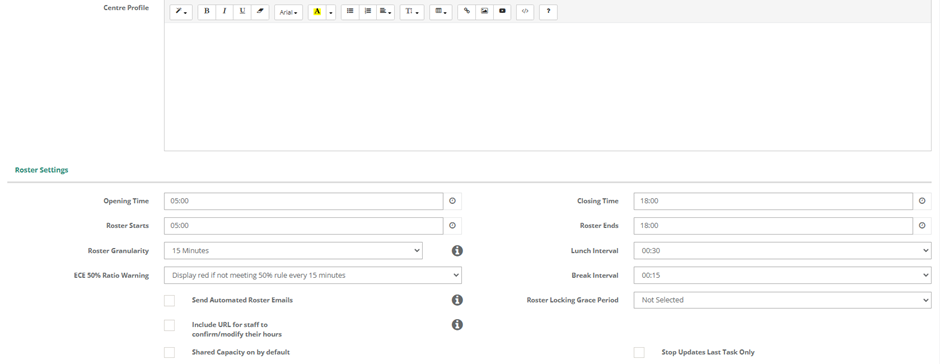
Profile Info: Add any extra information you want here (not synced externally).
Step 3: Roster Settings (Mandatory for Centre-based services)
Roster Granularity: Choose 15-minute increments (recommended for accuracy).
Lunch & Break Intervals: Set default durations.
ECE 50% Ratio Warning: Enable ratio alerts on the roster.
Roster Locking Grace Period: Choose how many days before roster locking.
Automated Roster Emails: Option to send shift notifications to staff.
Include Confirmation URL: Staff can confirm/modify hours via a link.
Shared Capacity: Enable spare capacity sharing for under-2s.
Stop Updates Last Task Only: Controls task stop behavior on tablets.

Step 4: Waitlist Settings (Optional)
Customize how often parents receive waitlist confirmation emails.
Parents can confirm if they want to remain on waitlist or be removed.
Removed children change status but remain in enquiry stats.

Step 5: Tablet Settings (Optional)
Select which tablet features you want enabled.
(More on this in Milestone 3: Family Experience.)

Step 6: Transition Settings (Optional)
Enable or disable the transition screen and related fields.
Set default months of data to display.
Option to show child profile images on transition screen.

Step 7: Enrolment Settings (Optional)
Mostly defaults but can be customized.
Hover over info icons for details.

Step 8: Invoice Settings
Familiarise yourself here; detailed setup happens later in Milestone 5.

Step 9: Early & Late Fee Settings (Optional)
Enable penalty fees for early/late sign-in/out
This menu appears only after settings are entered.

Step 10: Bonds (Optional)
Manage bonds withheld and returned when a child leaves.

Step 11: Payments & Integrations
Xero Integration: Connect to Xero for payments (optional).
WINZ Settings: Record entitlements (not actual payments).
SMS Settings: Setup SMS via Twilio (optional).
Email Accounts: Customize emails for general, accounts, marketing.
Email Notifications: Set auto-notifications as needed.


Step 12: Website Widgets (Optional)
Customise how your centre name appears on enquiry, enrolment, and parent portal widgets.


Step 13: Ministry of Education (MOE) Settings
Link your MOE licence and census info.
Info icons explain details.

Step 14: Report Options
Choose if date/time prints on reports for clarity.

See here to set up:
---------------------------------------------------------------------------------------------------------------------------
Milestone 1.2 Set Up the Service / Settings Tabs
Once you have completed the Service/Centre Settings, it’s time to customise your Discover Screens using the tabs across the top
Below is a quick overview of the key tabs and their purposes, so you can tailor Discover to suit your service needs.
TABLE OF CONTENTS
- Tab 1. Child Fields (Optional)
- Tab 2. Categories (Optional)
- Tab 3. Staff Fields (Optional)
- Tab 4. Custom Phrases (Optional)
- Tab 5. Rooms (Centrebased Only)
- Courses & Session Tabs are not required
- Tab 6. Ratios (Optional)
- Tab 7: Rosters (Mandatory for Centrebased if using Payroll)
- Tab 8. Licenses (Mandatory)
- Tab 9. Transition Screen Settings (OPTIONAL)
- Tab 10. Dashboard Settings (OPTIONAL)
- Tab 11. Surveys (OPTIONAL)
- Miscellaneous Items
Tab 1. Child Fields (Optional)
Create custom fields that appear on Child Profiles — and optionally on the Digital Enrolment Form — so parents can fill in specific information during enrolment.
Field types: Text, Date, Checkbox, Dropdown
Two types:
Permission fields (True/False) appear on enrolment forms.
General fields allow more input types but don’t show on enrolment forms.
To add: Click Create New, fill in the details, decide if the field is required, then save.
Tab 2. Categories (Optional)
Use categories to organise children in your reports and records. Customise as needed directly within the tab.

Tab 3. Staff Fields (Optional)
Add custom staff fields to capture any additional information your centre requires for your team members.

Tab 4. Custom Phrases (Optional)
Change default messages throughout Discover, such as what shows on the tablet when parents sign in their children, to personalise your centre’s communication.


Tab 5. Rooms (Centrebased Only)
Rooms are pre-set by your Onboarding Specialist, but you can edit or add rooms under this tab — including capacity and age range.

Courses & Session Tabs are not required
Tab 6. Ratios (Optional)
Set up your staff-to-child ratios here, especially if your centre operates below Ministry guidelines. This helps with accurate roster and funding calculations.

Tab 7: Rosters (Mandatory for Centrebased if using Payroll)
Set up your payroll codes here, by clicking in the roster function, and add in your codes to match your payroll system

Tab 8. Licenses (Mandatory)
Your Onboarding Specialist sets this up, but you can review and update licence details here. Licence info links to Ministry of Education funding and compliance.

Tab 9. Transition Screen Settings (OPTIONAL)
You can customise the Transition's Screen here. Click on the Level and it will open. Change the Level, Definition & Colours here

Tab 10. Dashboard Settings (OPTIONAL)
You can choose what you would like to display on your dashboard here

Tab 11. Surveys (OPTIONAL)
If you would like to send an automated survey, 4 weeks after a child starts at your service or 4 weeks after a child leaves. You can do this here. See Instructions inside this tab for details.

Miscellaneous Items
- Fees (Mandatory): Your Onboarding Specialist will configure your fees. Review and verify to ensure accuracy.
- Charge Adjustments: Customise fee adjustments; see detailed instructions inside the tab.
- Discount Types: Manage discounts applicable to enrolments; instructions provided.
- Templates: Set up email and communication templates for your service.
- Child & Centre Forms: Manage forms used across your centre from the Tablet
Once your tabs are set up and reviewed, you’re ready to move on to Personalise your Templates — the next key step in tailoring Discover for your centre!
Discover Onboarding - 1.3 Set the Foundation - Templates
Optional but Helpful:
If you’re using Enquiry or Digital Enrolment Forms, make sure to customise those templates too for a smoother parent experience.
No need to set up every template right away—just start with the ones you'll use from day one.
When you have completed customising your Templates, you can then move on to Setting up your Service/Centre Calendar.
Below is the Templates we have available as well as what they are used for.
| Email Template | Use |
Accepted Email / SMS | Confirms a family’s application or enrolment has been received and accepted. |
Attestation Email Month 2 & 3 | Reminds the service to complete monthly attestation forms for ECE or CCS compliance. |
Bill Payers Missing Details | Alerts families to update incomplete payer or account details before billing. |
Category (I-III) Medicines | Information appears on the Digital Enrolment Form |
Child Leave Survey Email | Survey Email when a Child Leaves the service |
Child Start Survey Email | Sends parents a post start survey to provide feedback |
Children Attendance Report Email | Delivers attendance summary or weekly roll report to families. |
Contacted Email / SMS | Notifies that the centre has reached out to the family after enquiry or tour. |
Direct Debit Payment Failed Notification | Advises payer of a failed direct-debit attempt and next steps. |
Email Access PIN | Provides secure PIN for parents to sign their child in and out of the service |
Email Default Signature | Standardised signature used across all outbound emails that are sent from Discover |
Email User Login Instructions | Guides users on how to log into the parent portal. |
Enrolment Form Centre Policies | Displays required centre policies within the online enrolment form. |
Enrolment Form Declaration | Parent declaration agreeing to centre terms and conditions. |
Enrolment Form Fee Details | Outlines fee structure and payment expectations. |
Enrolment Form Header | Title and branding section of the online enrolment form. |
Enrolment Form Holiday Break | Section where the service indicates holiday periods or absences. |
Enrolment Form Option Charges | Lists optional extras or additional fees (e.g., meals, excursions). |
Enrolment Form Parent Declaration | Updated consent statement confirming accuracy of information. |
Enrolment Form Uploads | Section for parents to upload required documents (ID, immunisation, etc.). |
Family Boost Quarterly Statement | Allows you to Customise the Email that the Quarterly Boost Statement is attached to. |
Home-based Payment Email / Slip | Confirms educator payment details for home-based care. |
Hours ECE Attestation | Template for parent to attest actual ECE hours. |
Immunisation Email | Requests or confirms immunisation documentation. |
Information Sent Email / SMS | Confirms that requested information has been shared. |
Invoice Overdue Statement | Notifies families of overdue balances and payment instructions. |
New Enquiry Email / SMS | Automatic acknowledgement of a new enquiry submission. |
Not Interested Email / SMS | Sent when a family declines or does not proceed with enrolment. |
Online Enquiry Customer Notification Email | Confirms receipt of an online enquiry form. |
Online Enrolment Customer Notification Email | Confirms receipt of an online enrolment form. |
Online Enrolment Form Message | Custom message displayed at top of the enrolment form. |
Parent Portal Email Notification | Alerts parents to new messages or invoices in the portal |
Payment Plan Statement Email | Details current or proposed payment plan schedule. |
Place Offered Email / SMS | Notifies family that a placement offer is available. |
Post Tour Follow-Up Email / SMS | Thank-you and next-step communication after a centre tour. |
Privacy Statement | Outlines how personal data is collected and managed. |
Reminder | Generic reminder for forms, fees, or upcoming events. |
Service Declaration | Statement of service details used for government reporting. |
Sign Up to Payments Request | Asks families to complete payment authorisation setup. |
Staff Leave Applied / Status Update Emails | Notifies staff when leave is applied for or updated. |
Tablet Message – Change in Attendance / Enrolment / Daily Annotation / Injury / Illness / Medicine Reminder / Milk or Formula Needed / Nappy Reminder / Note to Parent | In-app messages sent to parents via educator tablets for day-to-day updates or incidents. |
Tax Invoice Email / Instruction / Receipt / Statement Instructions | Provides billing, payment, and receipt details for families. |
Tour Completed Email / SMS | Thanks families for attending a tour; outlines next steps. |
Tour Reminder Email / SMS | Confirms upcoming tour appointment details. |
Tour Scheduled Email / SMS | Sends tour booking confirmation. |
Visitor Health and Safety Policy | Informs visitors of safety requirements when on premises. |
Wait List Confirmation Email | Confirms successful wait-list registration. |
Milestone 1.4 Setting up your Service / Centre Calendar
Administrators can use the Service/Centre and Group Calendars to track key dates, events, and staff milestones.
To View and Use the Centre Calendar:
Go to Service/Centre > Calendar
Use the filters to show one or more of the following:
Calendar Filter Types:
Service/Centre Holiday: Set holidays specific to your centre (e.g. Christmas closure).
Group Holiday: Set at a group level; can be adjusted per centre.
Edited entries appear in orange.
Statutory & Anniversary Holidays: Markers only (no settings unless manually added).
Centre Tour Dates: Pulled from the Enquiries or Child Profile screen.
Children Starting/Leaving: Auto-pulled from child profiles.
Staff Holidays: Add in Staff Profile > Holidays.
First Aid & Qualification Expiry: Add in Staff Profile > Qualifications.
Employment Anniversaries: Pulled from Staff Profile > Employment Details.
Appraisal Alerts: Add review dates in Staff Profile > Notes & Documents.
Staff Birthdays: Auto-pulled from Staff Profile.

Group Calendar (for Group Admins):
Go to Group > Group Calendar to manage holidays and events across multiple centres.
Need more help?
See the full article: Calendar Holidays and Closures
Using the Digital Enrolment Form?
Click here for next steps
Discover Onboarding - 1.5 Set the Foundation - Digital Enrolment Form (Optional Task)
TABLE OF CONTENTS
Customise your Enrolment Form
There are some sections where you can customise your Enrolment form. However, the Enrolment form, aligns with the MoE Enrolment Form and there are some fields that cannot be edited.
- Go to Centre/Service Settings
- Templates
- Select the Template
- Edit the Information
- Select Save
| Category (I-III) Medicines | Information appears on the Digital Enrolment Form |
Enrolment Form Centre Policies | Displays required centre policies within the online enrolment form. |
Enrolment Form Declaration | Parent declaration agreeing to centre terms and conditions. |
Enrolment Form Fee Details | Outlines fee structure and payment expectations. |
Enrolment Form Header | Title and branding section of the online enrolment form. |
Enrolment Form Holiday Break | Section where the service indicates holiday periods or absences. |
Enrolment Form Option Charges | Lists optional extras or additional fees (e.g., meals, excursions). |
Enrolment Form Parent Declaration | Updated consent statement confirming accuracy of information. |
Enrolment Form Uploads | Section for parents to upload required documents (ID, immunisation, etc.). |
| Privacy Statement | Outlines how the centre collects & manages personal data via the Enrolment form. |
| Service Declaration | Statement of service details used for government reporting. |
Custom fields can also be added to your online enrolment form.
1. Navigate to Centre Setup
2. Select Centre Settings
3. Child Fields
4. Select Create New to add a new one
OR Select an existing one and you can overwrite it.

- General Fields: appear on the child details tab in the child profile.
- Permission Fields: appear on both the child details tab and the enrolment form. Are yes/no and limited to 12 per form

Blank Enrolment Form:
Blank copies of the enrolment form can be found by navigating to the child profile > Child tab.
At the bottom of the screen there are options to download, save and/or print a copy of the blank form for your centre.
Here you will also see the option to download, save and/or print a copy of the completed form for the current child.

Set Up your Widgets
Administrators can easily locate, review, and edit their centre’s Digital Enrolment Form.
To access the form:
Go to Centre Setup
Click on the Set Up Widget tab
You can find the instructions to add to your website here.

Administrators can copy the link found here into any communications to send to families. Alternatively, this link can be housed on the centre website for families to locate and complete independently.
Under the individual links for the centre is a section for your web developer. This includes a pdf download when you click on "documented here" and each centre has its individual API you would need to give to your developer also.

This is a sample of what your Online Enrolment Form might look like

Was this article helpful?
That’s Great!
Thank you for your feedback
Sorry! We couldn't be helpful
Thank you for your feedback
Feedback sent
We appreciate your effort and will try to fix the article