Once your Welcome Call has taken place and you have access to your system
You will also get access to Discover Academy. This will have the video's to assist with the below tasks, as well as all the training for running your system for your Service
Set the Foundation
Welcome to Discover.
This guide will walk you through the essential setup required to get your service ready to operate in Discover.
To keep things simple, tasks are grouped into:
- Mandatory – required for most services before go-live
- Recommended – helpful to review early
- Optional – complete later as needed
You do not need to complete every setting in one sitting.
Start Here
To find the simple written instructions, use the CRTL key on your keyboard + F at the same time. Type in the setting you are looking for. (Mac will be CMD+F)
Otherwise, detailed video instructions will be provided via Discover Academy.
Complete First (Mandatory)
- Log in and set up user access
- Review Centre/Service Details
- Update all email addresses in settings
- Review Licence details
- Review Fees
- Set up Roster Tasks in the Roster Tab(if applicable)
- Calendar Set Up
- Templates: Tax Invoice/Statement Instructions
Complete Later (Optional)
- Waitlist settings
- Tablet settings
- Transition settings
- Custom fields (child/staff)
- Custom phrases
- Surveys
- Website widgets
- Digital enrolment form
Estimated Time
- Essential setup: 30–60 minutes
- Additional setup: complete over time
Accessing Discover
Your Onboarding Specialist has created your initial user account.
To log in for the first time:
- Go to the Discover Log In page
- Select Forgot Password
- Enter your email address and submit
- Follow the email to create your password
- Log in using your new credentials
Setting Up Additional Users
To provide access for other staff:
- Go to Staff Screen
- Open the staff record
- Enter an email in System Login Email
- Select Save
Each staff member will then complete the same Forgot Password process.
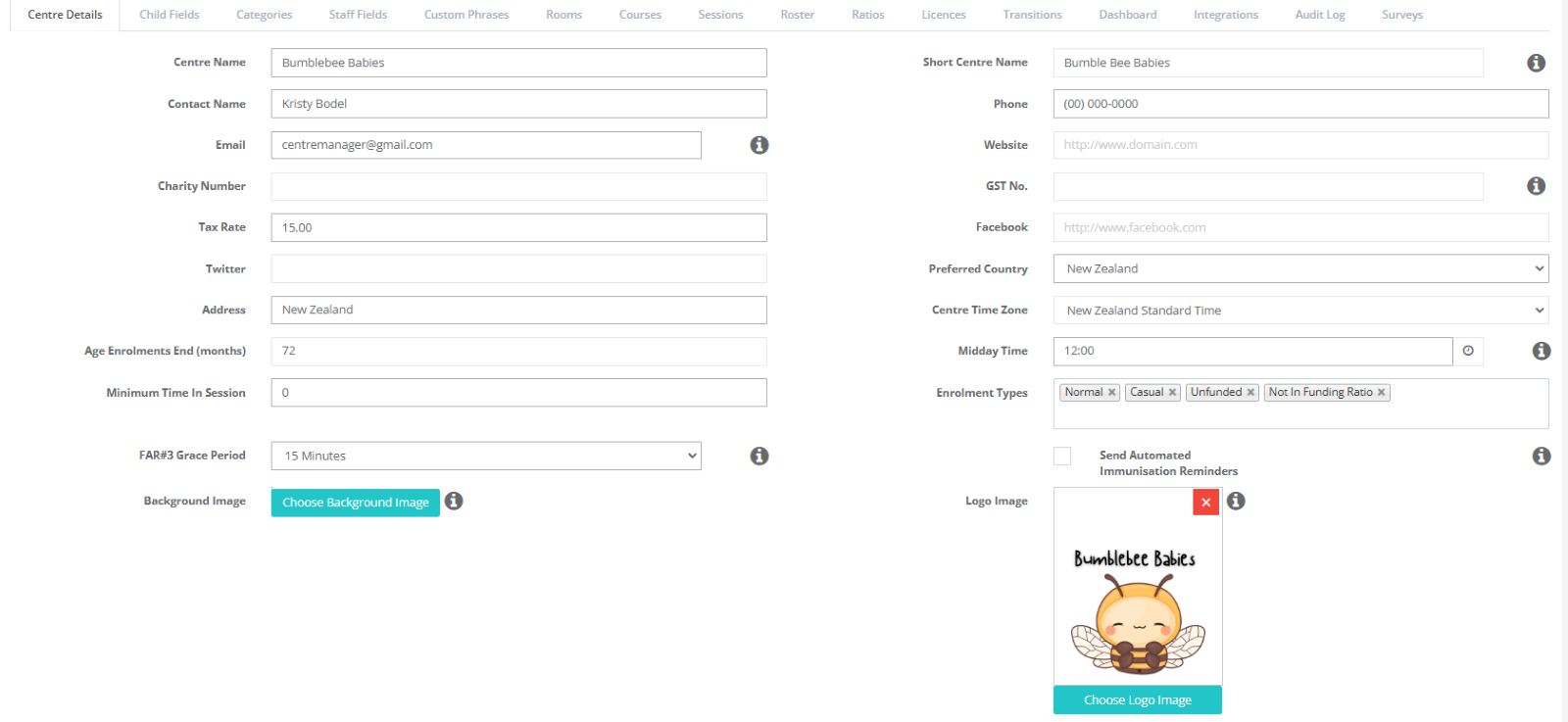
1. Centre/Service Details
Mandatory
Navigate to: Centre/Service Setup → Centre/Service Details
Review and confirm:
- Service name
- Email address
- Address and phone number
- Licence information
Important – Email Configuration - Check entire Centre Details page
If not updated, system emails may continue going to the onboarding contact.
Update email addresses in:
- Centre Details
- Xero Integration (if used)
- Email Account Settings (Name / Accounts / Marketing)
- Email Notifications
- Website Widget Enquiries
You may use one shared email or separate addresses.
2. Visual Settings
Optional
Navigate to: Centre/Service Setup → Under Centre/Service Details
Optional
Upload:
- Service logo
- Tablet background image
Action: Skip for now unless branding is a priority.
3. Roster Settings
Mandatory for centre-based services
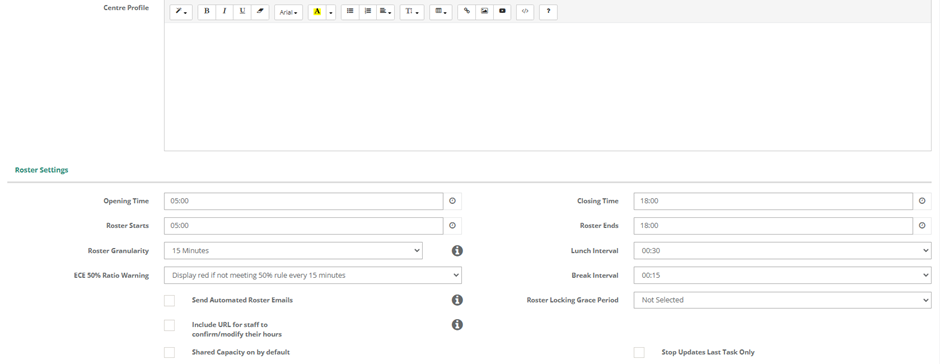
Centre/Service Set Up > Roster Settings
Centre / Service Set Up > Roster Tab
Review:
- Roster intervals (recommended: 15 minutes)
- Break settings
- Ratio warnings
- Roster locking
- Notifications
- Roster Tab - This is where you create actions for the Roster & Add in your Roster Codes to match your payroll system.
Action: Complete if you use rostering or payroll.
4. Waitlist Settings
Optional
Controls how families confirm their place on the waitlist.
Action: Complete only if you actively manage a waitlist.
5. Centre Holidays
Recommended
Controls the amount of absent/holiday discounted days that can be applied to any child
throughout the calendar year. This can be set to pro rata, or total discounted days.
_________________________________________________________________________
6. Tablet Settings
Optional
Controls tablet functionality.
Action: Skip unless tablets are being used immediately. Covered later.
7. Transition Settings
Optional
Controls transition screen visibility and display settings.
Action: Complete later if required.
8. Enrolment Settings
Optional
Most services can leave these as default.
9. Invoice Settings
Recommended
No full setup required at this stage. This will be addressed during Invoicing & Parent Payments week.
Action: Familiarise only — detailed setup occurs later.
10. Early & Late Fees
Optional
Set penalties for early/late attendance.
Action: Complete only if applicable.
Please Note: if set to Automate, you cannot remove an invoice for early or late fees without it returning the next time you run invoices.
11. Bonds
Optional
Used to manage bond payments.
12. Payments & Integrations
Recommended (if you use any of the external systems below)
Includes:
- Xero
- WINZ
- SMS (Twilio)
- Email configuration
Action: Review only what applies to your service.
13. Website Widgets
Optional
Controls how your service appears in:
- Enquiry forms
- Enrolment forms
- Parent portal
14. MOE Settings
Optional
Review Options
15. Report Options
(Optional)
Choose display preferences (e.g. date/time on reports).
Additional Items to Review
Fees
Mandatory
Centre Set Up > Fees
Configured by your Onboarding Specialist.
Review for accuracy.
Charge Adjustments & Discounts
Optional
Centre Set Up > Charge Adjustments / Discounts
Only required if your service uses them.
Settings Tabs Overview
After completing Centre/Service Settings, review the tabs across the top.
You do not need to complete all tabs now.
These are found under Centre/Service Settings > Tabs Run Across the Top of the Screen
1. Child Fields
Optional
Custom fields for child profiles and enrolment forms.
Permission - True or False answers - Default to Child Profile, Digital and Paper Enrolment Forms
2. Categories
Optional
Used for grouping and reporting.
Create Category, Assign to Child Profile, Run Reports using the Category Fields
3. Staff Fields
Optional
Additional staff information fields.
Allow you to capture Custom Information about your Staff/Teachers/Educator.
4. Custom Phrases
Optional
Customise wording across the system.
5. Rooms
Centre-based only - Rooms
Review room setup and capacity.
6. Ratios
Optional
Set custom staff-to-child ratios if required.
7. Rosters
Mandatory if using payroll
Add payroll codes and roster settings.
8. Licences
Mandatory
Review for accuracy.
Do not Change Licence Start date to future date.
9. Transition Screen
Optional
Allows you to customise the Transition Screen Options if you choose
10. Dashboard
Optional
Customise what your Discover users see. This will apply to all users.
11. Surveys
Optional
Templates
Set Up What You Need First
Mandatory
Go to: Centre Setup → Templates
Edit by:
- Opening a template
- Making changes
- Saving
Prioritise These
- Default Email Signature
- Tax Statement / Invoice Instructions
You do not need to configure all templates immediately.
Calendar
Mandatory
Go to: Centre/Service → Calendar
Use to track:
- Holidays
- Child movements
- Staff events
- Key dates
Action: Enter all your Staturday Holidays and Closure Dates
Digital Enrolment Form
Optional
Customisable via Templates and Child Fields.
Includes:
- Policies
- Declarations
- Fee information
- Upload requirements
Widgets can be used to:
- Share a direct enrolment link
- Embed the form on your website
Action: Complete later if using online enrolment.
Milestone 1 Complete
Once the following are done, your foundation is in place:
- User access set up
- Centre/Service details confirmed
- Email settings updated
- Licence reviewed
- Fees reviewed
- Rosters configured (if applicable)
- MOE settings reviewed
You can now continue onboarding or return to optional settings as needed.
Was this article helpful?
That’s Great!
Thank you for your feedback
Sorry! We couldn't be helpful
Thank you for your feedback
Feedback sent
We appreciate your effort and will try to fix the article