- Create a new staff profile
- Teacher Certifications
- Homes Tab
- Associates Tab
- Children Tab
- Assigning Educators to Coordinators
When your Discover Homebased service is created, it will include a default educator.
If you are using the Digital Enrolment Form, we recommend keeping the default educator. When a parent submits an enrolment form, the child is automatically enrolled with this educator, ensuring the enrolment is successfully created.
Once the child has been added to the system and a place is available with their allocated educator, you can update the enrolment and assign the child to the correct educator.
Understanding Educators in a Homebased Service
In a Homebased service, educators function like rooms in a Centre-based service. Each educator must have their capacity, age group, and other details configured before they can accept enrolments.
A simple way to think about it is that each educator is like a small service within your overall Homebased service. Every educator has their own capacity, enrolments, and availability, so each one needs to be set up individually before children can be assigned to them.
Create a new staff profile:
- Navigate to the Staff tab via the left-side menu.
- Select 'Staff & Educators'.
- In the Staff list, to the bottom left, click the green 'Create New' button.
- Input the relevant information to build out the core of this new staff profile.
- Under 'Employment Details', select 'Educator' in the 'Staff Member Type' field. (This is a must!)
For Coordinators select 'Coordinator' in the 'Staff Member Type' Field (This is a must!) - Press save at the bottom right of the screen.

Please note: Once you have saved the profile, you can re-enter by clicking on the Educators name from the Staff list, to add further details to their record.
If the profile does not save, please be sure to check all mandatory fields have been entered in the profile. A red outline will be displayed for any required fields that have been missed.
Teacher Certifications
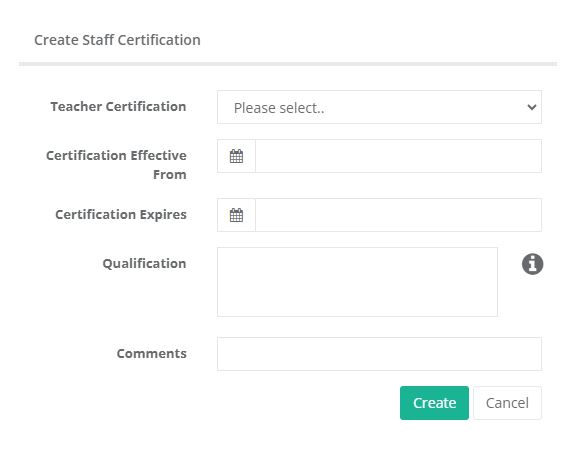
We advise keeping records of staff members' qualifications and the period in which they were effective. This ensures Discover can specifically calculate ratios with the relevant qualification throughout the day.
As a staff member gains a new or updates an existing qualification, please ensure they are updated in Discover with the relevant dates that they cover.
- Navigate to the Staff Profile.
- Click the 'Teacher Certifications' tab.
- Click 'Create New'.
- Enter the type of certification, the effective date and expiration.
- Type in the qualification name in the Qualification field (only if 'Other' has been selected in the dropdown above).
- Type in any comments (optional).
- Click 'Create'.
Homes Tab
The Homes tab functions as a type of 'Personal License' for Educators.
When enrolling children, the Home record for the educator will be the room assigned*.
Once your Educator profile has been created, navigate to the Homes tab at the top of the record.
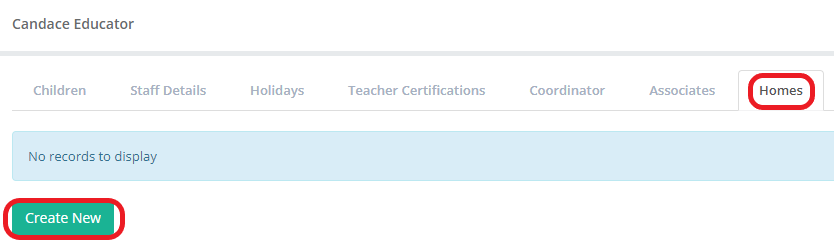
1. Select 'Create New'.
2. Enter the Educator's details, including capacity, age range, address and absentee option.
3. Select 'Create'.
4. You will not be able to Enrol Children under an educator unless the Homes Tab is set up
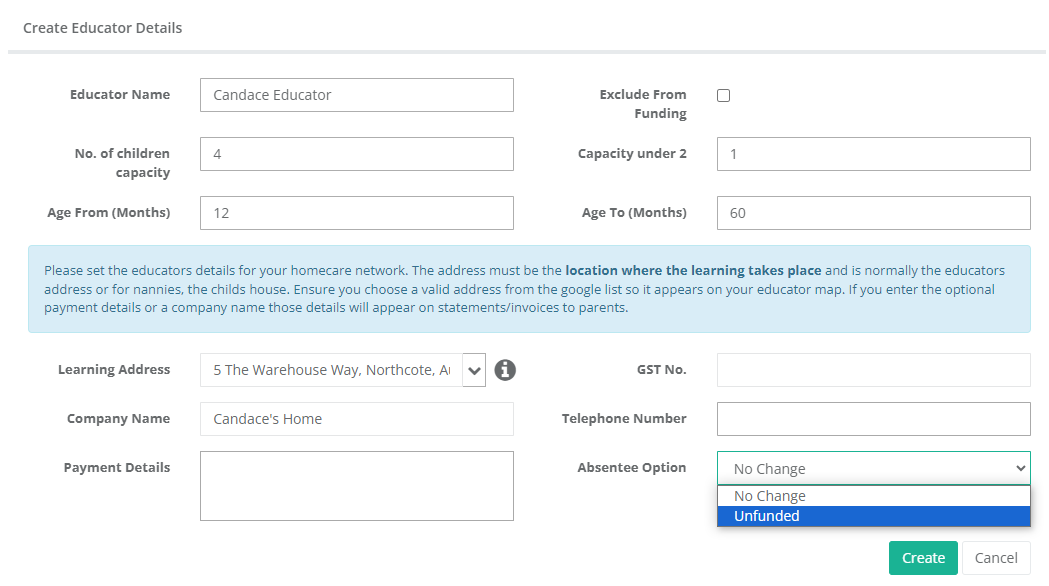
* Make sure there is text in the Payment Details Field. Even if it is ** before you save.
*If there are any difficulties in enrolling a child, the Homes tab is a useful place to check all details are correct. Regarding funding troubleshooting, the 'Exclude from funding' checkbox is of particular note here.
Associates Tab
Educators for homebased services are required to declare any adults/children aged 16+ that live in the premises they are caring for the children in.
These adults are also required to undergo police checks and be vetted appropriately, regardless of whether they are present in the home during operating hours normally.
To help services track who these associates are and make sure these checks are up to date, they can be added via the Associates tab on the Educator's profile.
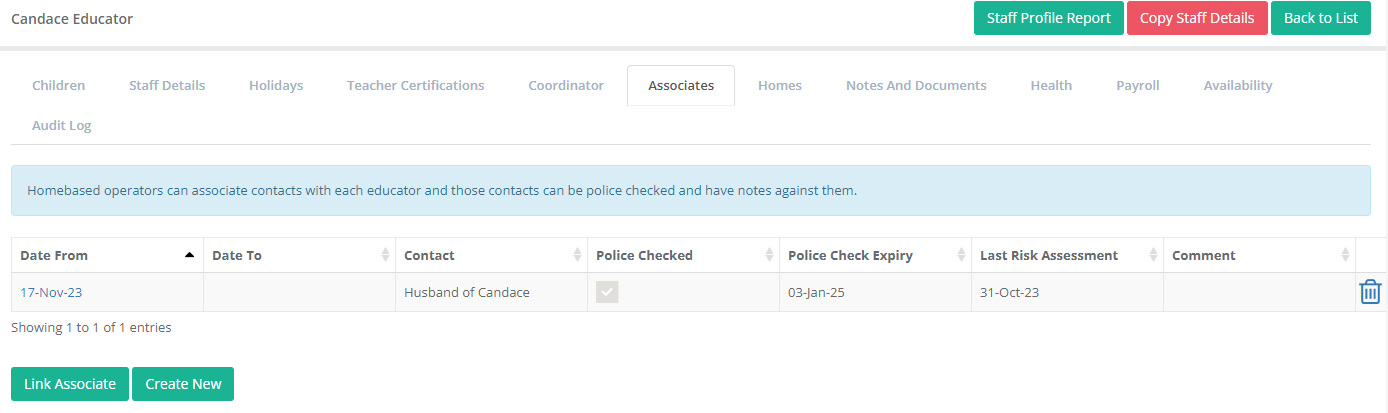
1. Click 'Create New'.
2. Enter the Associate's details.
3. Click 'Save'.
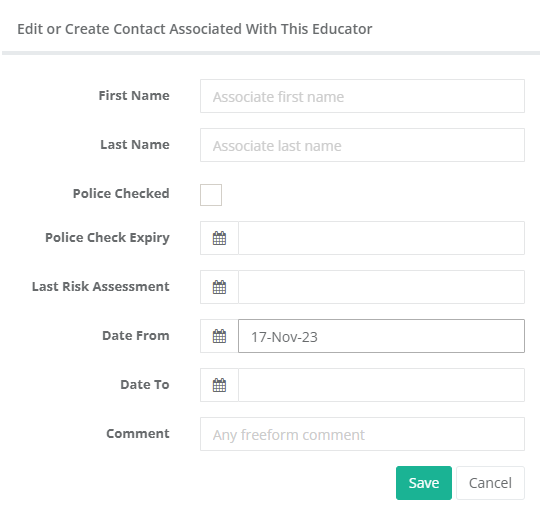
An existing contact within Discover can be added by clicking on 'Link Associate'.
Children Tab
As of 2023, Educators need to include any child of their own as one of the children in their home that will count towards the number of children in their care.
To monitor this, their child needs to be registered in Discover.
With a few exceptions, this child will not be eligible for any funding whilst in their parent/guardian's care.
1. Under the Children tab, click 'Create New Educator Child'.
2. Enter the details of the Educator's child and click 'Create'.
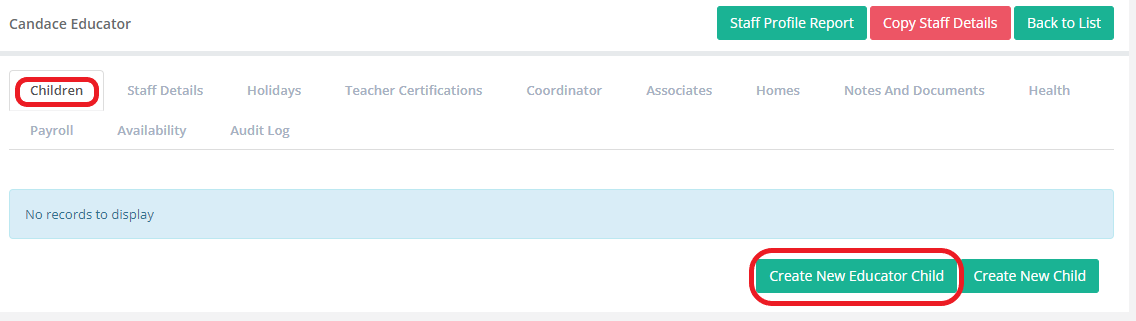
Please note:
- Once the Educator's child has been saved, Discover will automatically create an enrolment for the child that will be visible under the Educator's 'Child' tab.
- Creating their child via 'Create New Educator Child' means the child will not appear on the Attendance tab in the main menu as they do not have an NSI.
- They will also not be visible in the Child list. Their profile will only be accessible via the Educator's profile.
For further information on Staff Profiles, including the Staff Details, holidays, Teaching Certifications, Notes & Documents, Health, Payroll, Availabilities and Audit Log tabs, please see our article Staff: Profiles
Assigning Educators to Coordinators
- Go to the Staff & Educator Menu
- Select the Coordinator
- Make sure the Staff Member Type is Coordinator
- Go to the Educator Tab
- Select Create New
- Select the Starts Date
- Select the Educator
- Save
Was this article helpful?
That’s Great!
Thank you for your feedback
Sorry! We couldn't be helpful
Thank you for your feedback
Feedback sent
We appreciate your effort and will try to fix the article