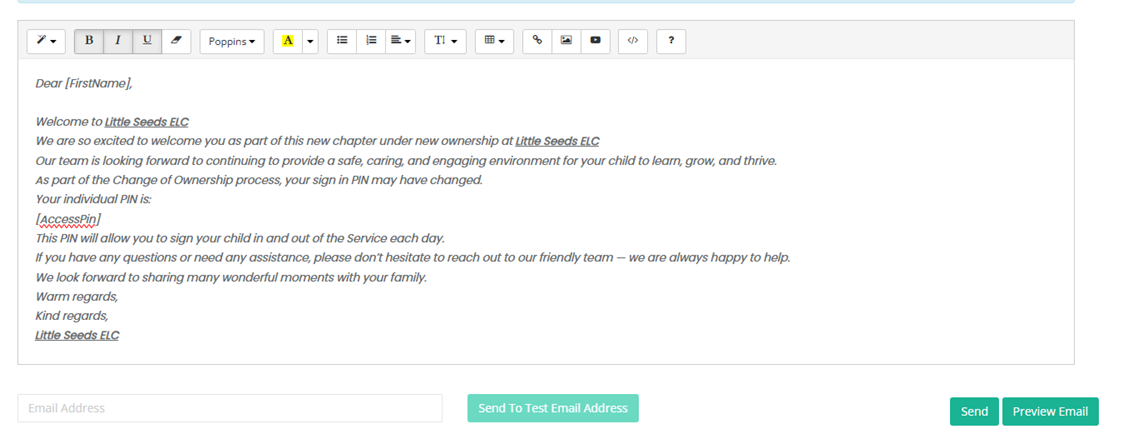
To send this email via Bulk Communication in Discover, please copy to Notepad and then into Bulk Communications: (Ensure you change {CentreName} to your own centre name, with any other information you would like to include)
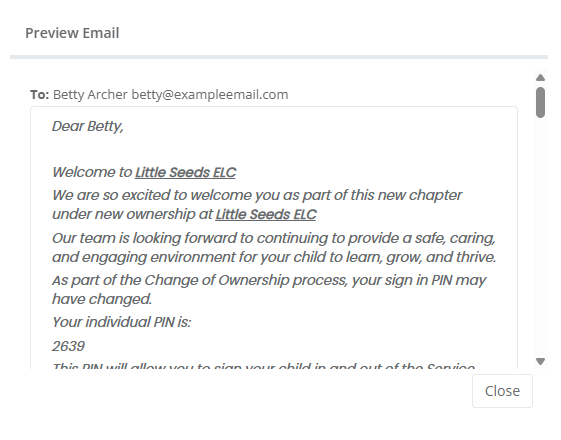
You can check the Pins and Names by Previewing the Email
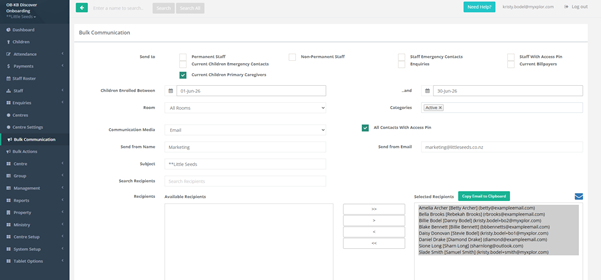
Go to the Bulk Communication Menu down the side Menu of Discover and Copy & Paste the information you choose:
Bulk Communication
Dear [FirstName],
Welcome to {CentreName}
We are so excited to welcome you as part of this new chapter under new ownership at {CentreName}
Our team is looking forward to continuing to provide a safe, caring, and engaging environment for your child to learn, grow, and thrive.
As part of the Change of Ownership process, your sign in PIN may have changed.
Your individual PIN is:
[AccessPin]
This PIN will allow you to sign your child in and out of the Service each day.
If you have any questions or need any assistance, please don’t hesitate to reach out to our friendly team — we are always happy to help.
We look forward to sharing many wonderful moments with your family.
Warm regards,
Kind regards, {CentreName}
In The Bulk communication screen
- Select Current Children Primary Caregivers
- Select the Enrolment Dates
- Select the >> to move all email addresses to selected recipients
- Customise your message for Signing in and out procedure
- Select Send to send out to families in Bulk
Add this to your Centre Settings > Templates > Email Access Pin
Go to Centre Set Up > Templates >
Search > Email Access Pin
Copy one of the below Family Communication Templates and Paste into Notepad. Then search for “Email Access Pin” In Templates.
Copy the message from Notepad into the Email Template.
This will allow you to send the Pin/Home Information via the Contact Tab by Selecting the Envelopment next to the Contact Name.
Dear [ContactName],
Welcome to {CentreName}
.As part of your Enrolment here we will be using an app called Home.
Once you have downloaded the Home App you can sign your child in using the app OR you can type your Pin into the Tablet to sign your child in.
All families will need access to the App for Weekly Attendance Confirmation.
To download the Home App > Go to your relevant App Store > Search Xplor Home > The App Icon is a red square with a white house in the middle.
Enter your email address & your pin into the Password box. This pin you can also use on the keypad screen of the Tablet to sign your child in and out.
This is your Individual Pin [AccessPin].
Kind regards, [{CentreName}
Email Pin for Tablet Only Template
Dear [ContactName],
Welcome to {CentreName}
This is your individual PIN: [AccessPin]
This PIN will allow you to sign your child in and out of the Service.
If you have any questions, please feel free to contact our team.
Kind regards, {CentreName}
To send this information to an individual contact:
Go to the Children Menu
Select Child
Go to the Contact Tab
Click on the Envelope next to the contact name
This will send the template you have created to the Parent/Guardian/Emergency Contact

Was this article helpful?
That’s Great!
Thank you for your feedback
Sorry! We couldn't be helpful
Thank you for your feedback
Feedback sent
We appreciate your effort and will try to fix the article