If you are using the Discover Tablet + Pin but you cannot see the QR Code on the Tablet Sign in screen, contact Discover (support@superioradmin.co.nz) and we will enable this for you. This is what allows you to use the Home App with Discover.
Parents/Guardians need the following to be able to access the Home App/Web.
1. A Unique Email address
2. A mobile number
2. Have Primary Carer Ticked
3. Have Can Pick Up Ticked
To check this information
- Go to Reports
- Children Reports
- Contact Report
- In details - select email address, phone number, can pick up, primary contact, etc.
- Select Get Report
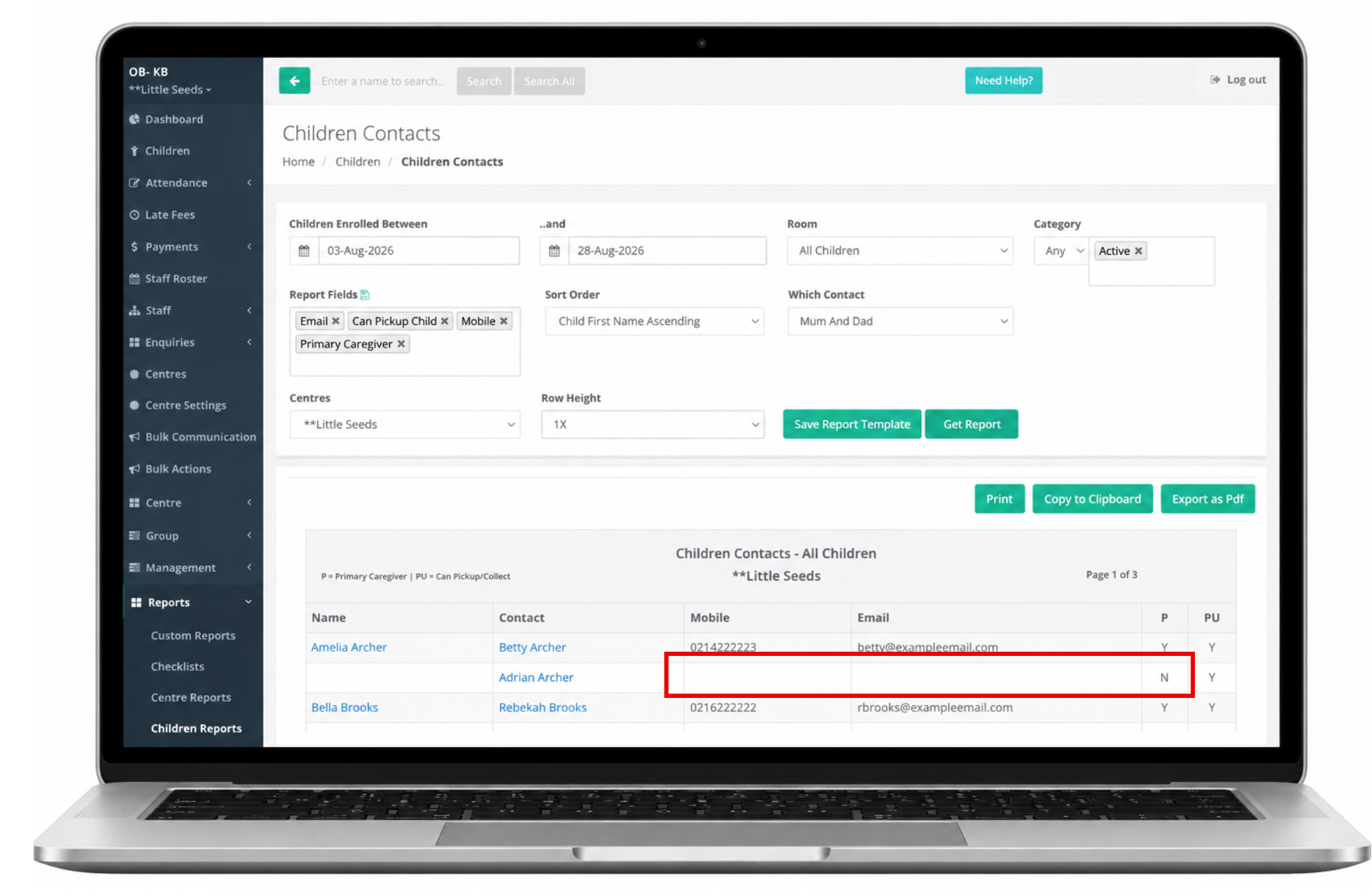
Once you have run the report, Identify any Emails & Permissions that are missing.
Update this information in the Contact Profile.
For example: This contact is missing a phone number, email address, and the Primary Carer Permission. These will need to be updated before they will have access to Home.
To add in any missing information
- Go to the Children Menu
- Select the Child
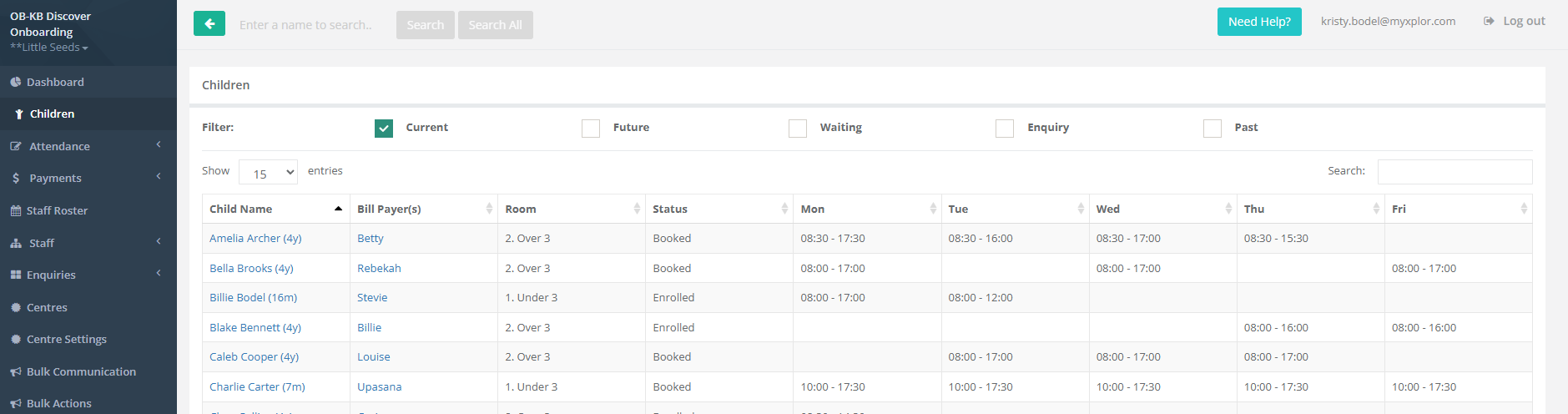
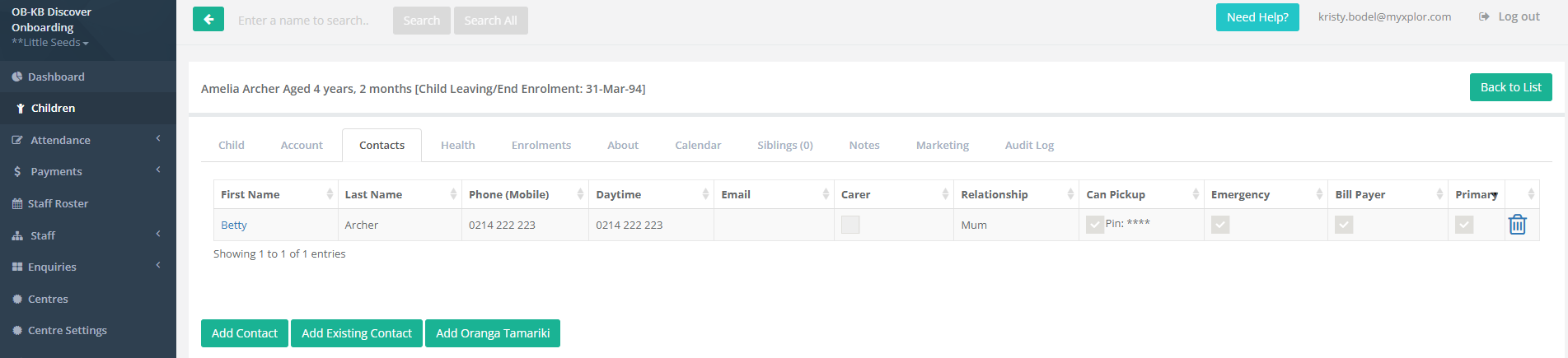
- Go to the Contact Tab
- Select the Contact
- Add in the missing information
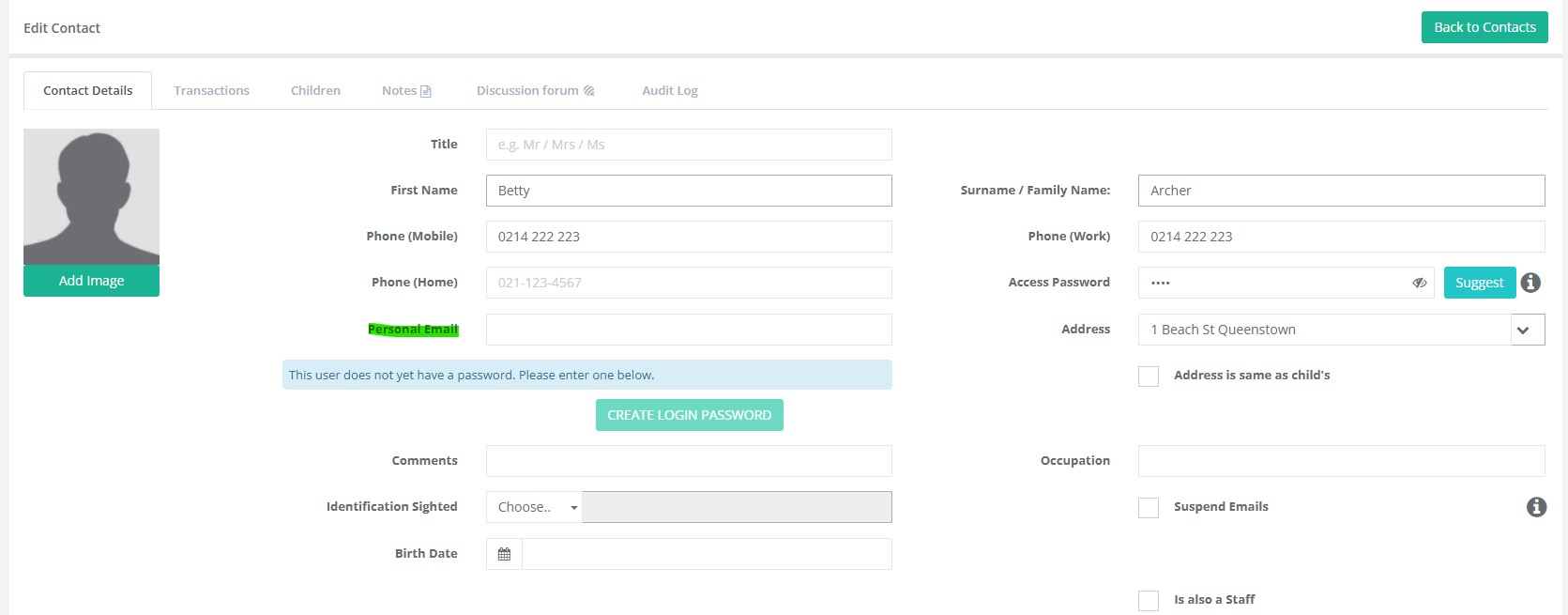

- Select Save
Please Note: Only the Billpayer can access the Financial Information via the Home App
If Primary Carer is not ticked, there will be functions missing from the App: Such as Attendance Verification.
Once all tasks are complete invite your families to the Home App
Was this article helpful?
That’s Great!
Thank you for your feedback
Sorry! We couldn't be helpful
Thank you for your feedback
Feedback sent
We appreciate your effort and will try to fix the article