Discover allows you to enable or disable holiday/absence entitlements. You can approve specific days as discounted, and bill payers will receive a credit note calculated based on the fees for those approved days. This functionality is managed by turning on Automatic Mode in your Centre Settings.
Discover automatically calculates each child’s annual entitlement per calendar year. This is based on the number of Holiday Days set in your Centre Settings and the child’s enrolled days, calculated on a pro‑rata basis.
For example, if your centre is set to 10 holiday days per year:
- A child enrolled 5 days per week for the full year will be entitled to 10 days.
- A child enrolled 3 days per week for the full year will receive 6 days (3/5 of the annual entitlement).
- A child enrolled 5 days per week for only half the year will be entitled to 5 days.

The number of #Holiday Days refers to how many absence or holiday days can be discounted (when the child does not attend) within the current calendar year.
Add a Holiday/ Absent Day to the Child Calendar
From the child’s Calendar tab, select a single day or multiple days (click and drag from the left side of the calendar dates to select more than one day). You’ll then be prompted to mark the selected days as Holiday or Absent and choose whether to apply a discount.
Select the appropriate day type from the dropdown menu, then choose the discount type to apply. Holiday days will only be allocated while the child still has sufficient entitlement remaining. Discover will automatically apply a credit to the child’s account for each approved day until their entitlement is exhausted.
The yearly allocation of Discounted Days will only be exhausted when the discount is used on Holidays and Absent Days.
If a Discount is applied, and the child attends, this does not count towards their yearly limit.
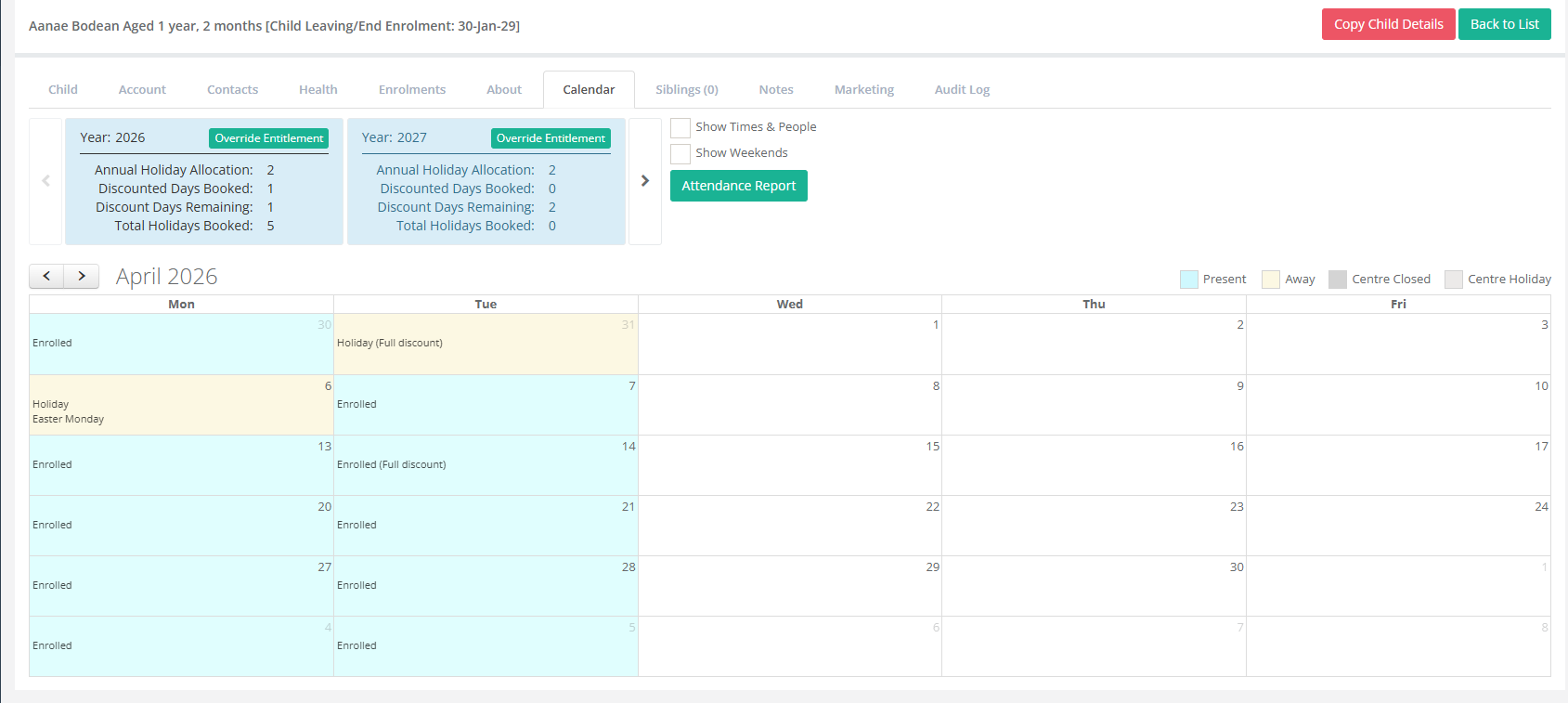

You can override the automatic calculation to give a child a specific amount in a year. Select the Override Entitlement button, add the correct number of days and save.
Was this article helpful?
That’s Great!
Thank you for your feedback
Sorry! We couldn't be helpful
Thank you for your feedback
Feedback sent
We appreciate your effort and will try to fix the article