You can record WINZ payments manually or set up Discover to create weekly receipts automatically. Choose the process that suits your centre, then check the receipts against your WINZ statement and the payments received.
Important: Discover is not connected to your bank account or WINZ statement. WINZ may pay a lump sum covering several children, so we do not recommend importing these payments from Xero or a bank file to allocate them to child accounts. Check the amount received and action any differences in Discover.
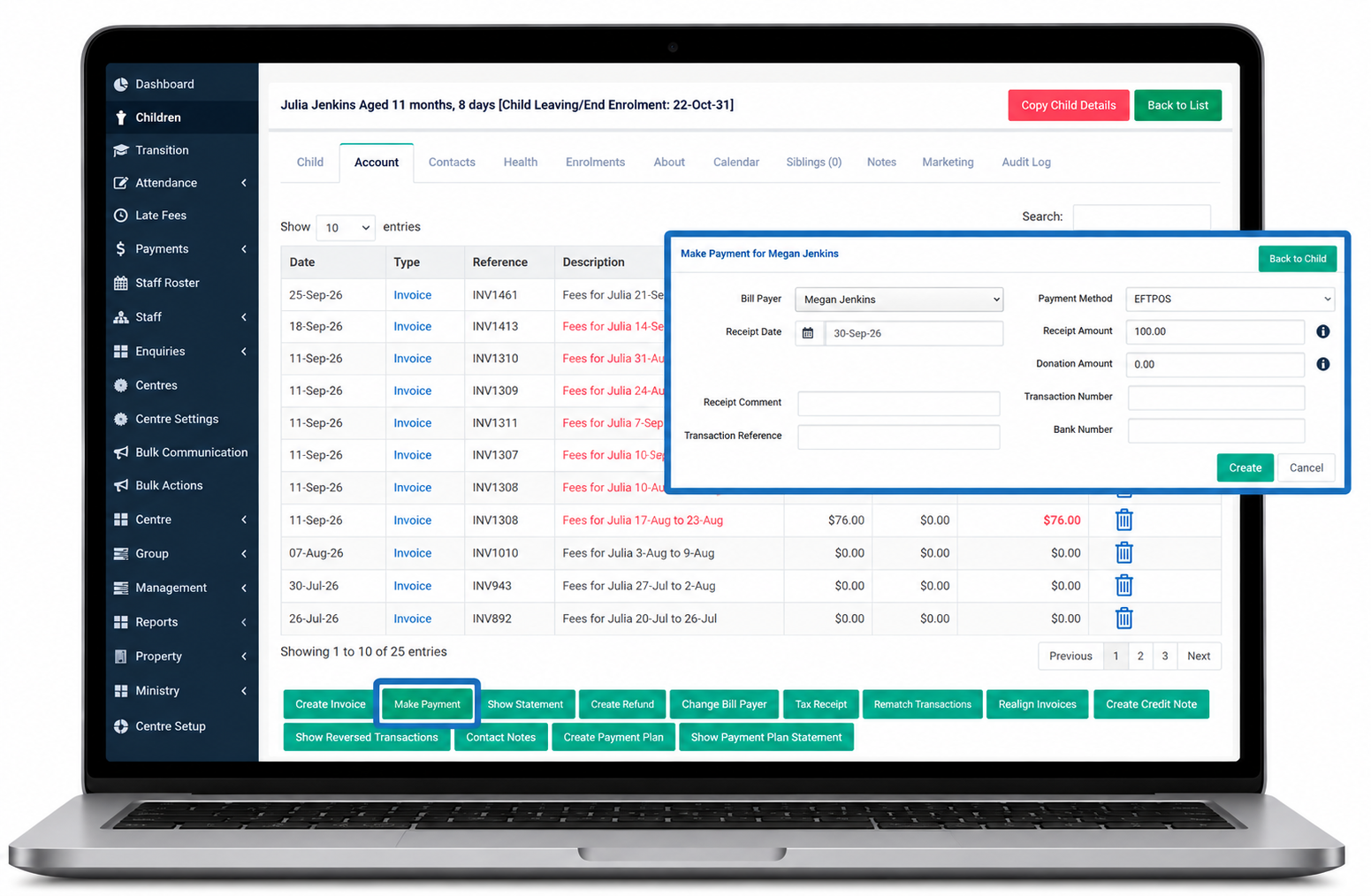
1. Manually record a WINZ payment
Use this process when you record all WINZ payments manually, need to add a historical payment, or need to replace an incorrect automated receipt.
- Go to Children and select the child’s name.
- Open the Account tab.
- Select Make Payment.
- Select the Receipt Date.
- Add a Receipt Comment and Transaction Reference, if required.
- Under Payment Method, scroll to the final option and select WINZ.
- Enter the Receipt Amount and complete any other required fields.
- Select Create.
2. Set up automated WINZ receipts
Automated receipts use the WINZ details recorded on each child’s profile. Discover creates them weekly in arrears. You still need to check them against the payments actually received.
Enable the WINZ options
- Go to Centre Setup > Centre Settings.
- Scroll to Payments – WINZ Options.
- Select the options your centre needs:
- Show WINZ Fields on Child: Displays the WINZ section on child profiles.
- Automate WINZ Payments: Creates receipts from the WINZ details recorded on child profiles.
- Default Week Is Last Week: Shows the previous week by default in the WINZ Payments report.
- Scroll to the bottom of the page and select Save.
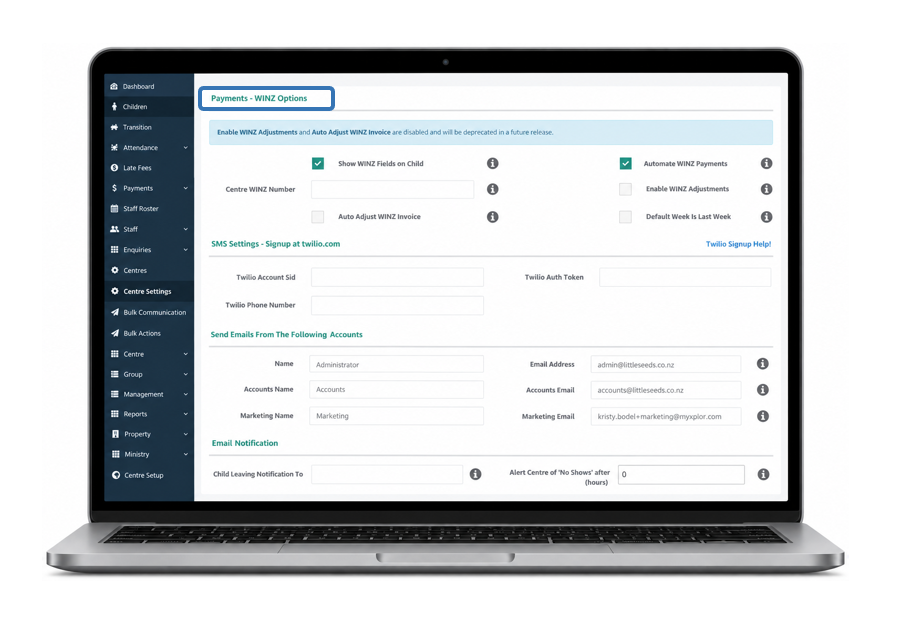
Legacy settings: Auto Adjust WINZ Invoice and Enable WINZ Adjustments can no longer be switched on or off. If either was previously enabled, it will remain active until the option is retired. Contact Support if you need it deactivated.
**These options are scheduled for retirement in November 2026.
Add WINZ details to a child’s profile
- Go to Children and open the child’s profile.
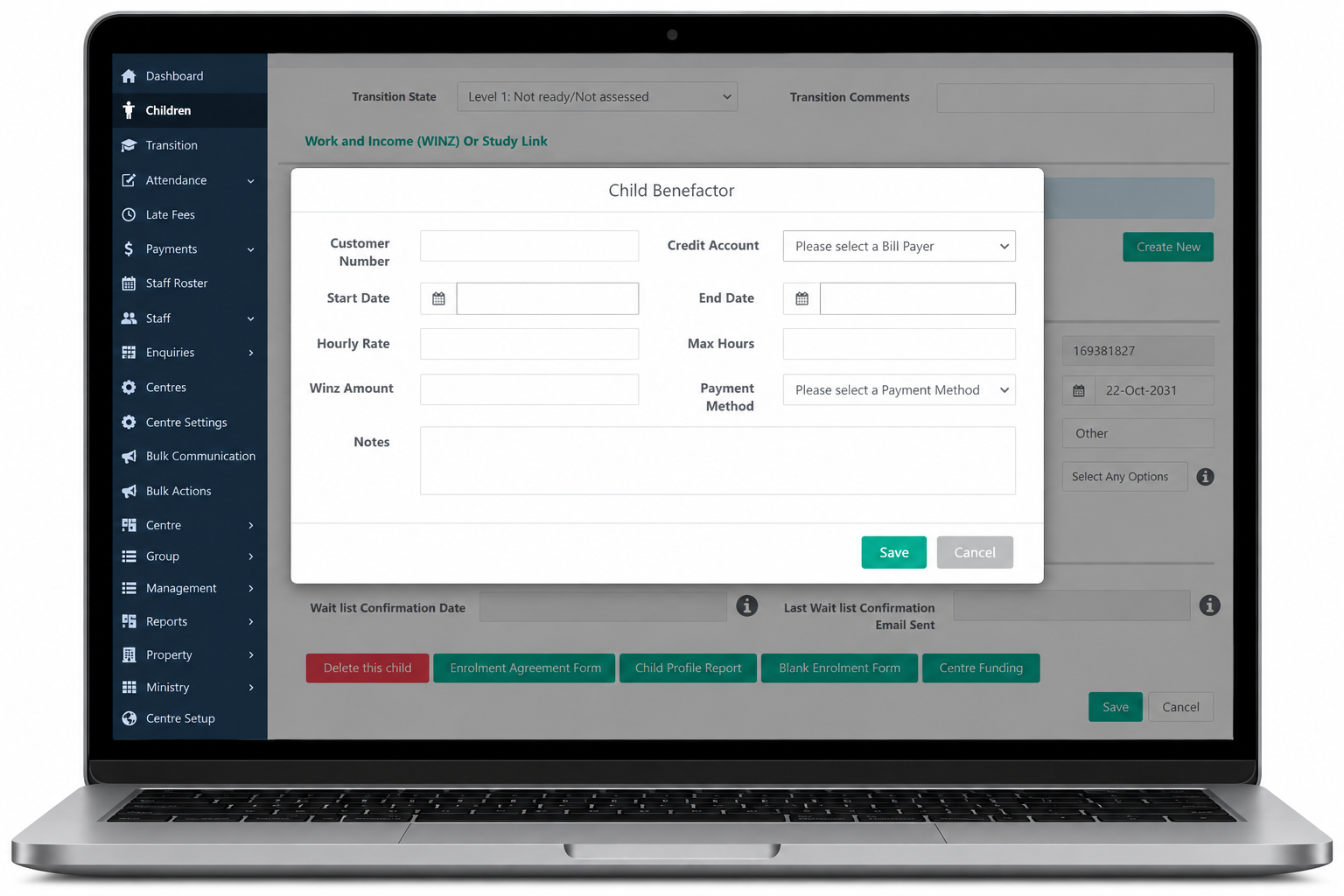
- Scroll to Work and Income (WINZ) or StudyLink.
- Select Create New.
- Enter the required details, including the amount and start date.
- Select Save.
Automation does not backdate receipts. Entering an earlier start date will not create receipts for every past week. Record any missing historical payments manually using the process in section 1.
For example, if you enable automation on 15 May 2026, a receipt for the week beginning 11 May may be created the following week. If the child was also entitled to $117 for the week beginning 4 May, record that earlier payment manually.
Change or stop automated payments:
- Change one upcoming week: Go to Payments > Child Benefactors. Select the clipboard icon for the relevant week, adjust the amount and select Save. The following week returns to the amount recorded on the child’s profile.
- Correct a receipt already created: Delete the incorrect receipt from the child’s Account tab, then manually record the correct payment.
- Change the ongoing amount: End the current WINZ record the day before the new amount takes effect. Create a new record with the updated amount and start date. Review any enrolment discounts or adjustments linked to the WINZ amount.
- Stop payments: Add an end date to the current WINZ record.
- Restart payments: Update the child’s WINZ records with the appropriate dates and amounts. Manually record any missed payments; restarting automation does not backdate receipts.
Reconcile and report on WINZ payments
Compare receipts in Discover with your WINZ statement. Investigate payments that are late, short paid or different from the amount recorded on the child’s profile. Discover also sends an email summarising processed automated payments and any exceptions that prevented a receipt from being added.
Under Finance Reports, you can use:
- WINZ Payments: Select a date range and sort by date, bill payer or child. You can copy the results to Excel for further analysis.
- Financial Transactions: Select a date range, then filter for Payments and WINZ.
WINZ payments, discounts and centre holidays
Discounts: If you apply a discount that affects a family’s WINZ payment, report the change to WINZ so the centre receives the correct amount. WINZ may seek a refund if it pays more than the family is entitled to.
When processing an enrolment, use the calculator beside the Discount row to calculate a discount before or after WINZ. If the discount should apply after WINZ, select After WINZ, enter the percentage and select Add. Check the resulting enrolment fee before saving.
Centre holidays: Review your public holiday charging rules and each child’s WINZ arrangement. If families are not charged for a public holiday, check whether a WINZ receipt should be created for that day.
Please Note: Any discounts applied that affect Fees, need to be reported to WINZ to ensure the correct amount is being received to the centre. If not, WINZ may require a refund for these funds, or the customers account may end up in credit due to overpaid WINZ.
Was this article helpful?
That’s Great!
Thank you for your feedback
Sorry! We couldn't be helpful
Thank you for your feedback
Feedback sent
We appreciate your effort and will try to fix the article