To create a new staff profile for your Administrator/s:
- Navigate to the Staff tab via the left-side menu.
- Select 'Staff & Educators'.
- In the Staff list, to the bottom left, click the green 'Create New' button.
- Input the relevant information to build out the core of this new staff profile.
- Make sure that your Administrator has an email address in the System Log in section. You will need to email the Administrator by selecting the envelope to set their password.
- Press save at the bottom right of the screen.
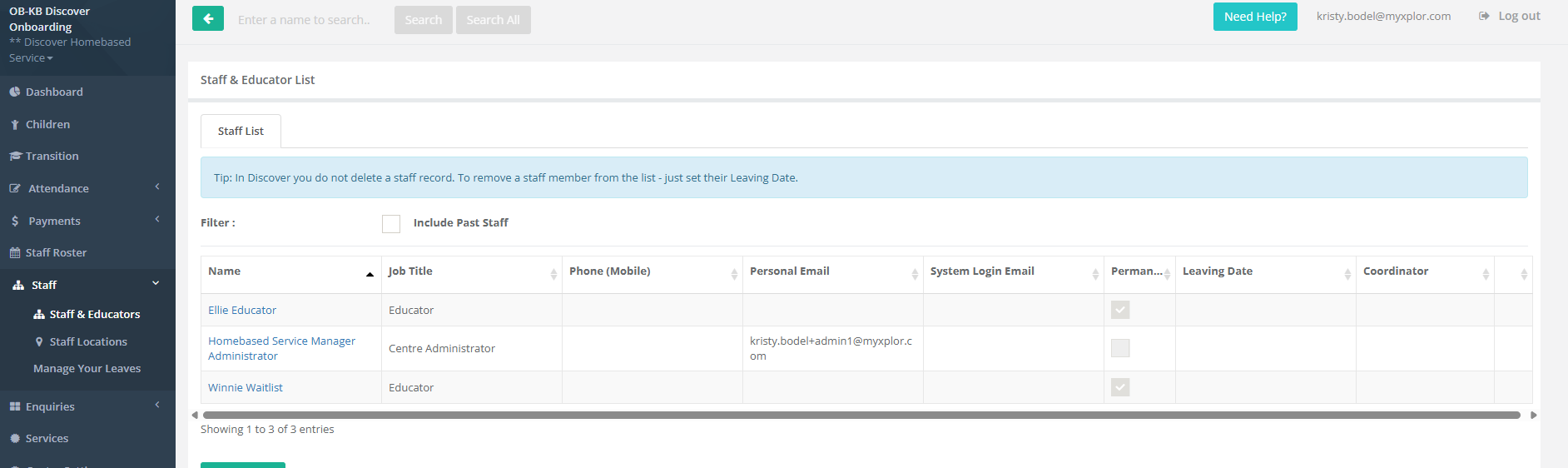
Please note: Once you have saved the profile, you can re-enter the profile by selecting their name in the list.
Teacher Certifications Tab
We advise keeping records of staff members' qualifications and the period in which they were effective. This ensures Discover can specifically calculate ratios with the relevant qualification throughout the day.
As a staff member gains a new or updates an existing qualification, please ensure they are updated in Discover with the relevant dates that they cover.
- Navigate to the Staff Profile.
- Click the 'Teacher Certifications' tab.
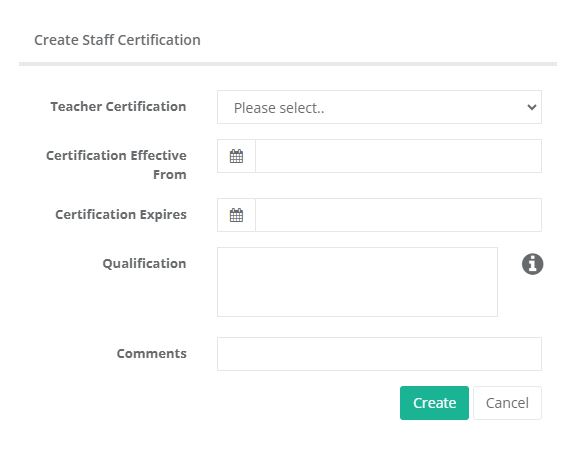
- Click 'Create New'.
- Enter the type of certification, the effective date and expiration.
- Type in the qualification name in the Qualification field (only if 'Other' has been selected in the dropdown above).
- Type in any comments (optional).
- Click 'Create'.
If the profile does not save, please be sure to check all mandatory fields have been entered in the profile. A red outline will be displayed for any required fields that have been missed.
Was this article helpful?
That’s Great!
Thank you for your feedback
Sorry! We couldn't be helpful
Thank you for your feedback
Feedback sent
We appreciate your effort and will try to fix the article