TABLE OF CONTENTS
- Teacher has not received the Playground Invitation
- Teacher Cannot Log In to Playground Web
- Teacher Cannot Log in to the Playground App
- Change an Educator’s Login Email or Mobile Number
Teacher has not received the Playground Invitation
Ask them to check their Junk/Spam folder
Ask if their email address or mobile number has changed
Try Resend Welcome Email from their staff profile
Make sure No Access is unticked
Check their is no leaving date in the staff profile (including a future date)
- If all else fails email support@superioradmin.co.nz and advise that the Teacher has not received a Welcome Email from Playground - Provide your Centre Name, Teacher Name & Email Address & we can assist.
Teacher Cannot Log In to Playground Web
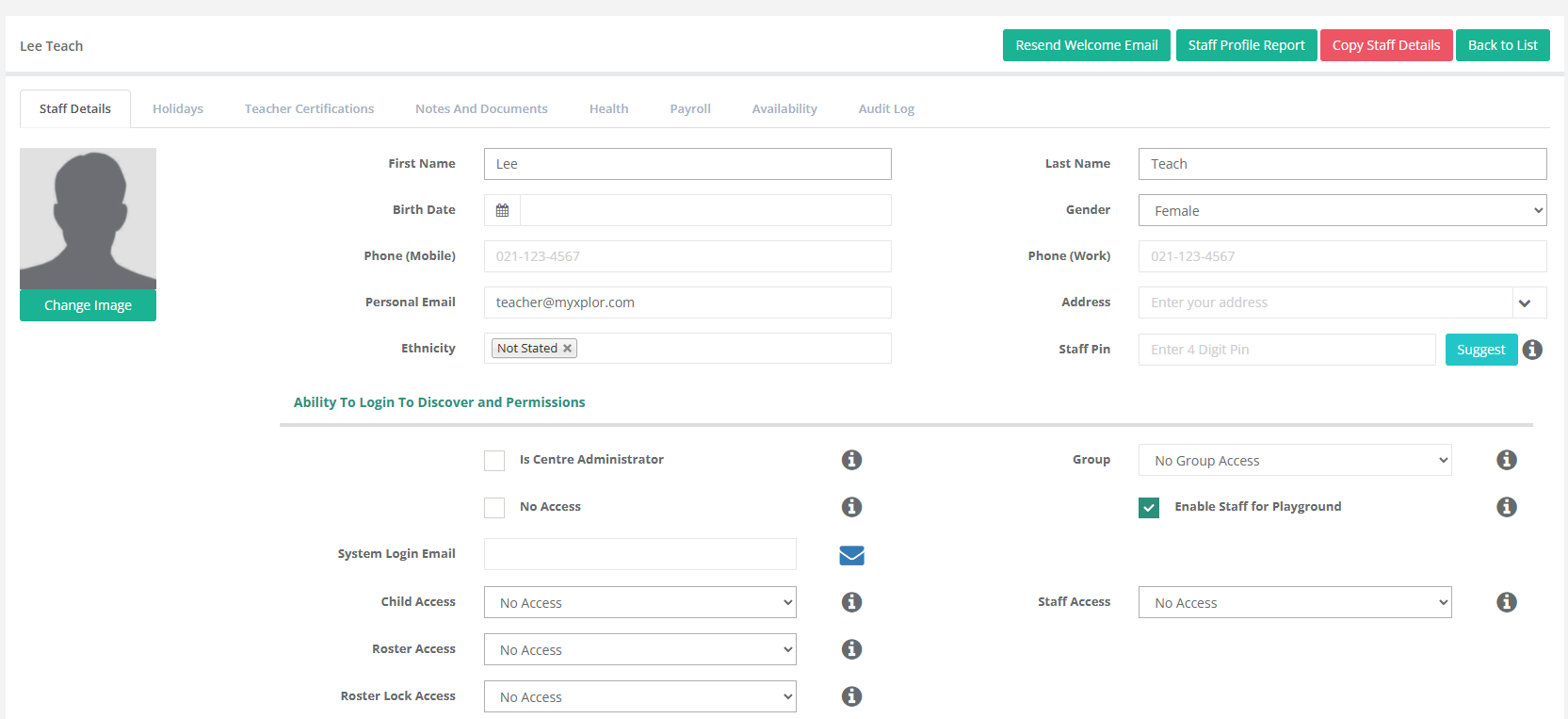
First, check the staff member’s profile:
- Go to Staff Profiles.
- Select the staff member’s name.
- Confirm the following details:
- An email address is entered in the Personal Email field.
- No Access is unticked.
- Select Save.
If you made any changes, ask the staff member to try logging in again.
Reset a Teachers Log in Password
If the staff member’s profile details are already correct:
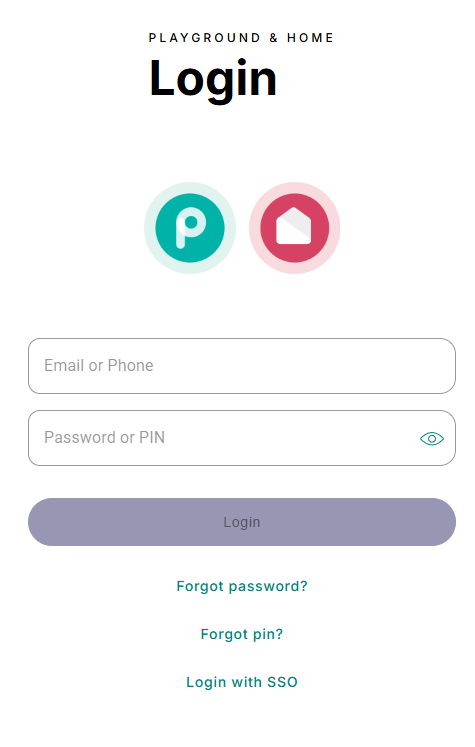
Go to the Log in screen for Playground https://login.myxplor.com/?app=playground
Select Forgot Password
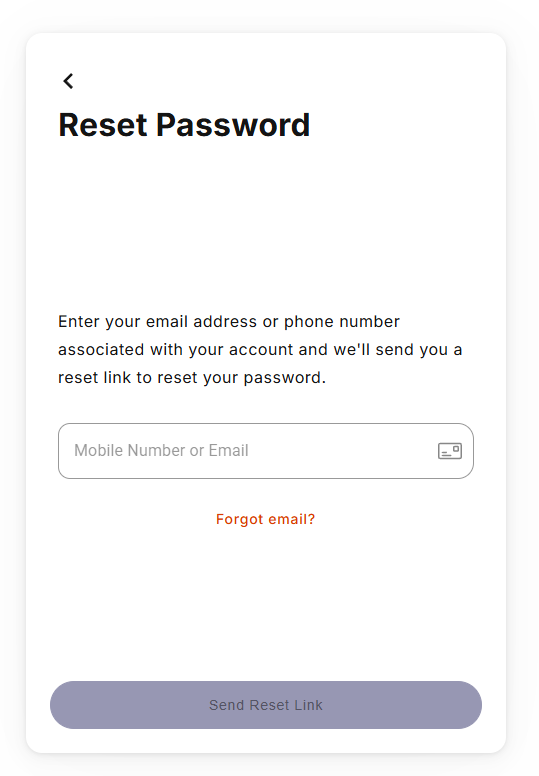
Enter your Mobile Number OR Email
Select Send Reset Link
Teacher Cannot Log in to the Playground App
There are 2 Log ins for the Playground App
The first one you need is the centre log in, it connects Discover to Playground.
(Everyone who is using the Playground App needs to sign in first with the Centre Log In)
The second log in, is the Teacher Log in.
Step 1: Check the Centre Login
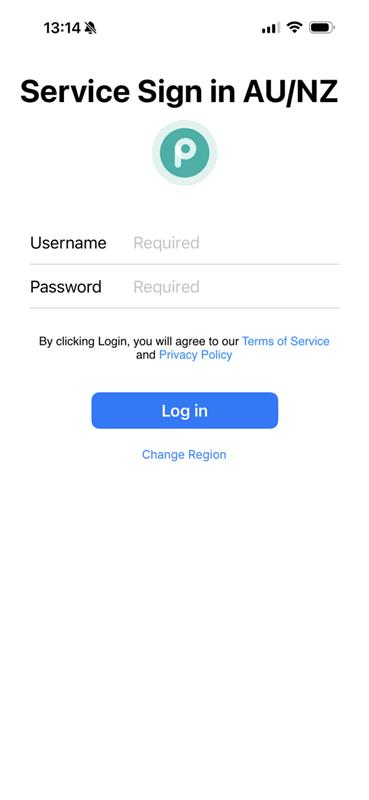
First, log in to the Playground App using the centre’s username and password.
- The username will begin with discover-xxxx.
- The password was created when the centre completed onboarding.
These details are managed by the centre. We do not store or have access to the centre’s password.
Resetting the Centre Password
If the centre password needs to be reset, email Discover Support:
Email: support@superioradmin.co.nz
Subject: Please Reset Playground App Centre Login
Include:
- Centre name
- Centre email address
You will receive an email containing a password-reset link.
Please note: once the password has been reset, all devices will need to log back in to the Playground App using the new password.
Step 2: Try the Teacher Login
Once the centre login is working, try logging in as the teacher.
Teachers must use one of these combinations:
- Email address and password, or
- Mobile number and PIN
The login methods cannot be mixed. For example, you cannot use an email address with a PIN.
Change an Educator’s Login Email or Mobile Number
Changes to an educator’s Playground login email address or mobile phone number must be completed by Discover Support.
Send an email to Discover Support: support@superioradmin.co.nz using the following details:
Email subject: Playground Educator Login Details Change
- Centre name:
- Staff member’s name:
- Current email address:
- New email address:
- Current mobile number:
- New mobile number:
Only include the fields that need to be changed.
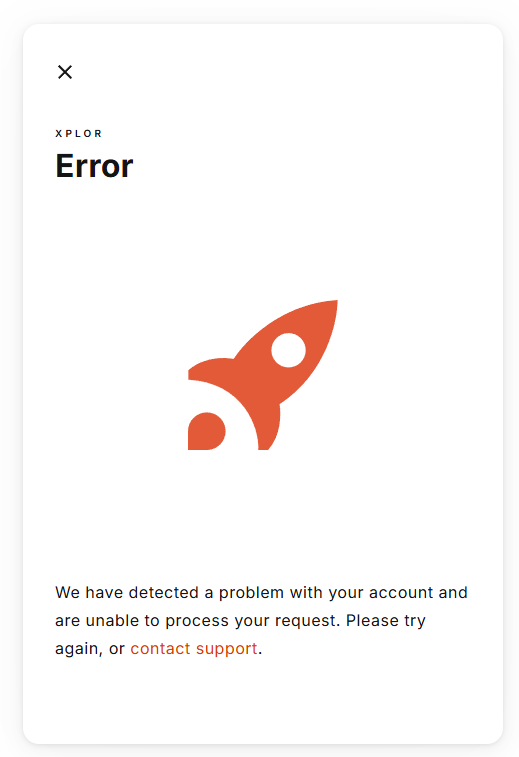
Receiving an Error Screen
Send an email to Discover Support: support@superioradmin.co.nz using the following details:
Email subject: Playground Log in Error Message
- Centre name:
- Staff Member Name
- This issue most commonly occurs when an educator is setting up their login for the first time and there is a technical issue.
Was this article helpful?
That’s Great!
Thank you for your feedback
Sorry! We couldn't be helpful
Thank you for your feedback
Feedback sent
We appreciate your effort and will try to fix the article