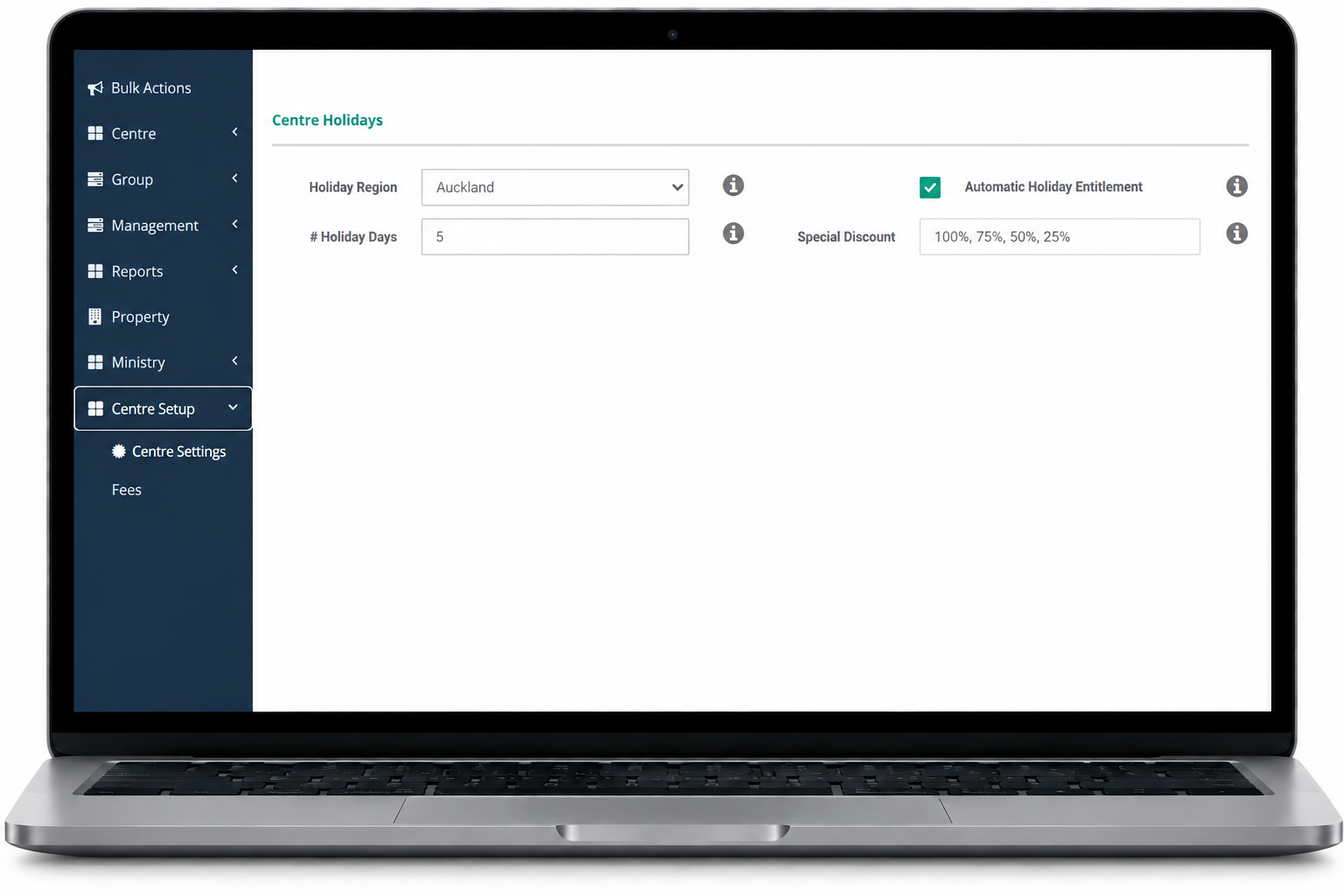
The number of discounted Absence or Holiday days available to families is managed in
- Centre Settings
- Centre Set Up
- Centre Holidays
Increase or decrease the number of allocated days as required.
Scroll to the bottom of the page and select Save.

To update the allowance for an individual child:
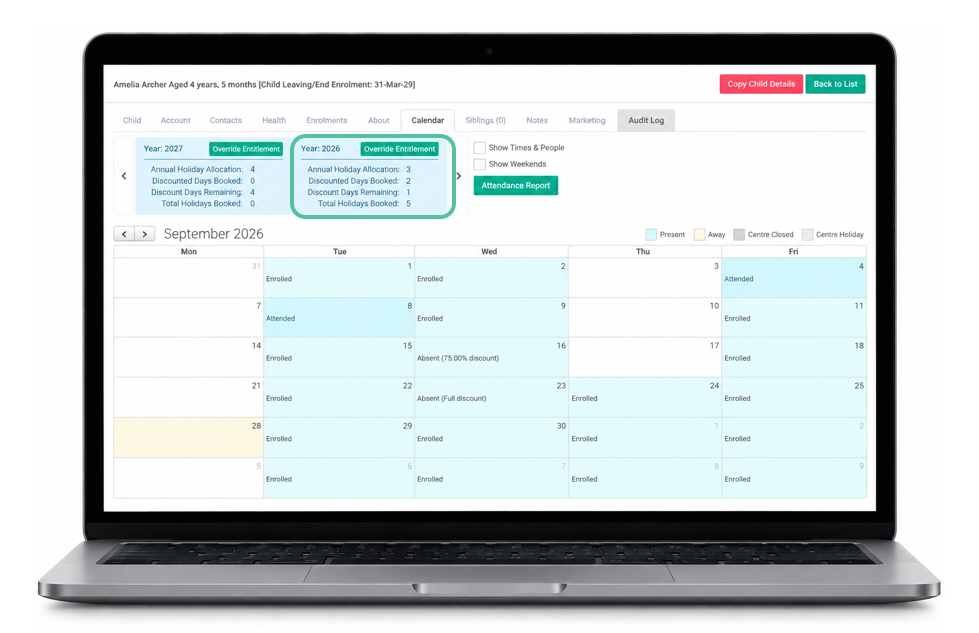
You can override the centre's default Holiday allowance for a specific child directly through their Child Calendar.
The Holiday/Absent Day entitlement, resets at the beginning of each calendar year.
Applying a Discount for an Absence or Holiday
In Discover, you can apply a Discount for a Holiday or an Absence in 3 ways:
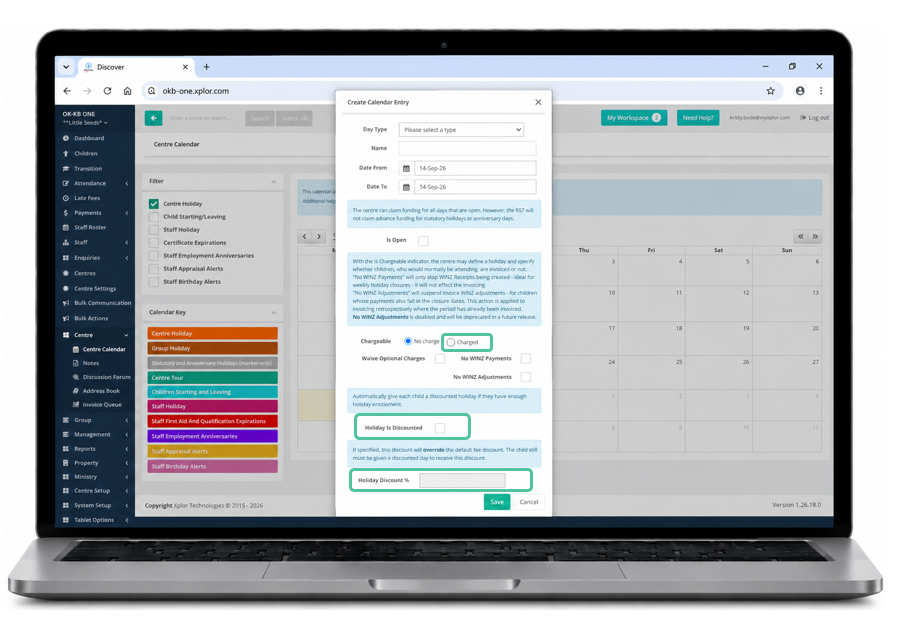
1. Centre > Centre Calendar
You can set up a Public Holiday in the calendar to apply the applicable holiday discount to all eligible children at once.
Please note: If a child has already used their full allocation of discounted absence days for the calendar year, the holiday discount will not be applied to their account.
Select the required day on the Calendar.
Select the appropriate Day Type.
Enter a name for the day, for example, King’s Birthday Public Holiday.
Select the applicable date(s).
Choose how families will be charged:
No Charge – select this if families will not be charged for the day.
Charge – select this if families will still be charged for the day.
If the day will be charged at a discounted rate, select Holiday is Discounted.
The Holiday Discount field will then become available. Enter the discount you would like to apply for that day.
Select Save.
The holiday discount will then apply to eligible children for the selected date(s).
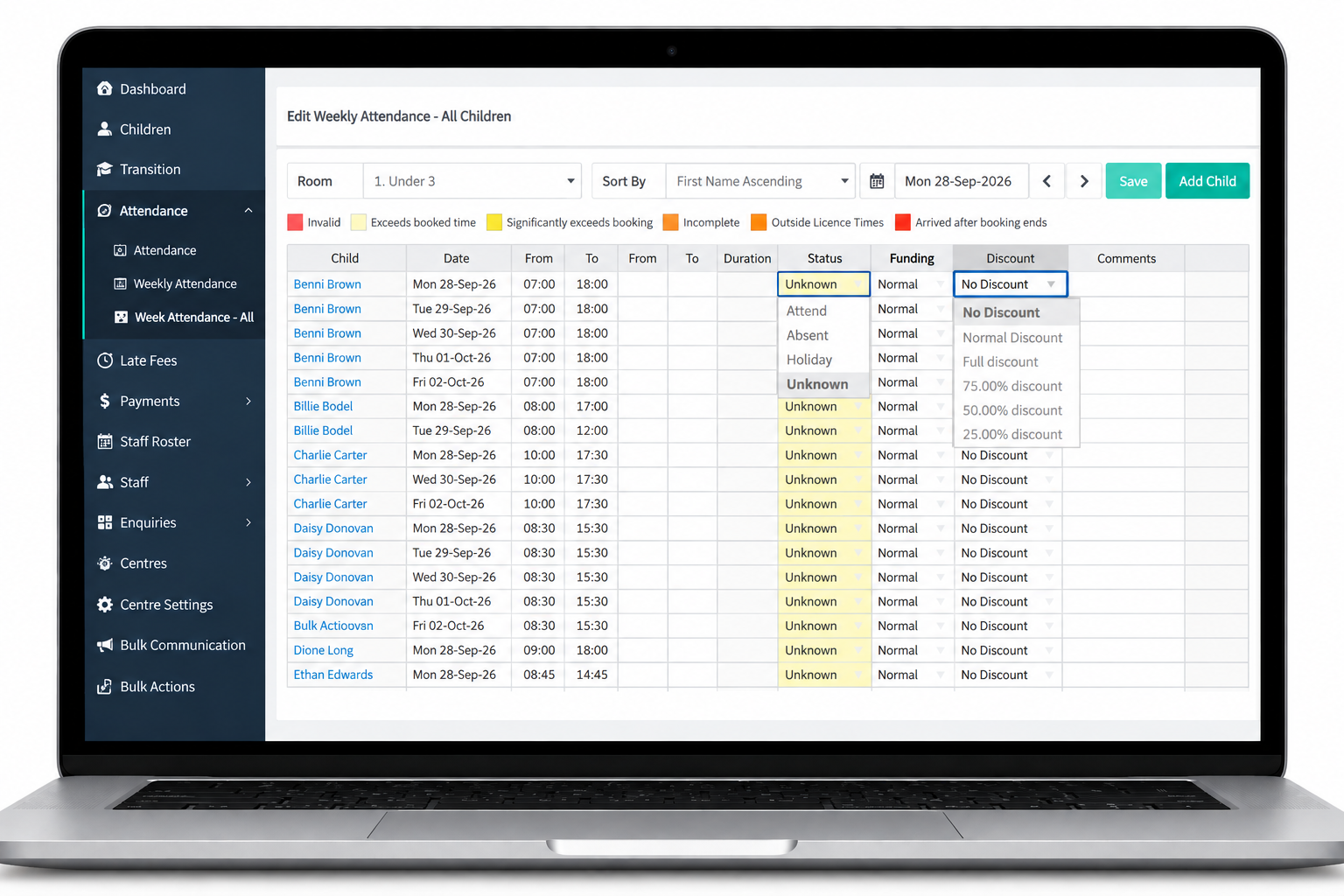
2. Adding a Discount via the Attendance Screen
- Go to the Attendance Screen
- Change the Status of the Child to Absen
- Change the Discount Column to the Discount you wish to apply
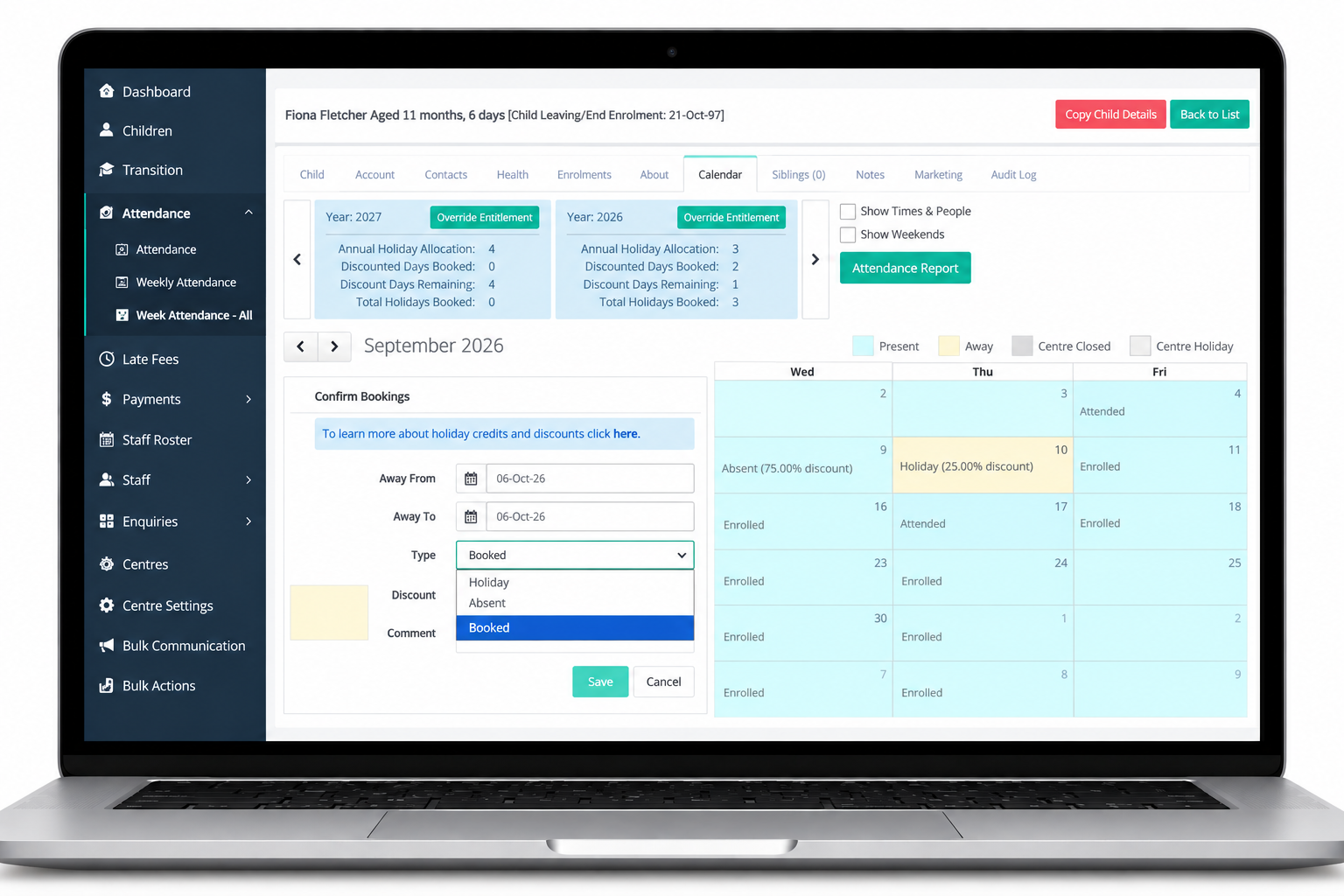
3. Child Calendar
1. Select the date you wish to mark as absent / holiday
2. Change Type to Absent or Holiday
3. Select the discount you wish to apply
Troubleshooting: Holiday/Absent Discounts
You are trying to apply a Holiday or Absent Discount and the system is not allowing you to, please check these areas first.
Go to Centre Settings > Centre Holidays
Check the Centre Holiday Days - this is the number of holiday/absent discount days that a child can have in a calendar year.
Discover calculates a child's discounted absences/holidays on a pro rata basis.
For example, if your centre provides 10 holiday days per year:
Your child is enrolled 5 days per week for the full year → 10 holiday days
Your child is enrolled 3 days per week for the full year → 6 holiday days
Your child is enrolled 5 days per week for half the year → 5 holiday days
Your child is enrolled 3 days per week for half the year → 3 holiday days
Pro-rata means the holiday entitlement is proportionally calculated based on the child’s enrolled days and the length of time they are enrolled during the calendar year.
If you have Automatic Holiday Entitlement Enabled - the child's Enrolment Entitlement will change as they increase and decrease days.
If you leave this ticked off, the default is set to the number of days stated.
The Holiday/Absent Day entitlement, resets at the beginning of each calendar year.
Go to the Child Profile > Select the Calendar Tab
In here you can see how many discounted days the child has taken. If you would like to assign more discounted days for Absences/Holidays you can select Override entitlement and increase the holiday count.
Keep in mind that Public Holidays that are discounted from the Centre Menu > Centre Calendar are also included in the discounted absence total.
Was this article helpful?
That’s Great!
Thank you for your feedback
Sorry! We couldn't be helpful
Thank you for your feedback
Feedback sent
We appreciate your effort and will try to fix the article