Your Centre Administrator will set up your Teacher Profile
Email you the Educator Pack
Then you will receive the "Welcome to Playground" Email to set up your Log in
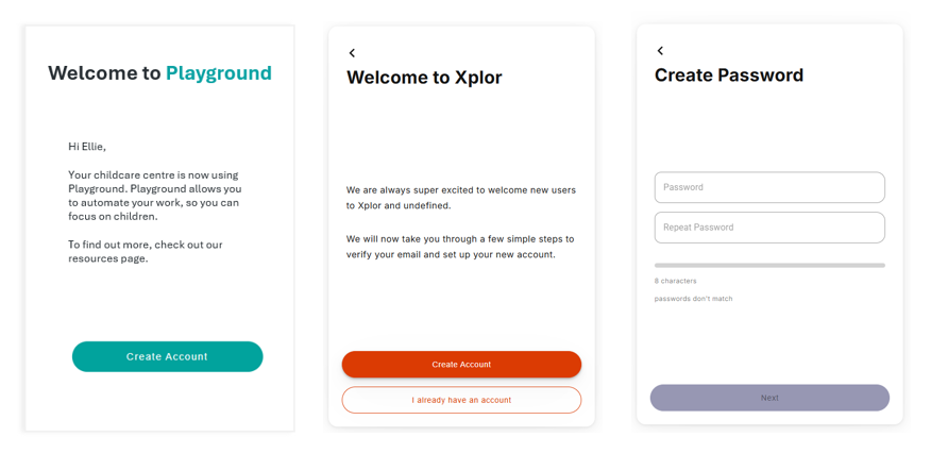
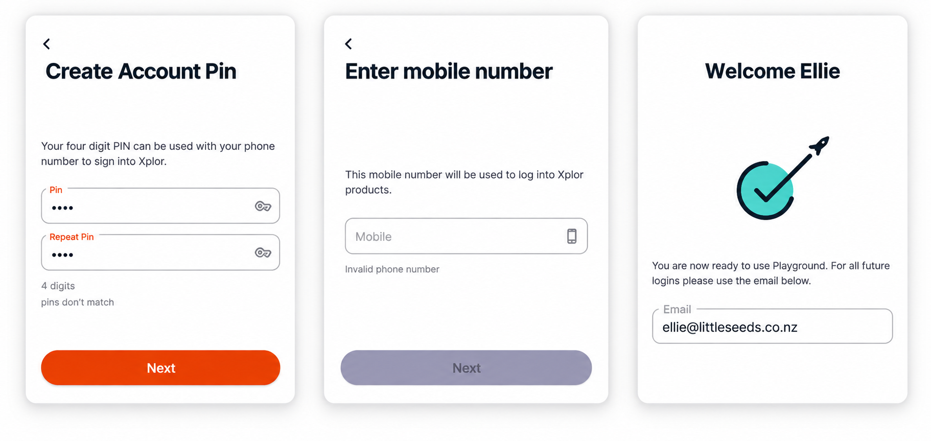
Brand New Teachers to Playground
1.Select the TEAL Create Account
2.Select the ORANGE Create Account
3.Enter & Confirm your password
4.Enter & Confirm your pin
5.Enter your Mobile Number
6.Now you are ready to sign into Playground
Existing Teachers to Playground
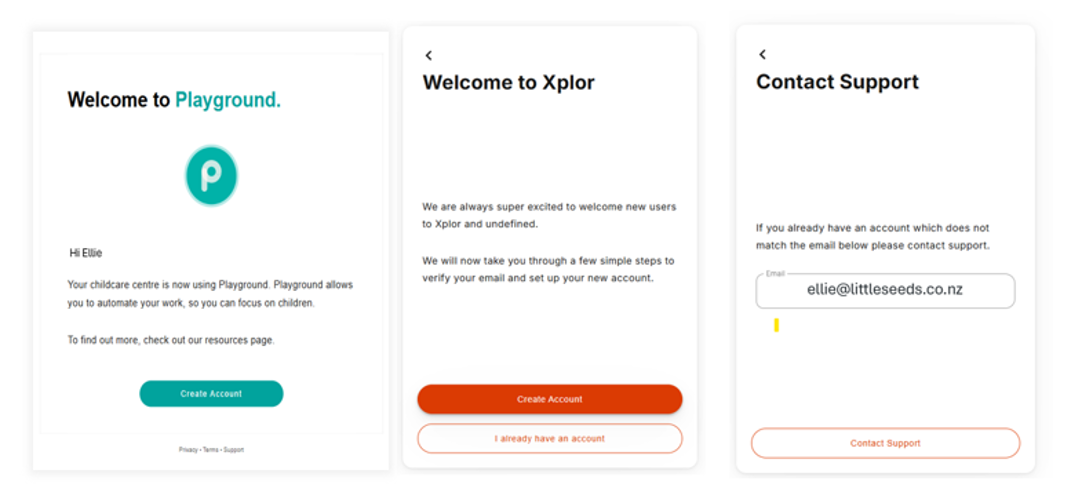
Use this process if you have already used Playground at another service with the same email address and mobile number.
1.Select the TEAL Create Account
2.Select the ORANGE Create Account
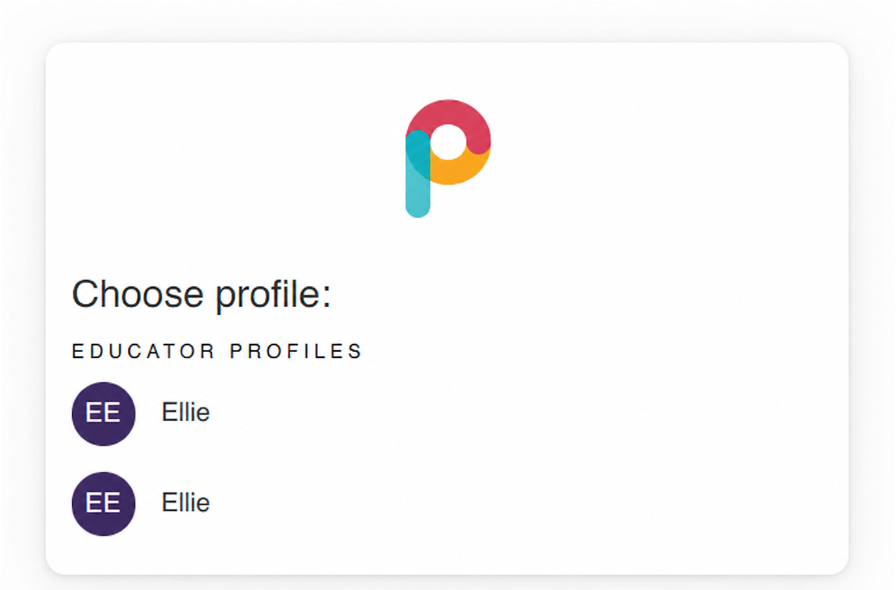
3.If your email address & mobile number are still the same you can log into Playground, Choose your Profile that will log you into the centre.
Existing Teachers to Playground
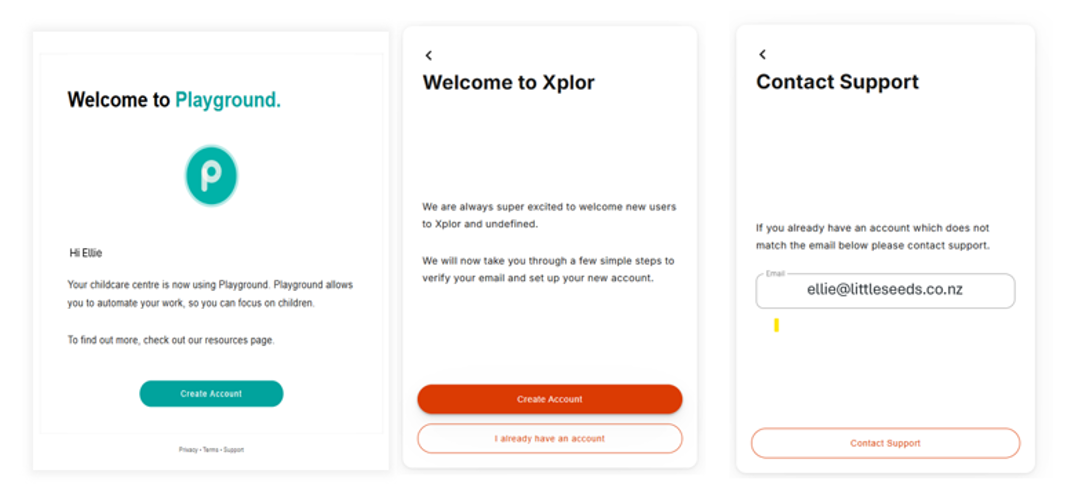
Use this process if you have already used Playground at another service with the same email address and mobile number.
1.Select the TEAL Create Account
2.Select the ORANGE Create Account
3.If your email address & mobile number are still the same you can log into Playground.
To access Playground Web, you will need access to a desktop computer with Google Chrome as the preferred internet browser. You can download Google Chrome here.
If your email address OR phone number has changed associated with your Playground Account you will need to contact Discover Support to have this changed.
Log in to Playground Web:
Go to playground.myxplor.com (handy tip: bookmark this page);
Enter your email address and password,
or
your phone number and access code, then press 'login'.

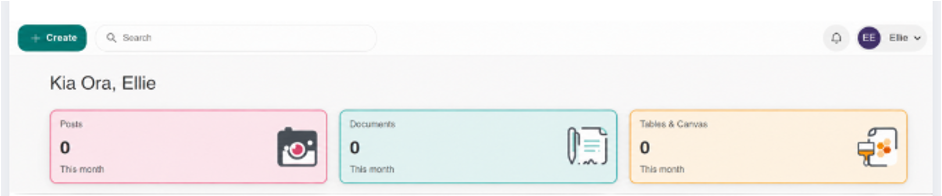
If you only have one Playground Profile, you will log into your Centre in Playground Web.
If you have used Playground before, with the same email address and mobile number you will be able to select your profile for the associated centre.
How to Log into the Playground App for the First Time
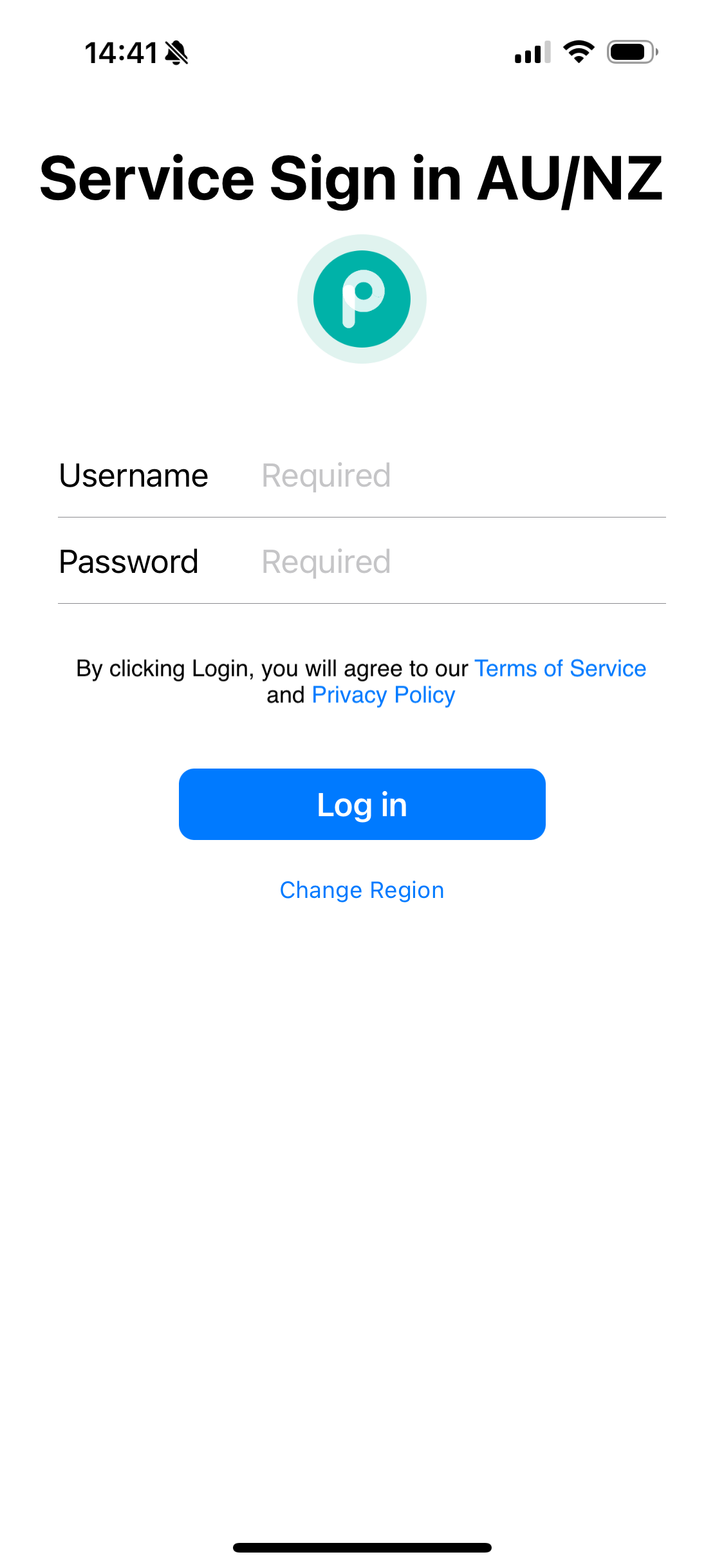
Step 1: Use the Generic Centre Login
To connect Discover to the Playground App, all staff will first log in using a shared centre login:
Username: Discover-xxx
(Your Onboarding Specialist will provide the full username with numbers)
Password: Provided by your Onboarding Specialist
(It’s simple and easy to remember)
Enter this on the first login screen in the Playground App.
You'll land on your Centre Dashboard.
Step 2: Open a Room or Action Tile
Tap into any Room or Action Tile
Click “Sign In Another Account” when prompted
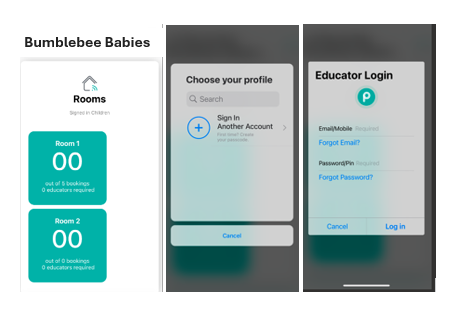
Step 3: Educator (Teacher) Login
Each teacher logs in using one of the following:
Email + Password
OR
Phone Number + PIN
(Note: You can't mix the two methods)
Need Help?
See what you can do in the Playground App here
Username: Discover-xxx
(Your Onboarding Specialist will provide the full username with numbers)
Password: Provided by your Onboarding Specialist
(It’s simple and easy to remember)
You'll land on your Centre Dashboard.
Tap into any Room or Action Tile
Click “Sign In Another Account” when prompted
Email + Password
OR
Phone Number + PIN
(Note: You can't mix the two methods)
Was this article helpful?
That’s Great!
Thank you for your feedback
Sorry! We couldn't be helpful
Thank you for your feedback
Feedback sent
We appreciate your effort and will try to fix the article