TABLE OF CONTENTS
Before you send your Educator Invitations, there are tasks to action in Discover to make sure you are set up for success.
Teachers must be set up in the Staff Screen of Discover to have a log in for Playground.
Keep these sections in mind when setting up your profiles.
1. No Access Must be unticked
2. Leaving Date is empty (regardless of how far in the future you make it, it will disconnect the log in from Playground)
3. There is an email address in the Personal Email Field
4. There is a mobile number in the Phone (Mobile) Field
Playground Set Up For New Teachers
Go to the Staff Screen
Select the Staff Menu
Select Create New
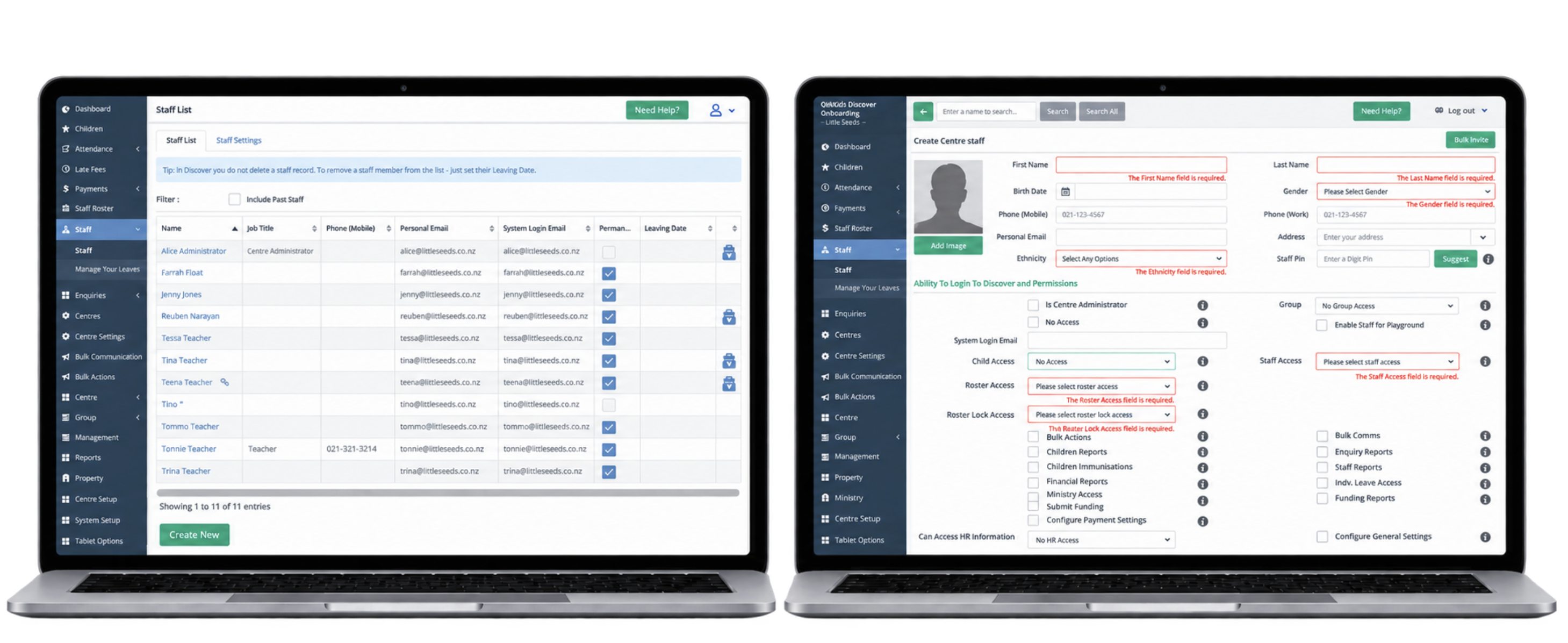
Make sure you enter:
*First Name *Last Name *Gender *Ethnicity *Personal Email (for Playground purposes)
*Mobile Number (for Playground purposes)
*Leave No Access Unticked *Select Log in Permissions - if not required to Log into Discover, select No Access for each individual Permission
*Start Date. *ECE Yearly Census Details.
*Fill in all other relevant information
* Scroll to the bottom and select save
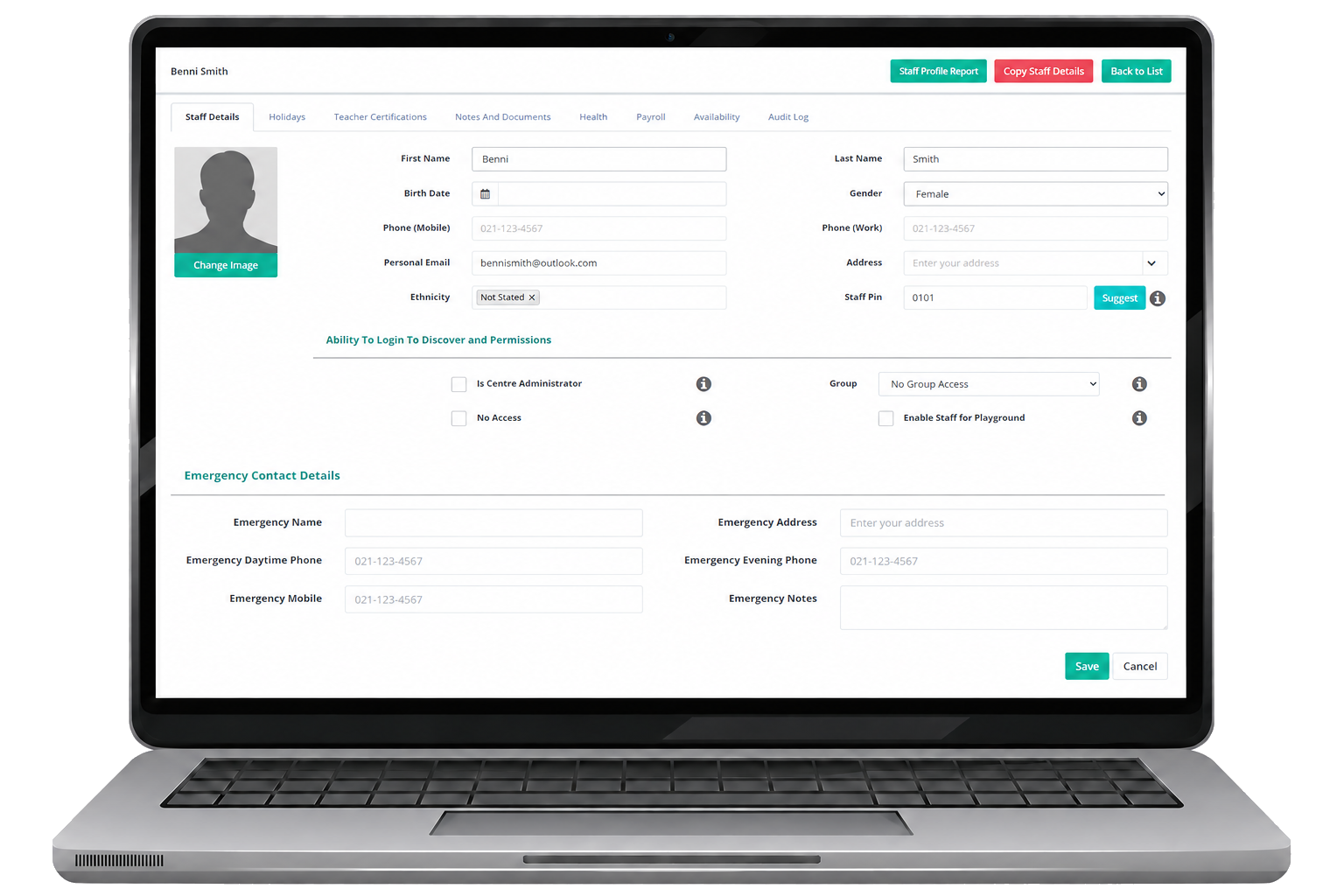
Update existing Teacher details in the Staff Profile for Playground Access
Step 1. Go to the Staff Screen
Step 2. Select the Teacher Profile
Step 3. Make sure
- No Access is unticked
- There is an email address in the Personal Email Field
- There is a mobile number in the Phone (Mobile) Field
- Leaving Date is empty
Step 4. Scroll to the bottom and Select Save
Step 5. Action this for each Teacher that needs access to Playground
Communicate with your Teachers
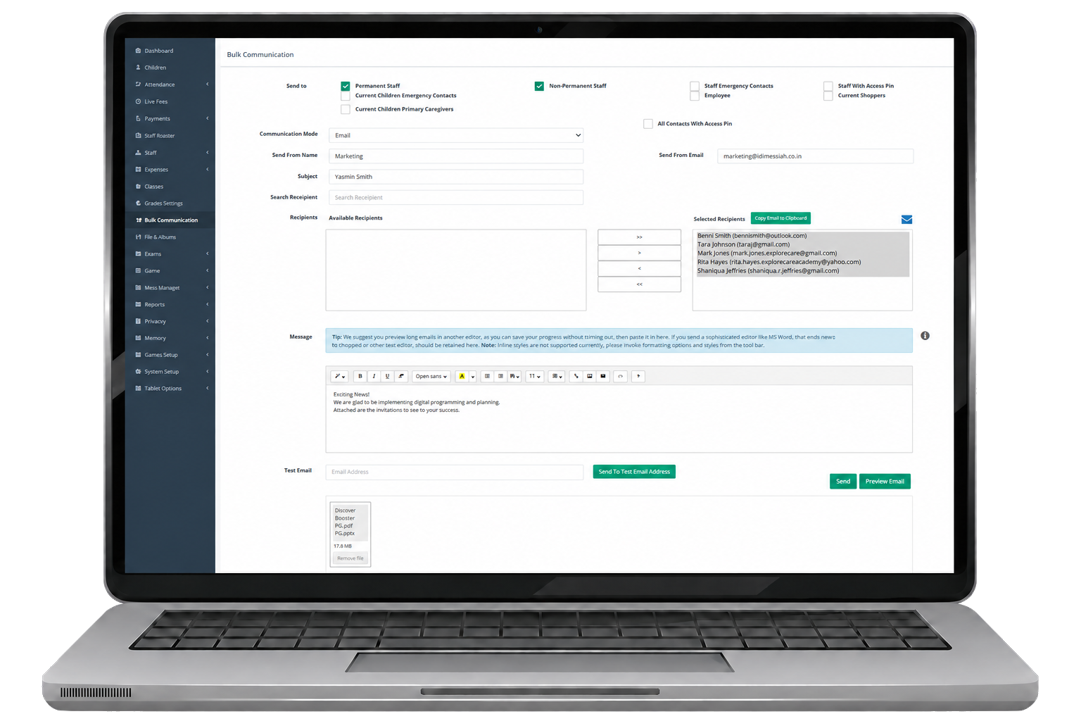
Let your Teachers know to expect a Welcome to Playground Email to their inbox. You can also send through the Playground Teacher pack directly through Discover Bulk Communication.
1. Open the Bulk Communication menu
2. Select Permanent or Non-Permanent Staff
3. Select the staff emails to set up in Playground
4. Select > to move them into the Selected Recipients box
5. Write a message introducing Playground to your staff
6. Attach the Educator Pack
7. Select Send
Then tell your Onboarding Specialist, and they can send the Playground invitations to your staff in bulk
OR
Advise your Onboarding Specialsit the Teacher set up steps have been completed.
To see how Teachers action their Welcome to Playground Email - see here
Set Up / Check Child Permissions for Playground
You may do this as part of children enrolling in your centre. This is only to ensure you get the most out of Playground.
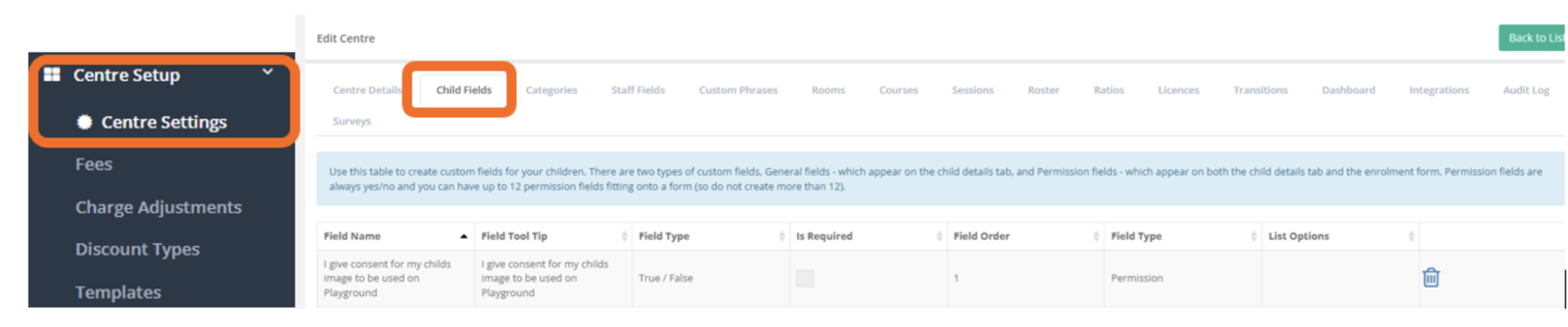
Part a: Add Playground Permission Field
(i) Go to Centre Settings > Child Fields
(ii) Create a permission:
“I consent for my child’s image to be used in Playground”
Part b: Update Individual Child Permissions
(i) Go to the Children tab
(ii) Click on a child’s name
(iii) Tick the new Playground permission
(iv) Scroll down and click Save
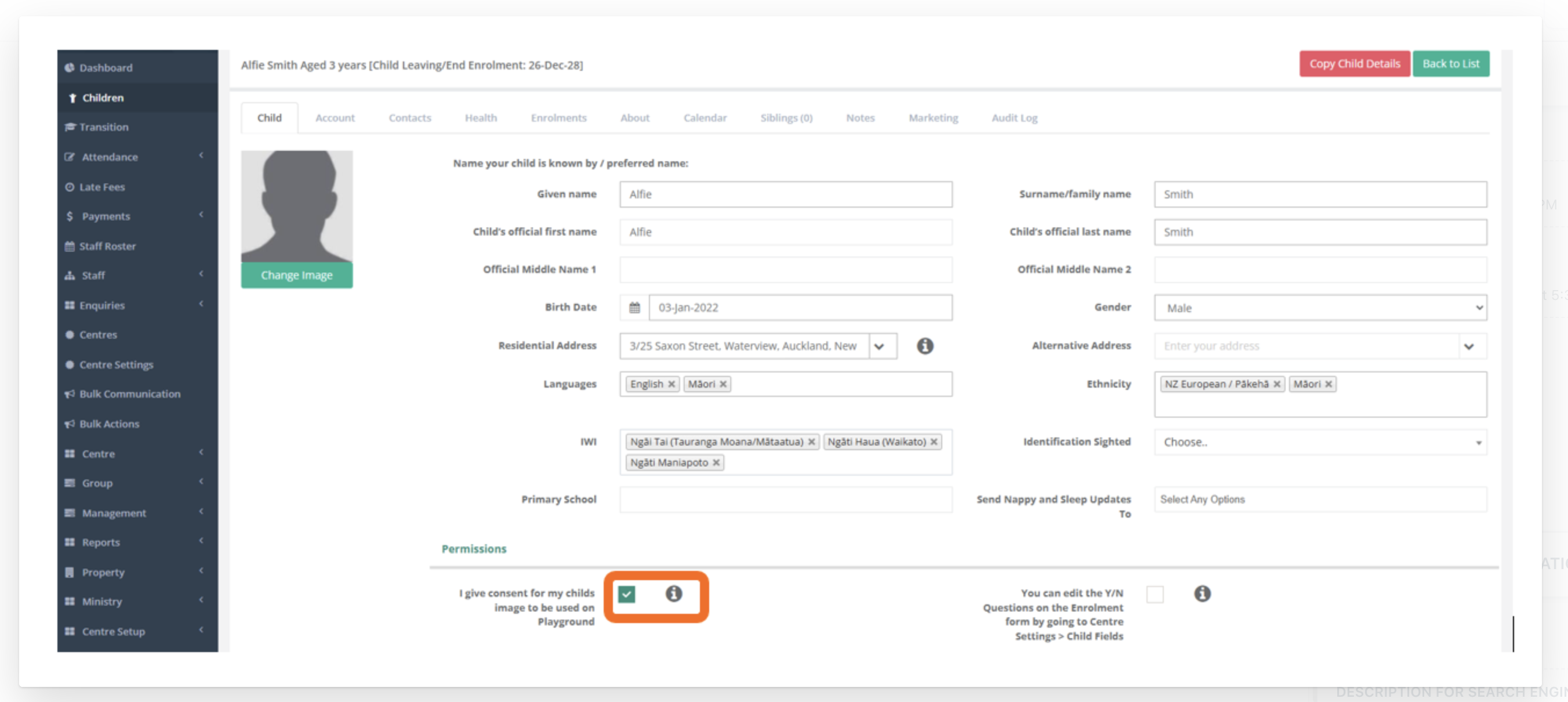
Part c:
(i) Go to the Child's Health Tab
(ii) Check that all information has been added for each field
(iii) This will all sync to Playground for the Teachers to have access to
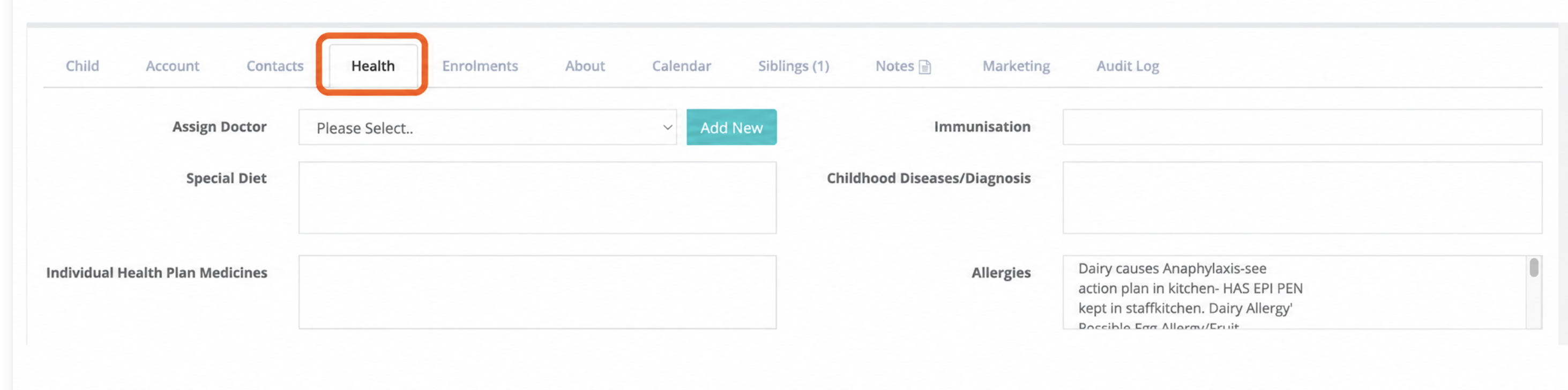
Decide on which Frameworks and Templates you would like set up in Playground & Send them to your Onboarding Specialist.
Ready-to-Go Frameworks
These frameworks are preloaded and ready to be copied into your platform.
Let your Onboarding Specialist know if:
You’d like all of them
Just some
Or want to add a specific one not listed below (send it through!)
Available FrameworksEarly Childhood Education Curriculum Framework
Educational Leadership Capability Framework
He Māpuna te Tamaiti – Supporting Social & Emotional Competence
National Education and Learning Priorities (NELP)
Our Code Our Standards – Ngā Tikanga Matatika Ngā Paerewa
Standards for the Teaching Profession
Talking Together | Te Kōrerorero
Tapasā
Tātaiako – Cultural Competencies for Teachers of Māori Learners
Te Ara Māori 2024
Te Ara Poutama
Te Whāriki 2024
Te Whāriki a Te Kōhanga Reo 2024
Te Whāriki – Principles
Te Whāriki – Strands & Outcomes
The Code of Professional Responsibility
Templates/LayoutsHave templates you use or love?
Send them through and we’ll add them in for you — with a locked version so they can’t be accidentally changed.
Email: support@superioradmin.co.nz
Was this article helpful?
That’s Great!
Thank you for your feedback
Sorry! We couldn't be helpful
Thank you for your feedback
Feedback sent
We appreciate your effort and will try to fix the article