The Inbox screen in the Home app allows your Teachers and Centre Managers to communicate with you.
From this screen, you will also be able to view all notifications from the Service, so you can keep up-to-date with your Child's day!
At the bottom of the Screen
Go to Account & Select Inbox
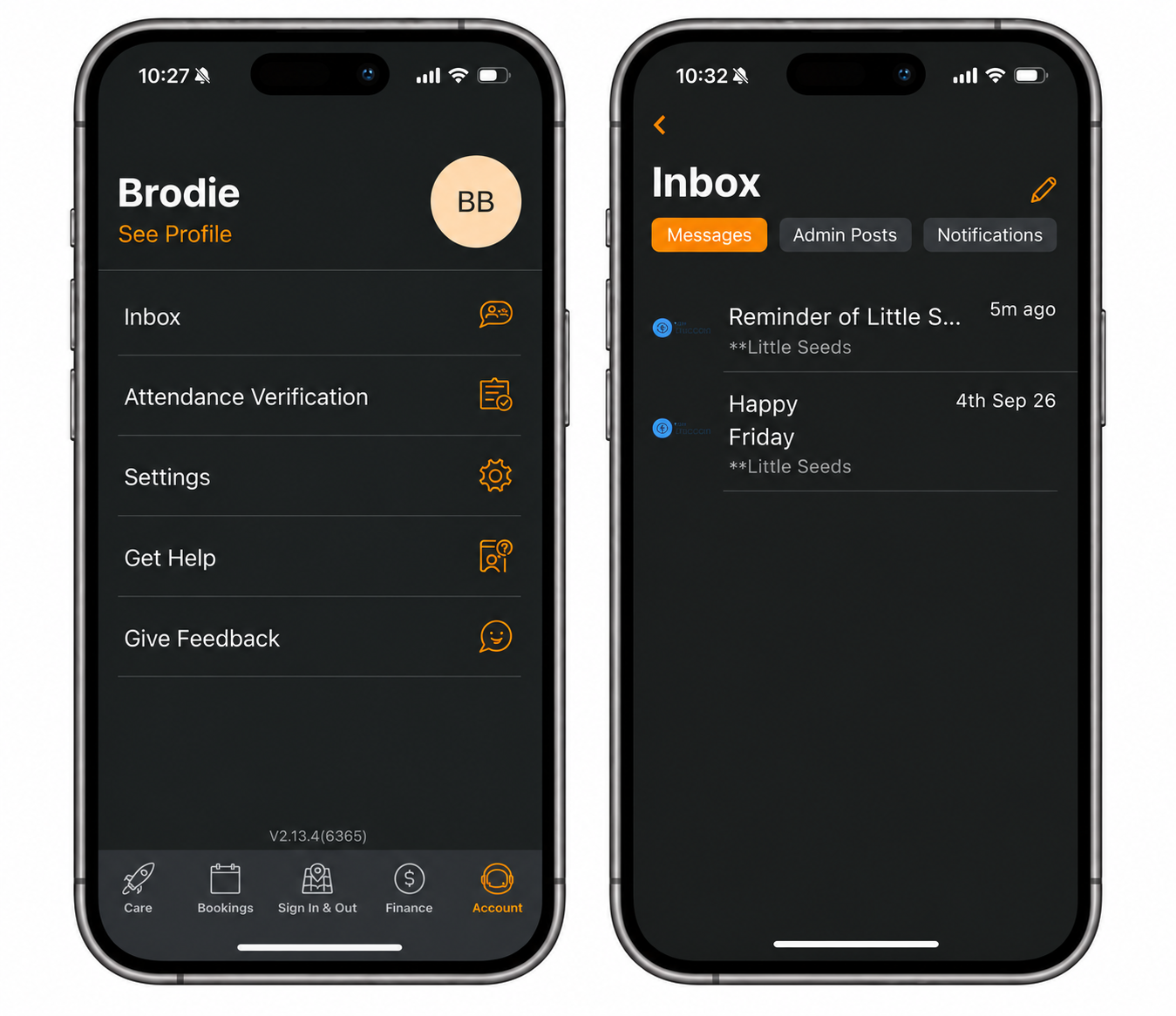
Messages
Messages are sent by Teachers via Playground, all Teachers can see all messages.
Select the comment box if you want to reply, and then select the paper aeroplane to sent.
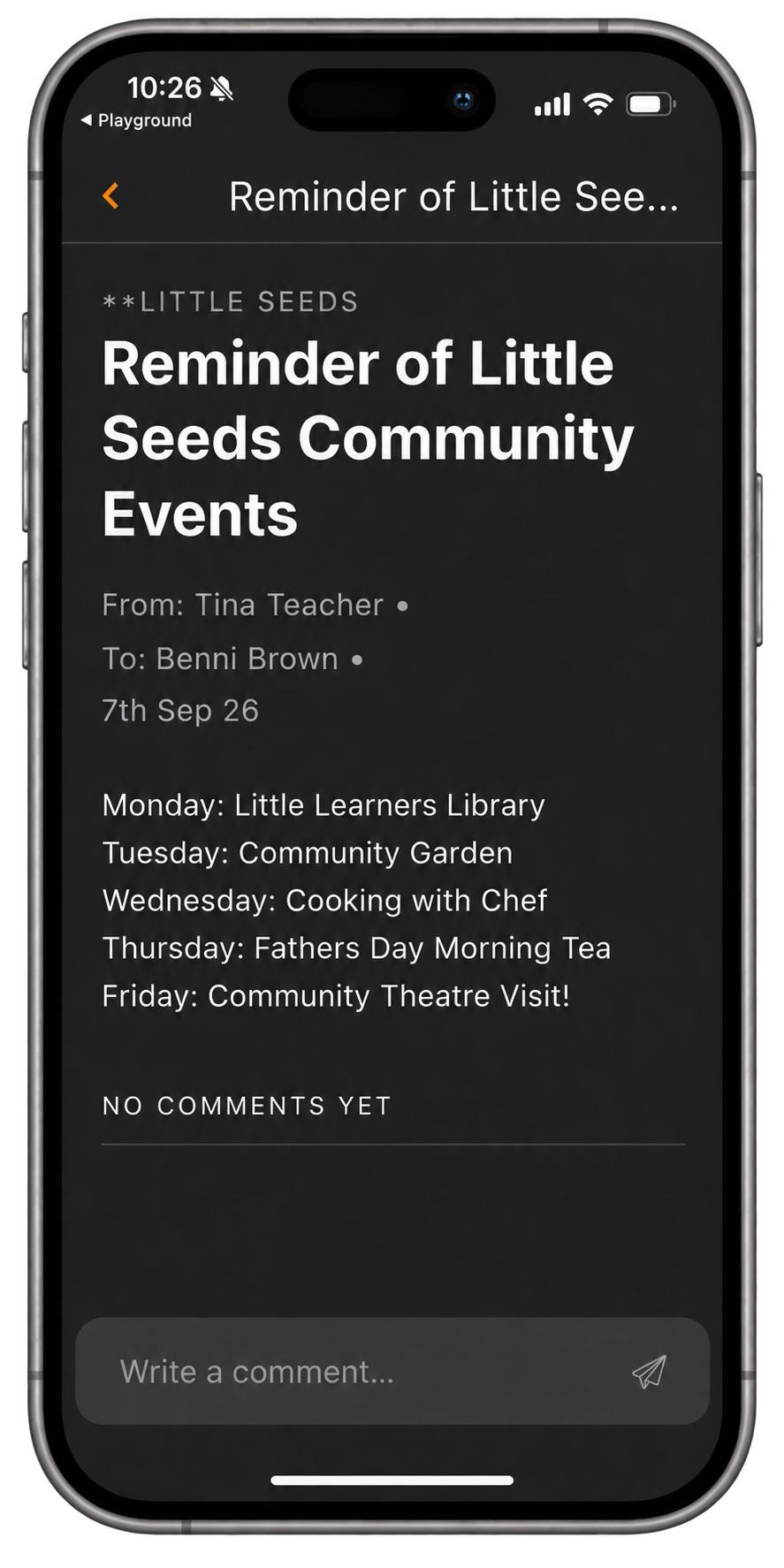
Please note: if you respond to a message from a Teacher that has multiple recipients, your message will be visible to all recipients.
If you would like to keep your message to Educators private, we recommend creating a new message.
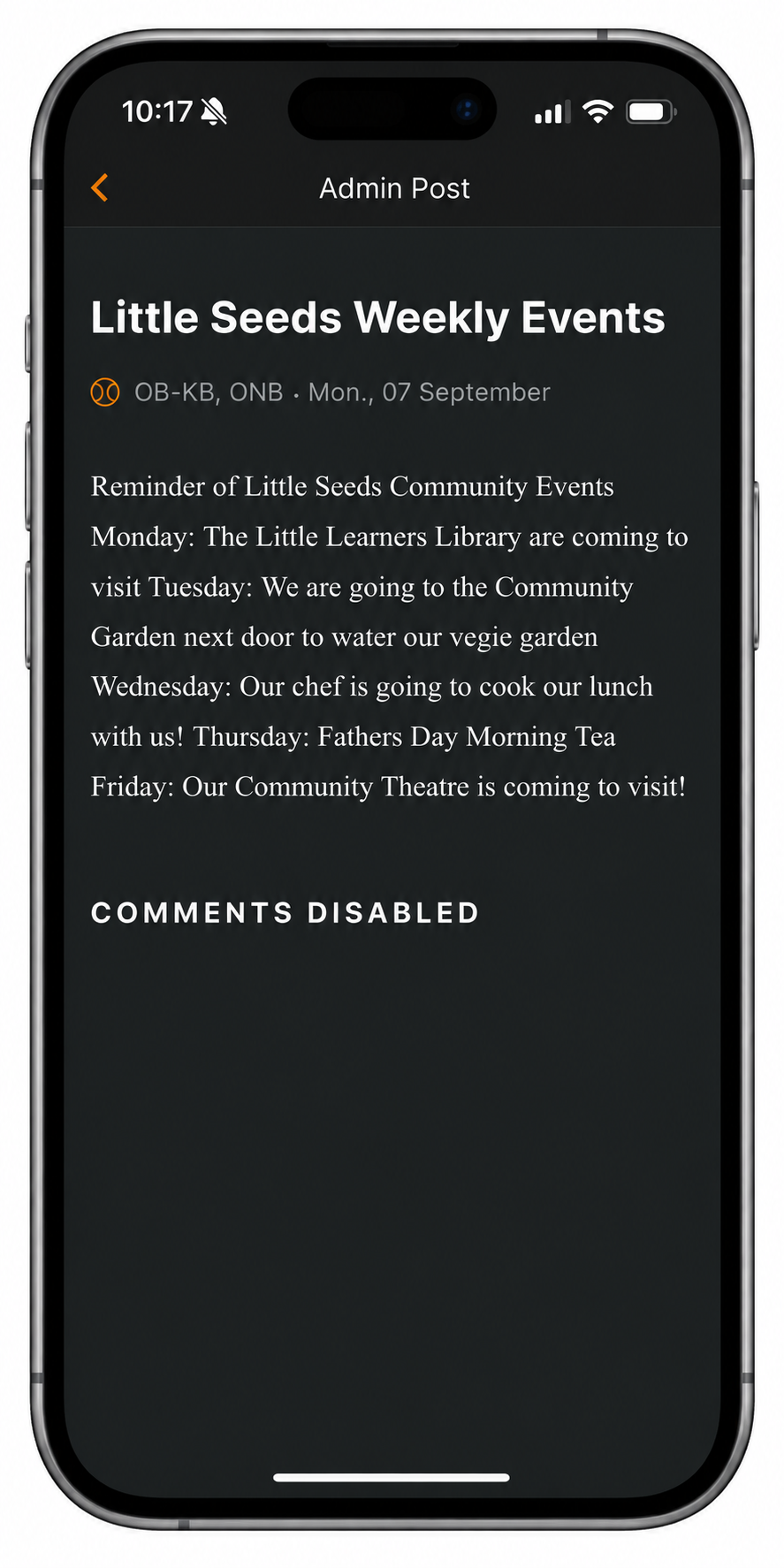
Admin Posts
Admin posts come directly from your Centre Administrator and cannot be responded to.
Notifications
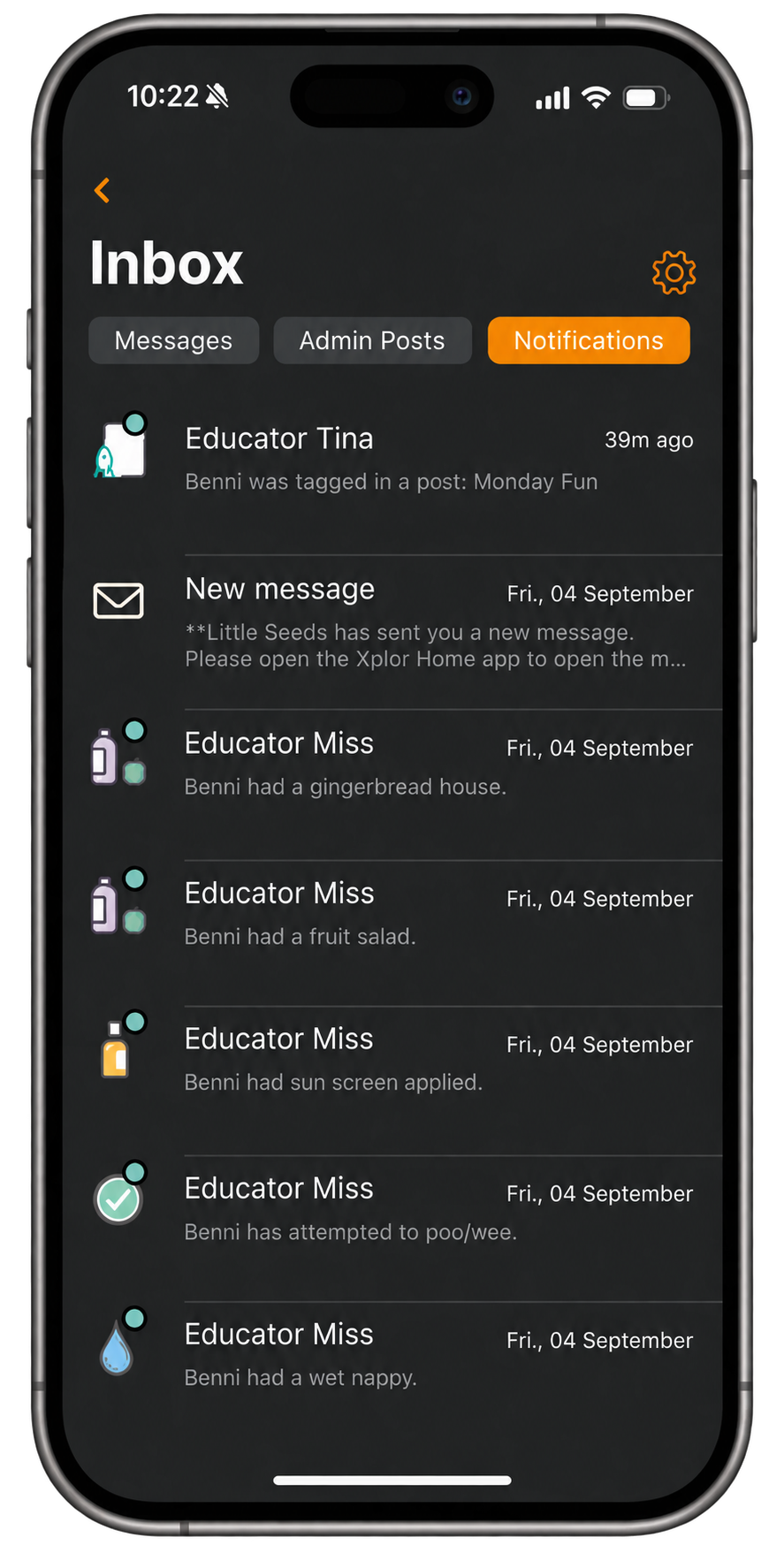
Any notifications you receive from the service (messages, admin posts, health updates, observations etc.) will appear in your notifications tab.
Clicking on these notifications will allow you to view the relevant content.
If you would like to adjust the types of notifications you receive, clicking on the cog icon at the top right-side of the screen will take you to the notification settings screen.
To turn on a type of notification, tap the toggle so that it is highlighted on orange. Tap the toggle again to turn off the notification.
To switch all notifications on/off - tap the toggle next to 'notifications' at the top of the screen.
Was this article helpful?
That’s Great!
Thank you for your feedback
Sorry! We couldn't be helpful
Thank you for your feedback
Feedback sent
We appreciate your effort and will try to fix the article