Link Siblings, Enrolments & Invoices

Modified on Sat, 14 Feb at 11:11 AM


When adding a sibling, do not create a new contact record in Discover. 

Doing so will prevent the siblings from being linked to the same statement. 


If you’ve already created a new contact record, that’s okay we can show you how to link the siblings together.
How to Link Siblings and Correct the Bill Payer

  • Go to Children from the main menu.

  • Select the most recently added sibling.


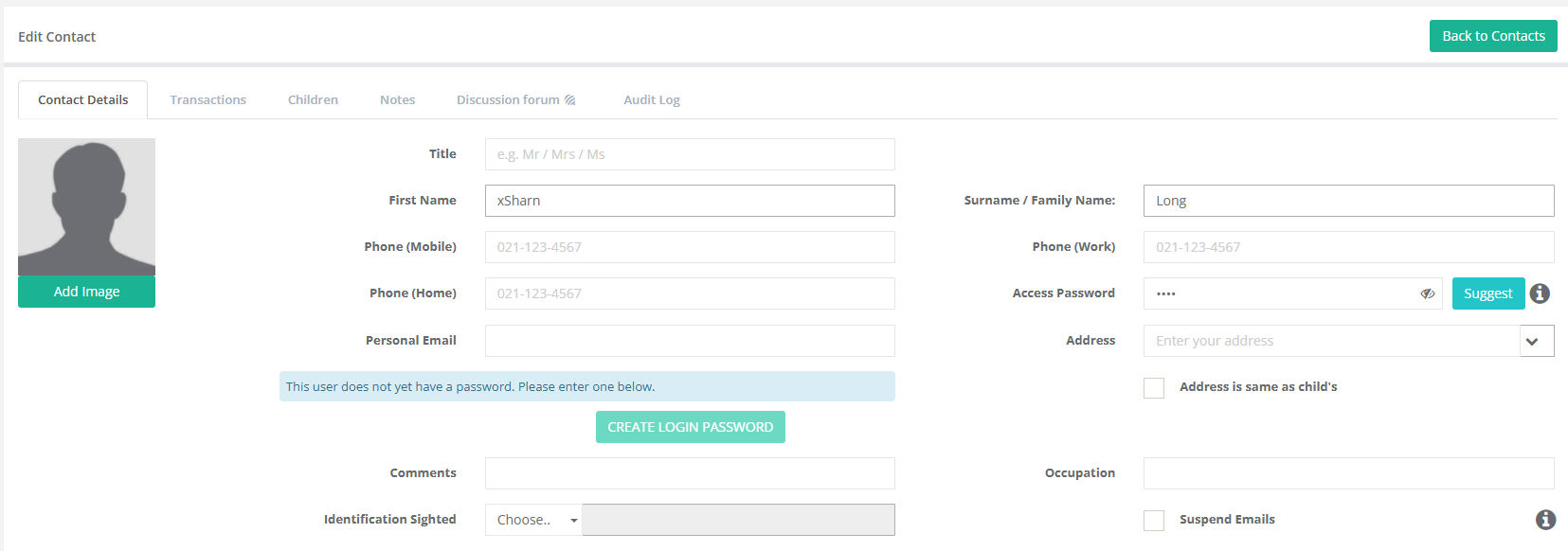
Update the Contact:

  • Go to the Contact tab.

  • Select the contact name.

  • Add an “X” in front of the contact name.

  • Scroll to the bottom & Select Save

  • Click Save.


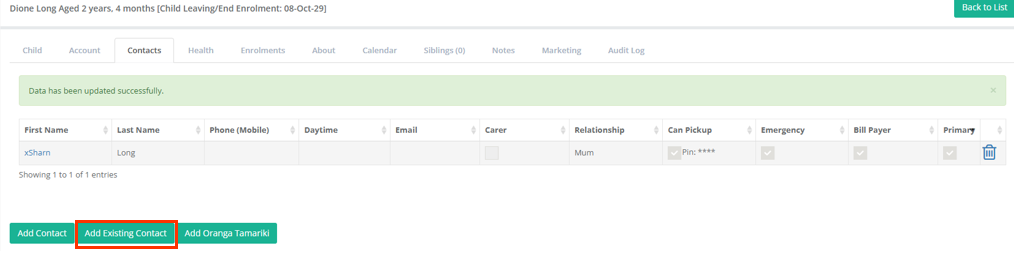
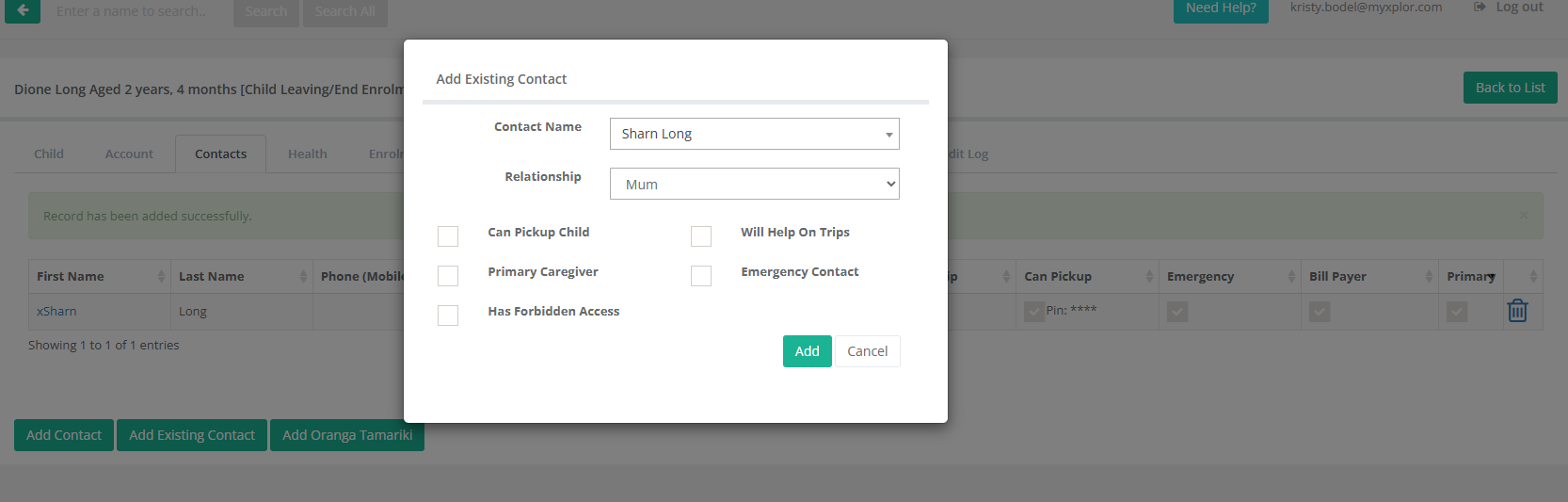
Add the Existing Parent Contact:

  • Select Add Existing Contact.

  • Search for the parent’s name.

  • Select the correct relationship.

  • Tick the required permissions.

  • Click Add


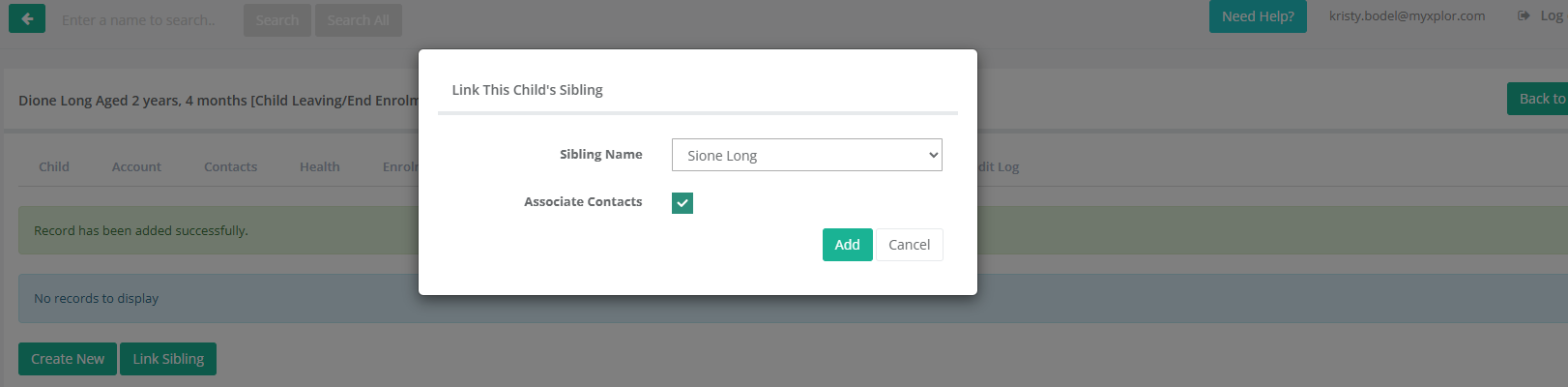
Link the Siblings:

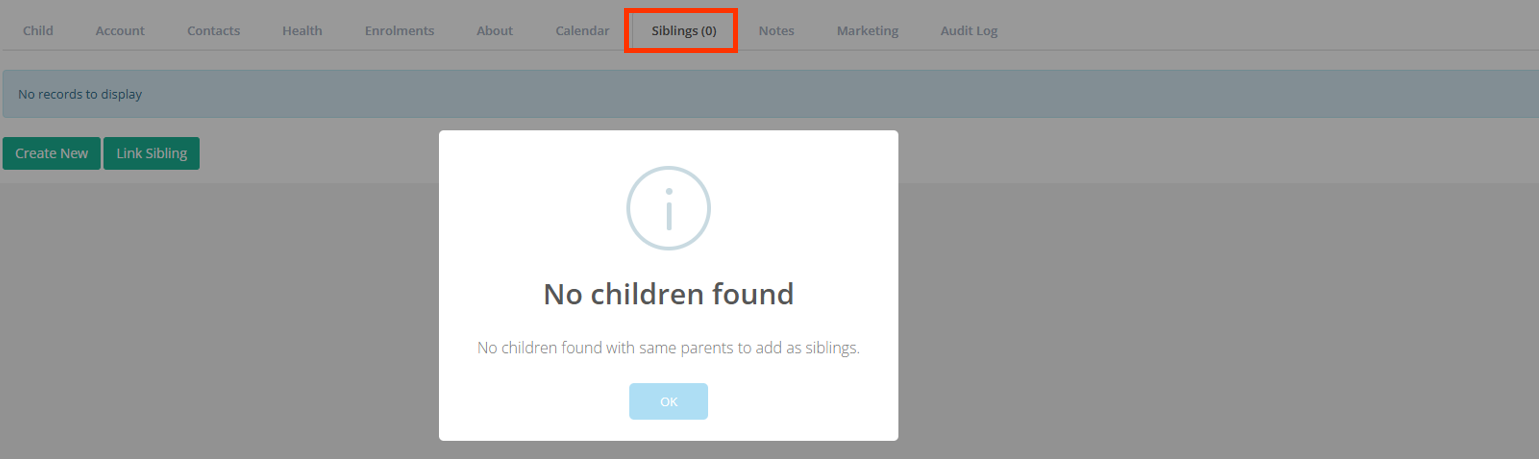
  • Go to the Siblings tab.

  • Select Link Sibling

  • Select the Sibling Name

  • Select Associate Contacts - This process brings the contacts from the original account across to the sibling’s account. OPTIONAL

  • Select Add


Update the Bill Payer:

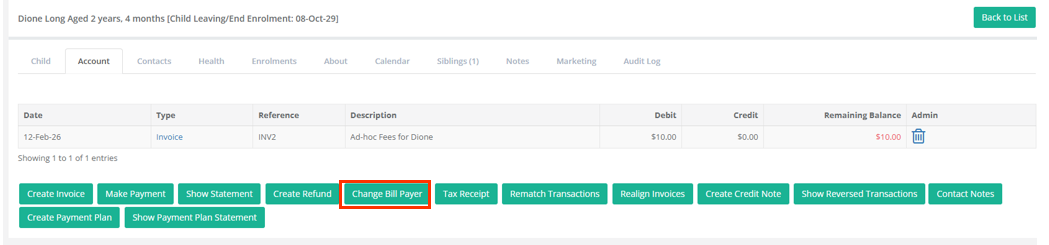
  • Go to the Account tab.

  • Select Change Billpayer.

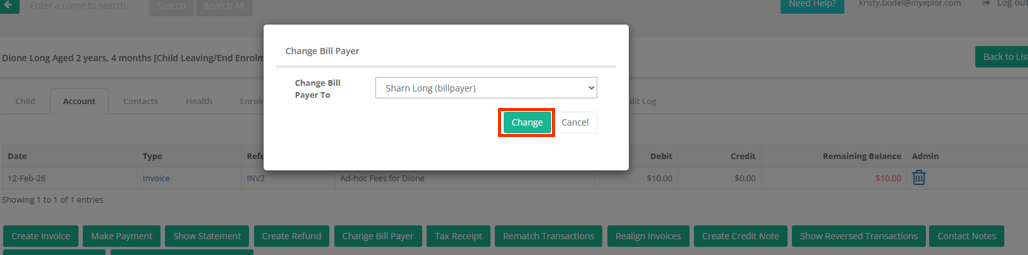
  • Select the Billpayer Contact without the x

  • Select Change

This will move the child under the correct contact and update enrolment, invoices, and payments in one step.


Final Step:

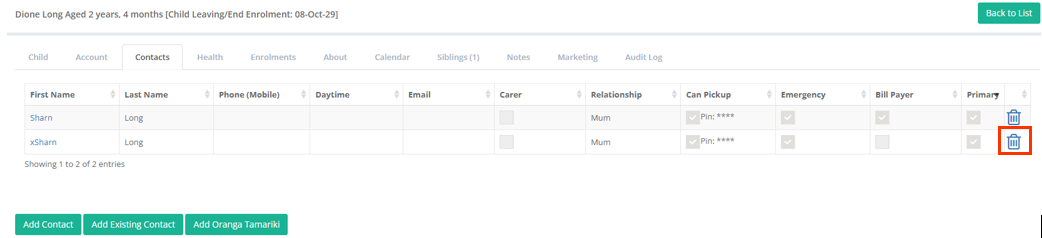
  • Return to the Contact tab.

  • Remove the contact with the “X” in front of their name.


The children are now linked, will appear on the same statement, and the parent can use the same PIN to sign both children in and out of the service.


Was this article helpful?

That’s Great!

Thank you for your feedback

Sorry! We couldn't be helpful

Thank you for your feedback

Let us know how can we improve this article!

Select at least one of the reasons
CAPTCHA verification is required.

Feedback sent

We appreciate your effort and will try to fix the article