Table of Contents
- Account Set Up & Access
- Checking Your Statement
- Viewing Bookings
- Signing Your Children In/Out
- Electronic Attendance Verification
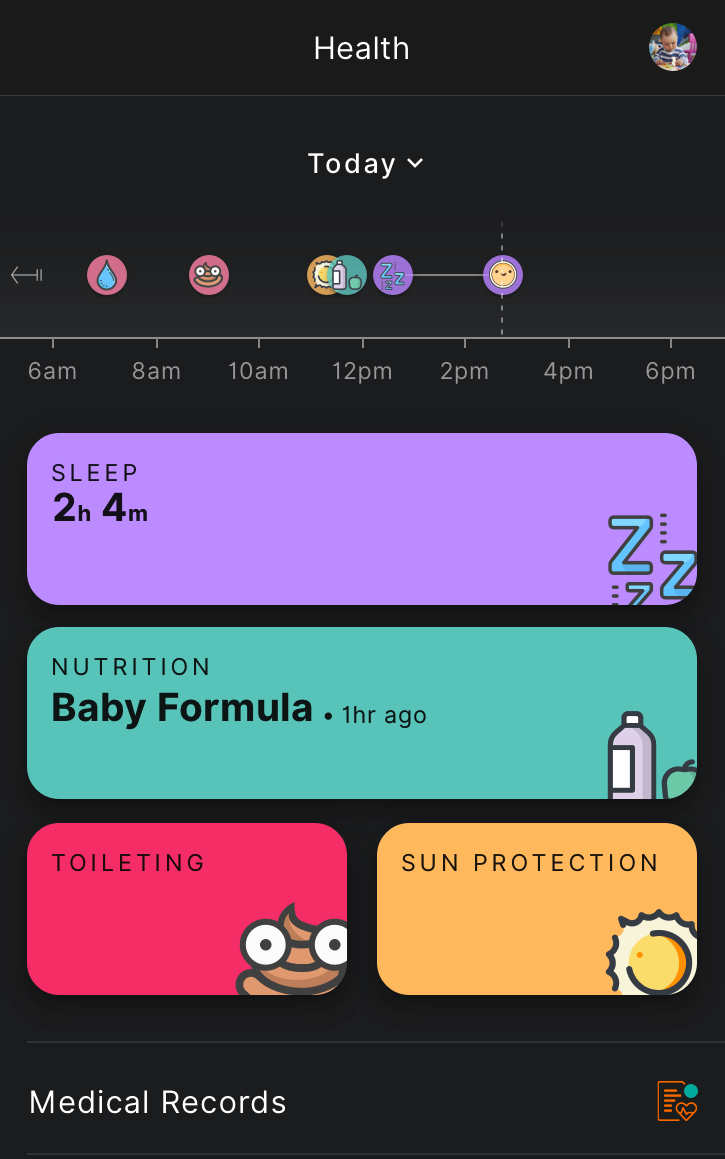
- View Health Timeline
- View Learning Documentation
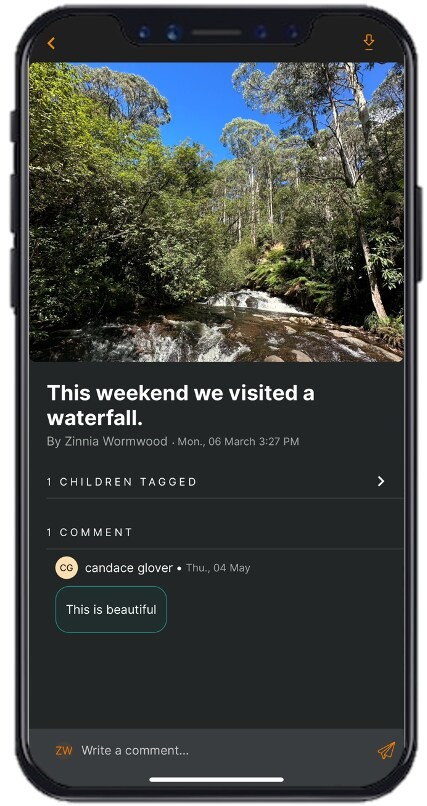
- Creating Moments
- Messages & Inbox
- Add Bank Details & Make Payments
- Setting Up Direct Debit
- Making a Pay Now (Ad-Hoc) Payment
- Notifications
We understand that navigating a new software system can be overwhelming, especially when juggling the demands of family life so this guide is designed to help you quickly get acquainted with the essential features and functions of Home App and Web so that you and your service can continue to support your child's learning and development.
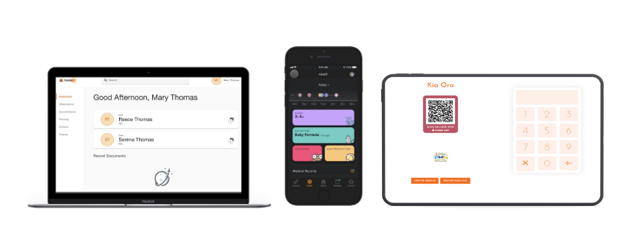
Whether you're new to our platform or just need a refresher, you'll find easy-to-follow instructions and tips below to make the most of your experience with Home.
Account Set Up & Access
As a parent/guardian, you have access to up to three of our platforms:
- Home App
- Home Web
- Discover Tablet App
Your child's Centre/Service will provide the family with instructions for logging in to Home.
Checking Your Statement
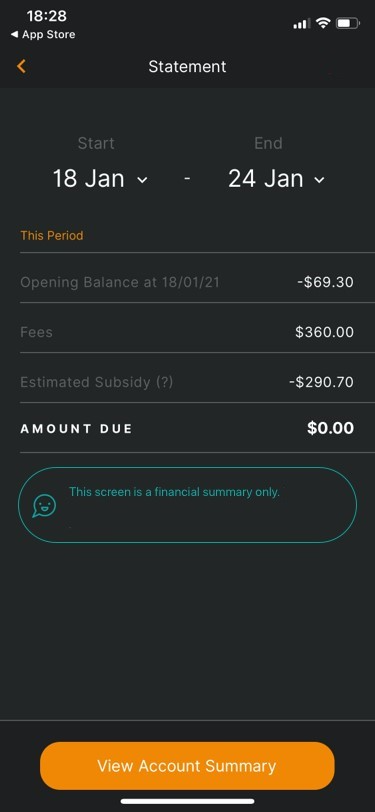
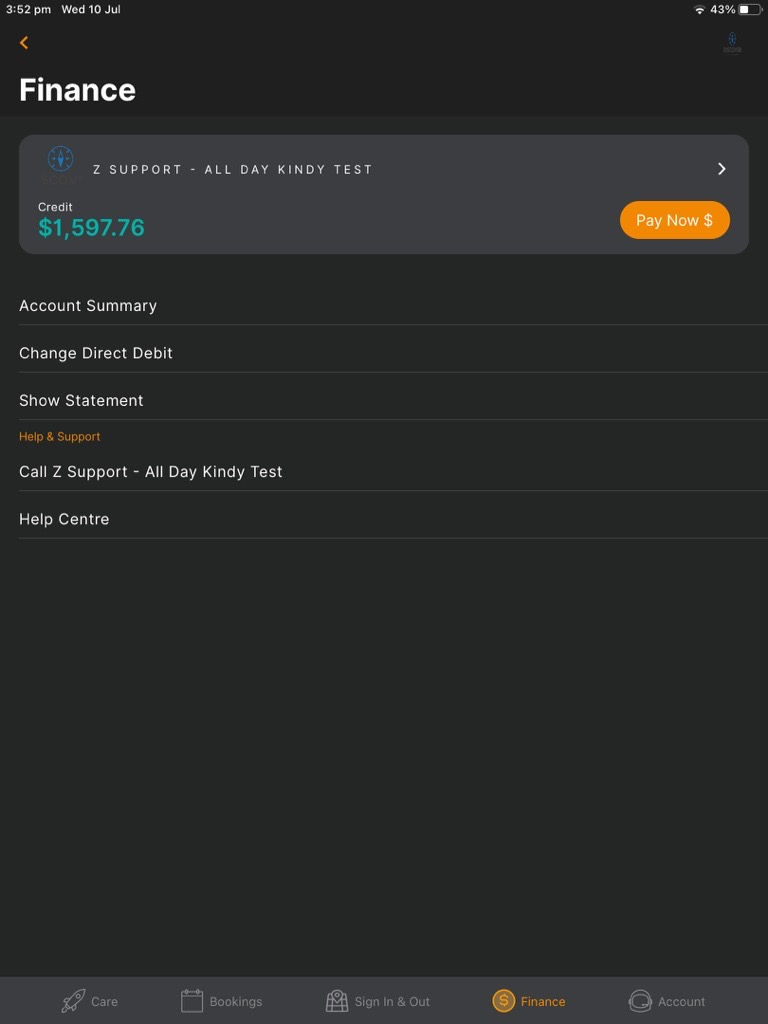
The statement at any time in the Home App. The Account Summary acts as a live statement, showing all transactions for the current billing period.
The Statement view displays the current week by default, but you can change the date range if needed. It shows the opening balance for the selected period, the fees charged during that time, the estimated subsidy, and the total amount owing.
Viewing Bookings
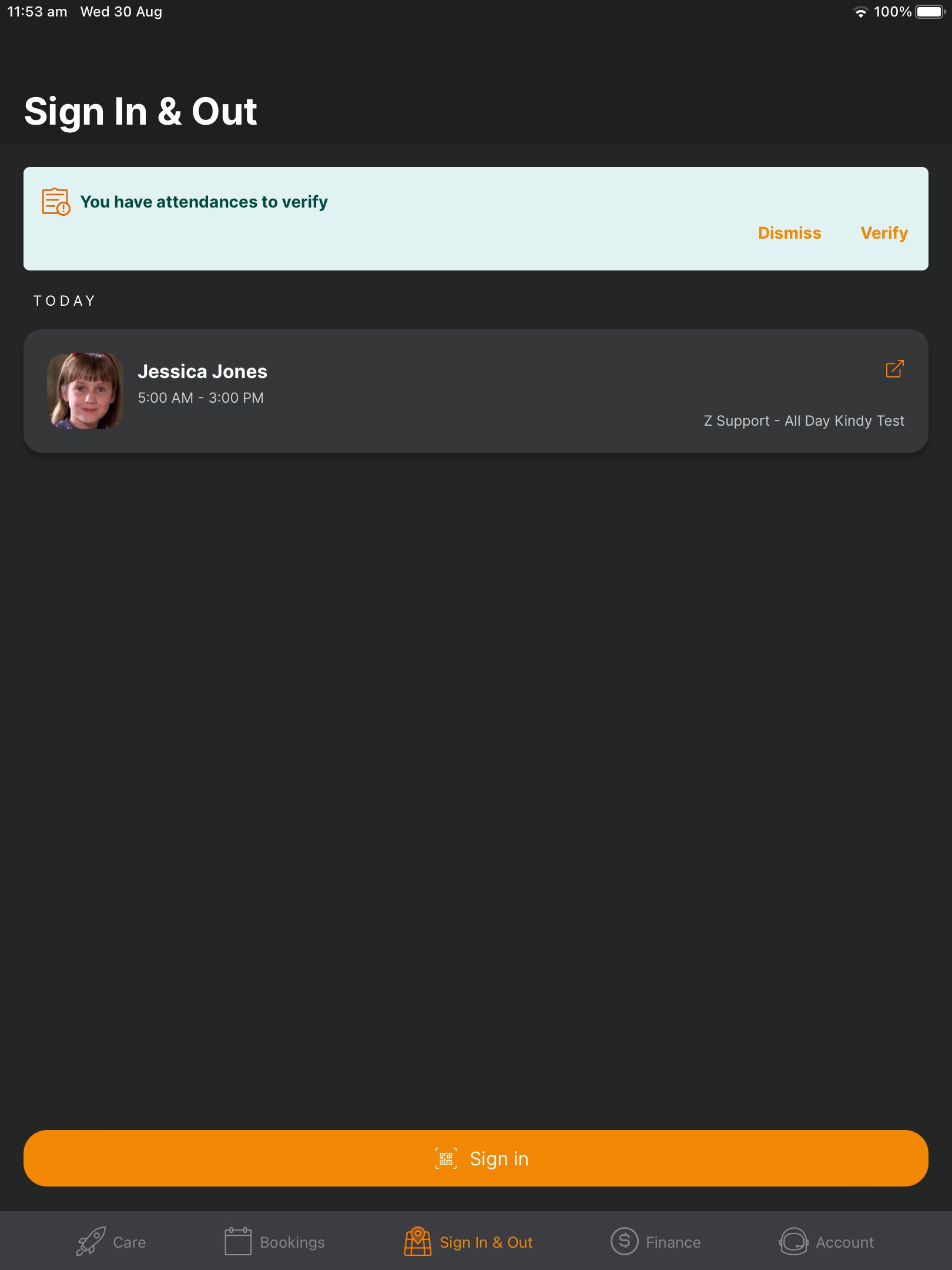
Signing Your Children In/Out Using the Home App, you are able to sign your child/children into and out of their booked sessions within a service through the following steps:
- Navigate to the Sign In & Out tab within the Home App
- Select Sign In / Out to the bottom right of the screen
- Scan the QR code on the tablet within your service (if it is your first time using, you will need to give permission for the app to access the camera feature)
- Once scanned the Home App screen will display the children's profiles, for those with a session they can be signed in by setting the toggle on. To sign out, toggle off on the screen. Select confirm once complete.
Electronic Attendance Verification
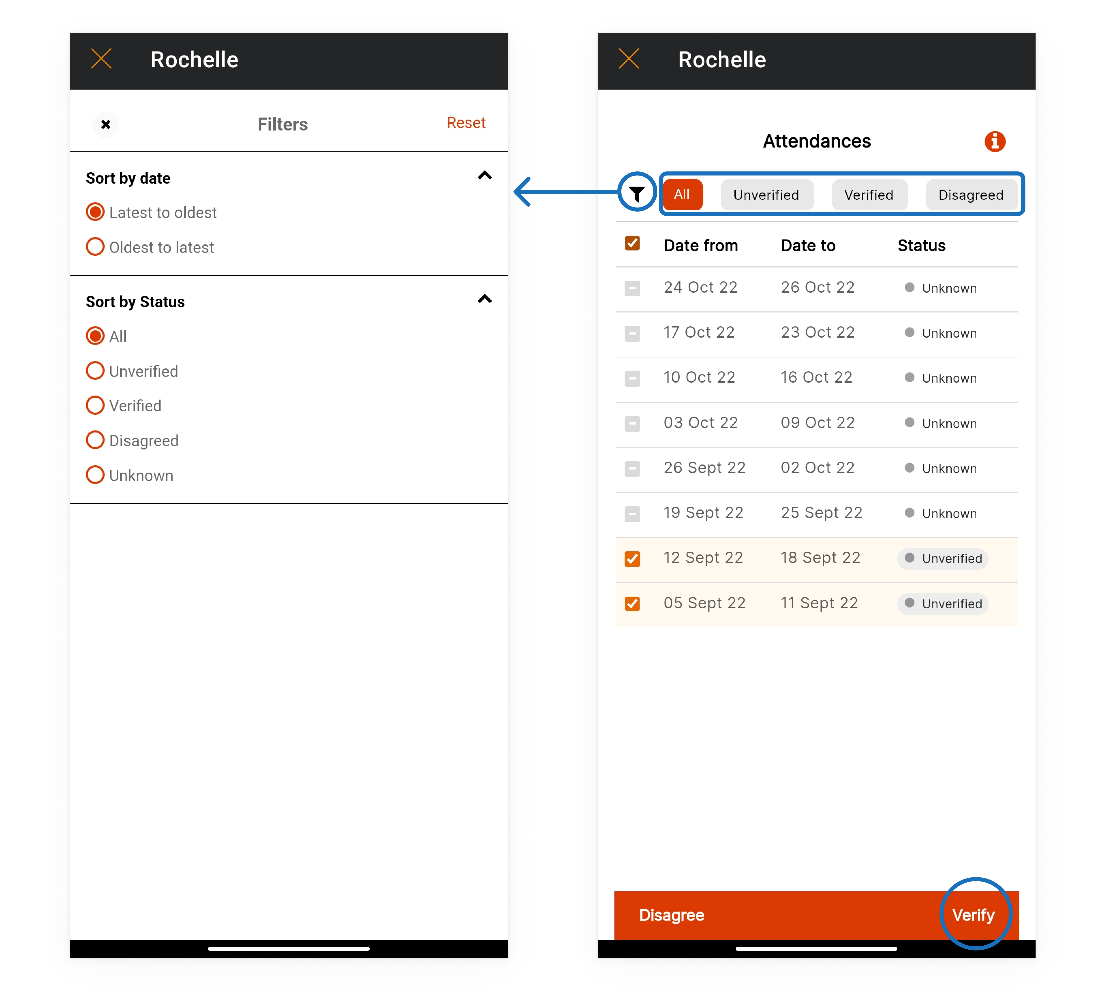
Using the Home App, you are able to verify your child's attendances, or disagree with the attendance information on file and leave a comment noting anything that may need to be corrected
- Log into the Home app.
- Navigate to the Accounts Tab.
- Select Attendance Verification.
- Select which child to view or verify attendances for.
- Select View Attendances, all attendances and their status.
- By selecting the check box to the left of the week/weeks, a menu will appear at the bottom of the screen to select to Verify or Disagree.
- Leave a comment if needed.
- Tap 'Confirm'.
View Health Timeline
View Learning Documentation
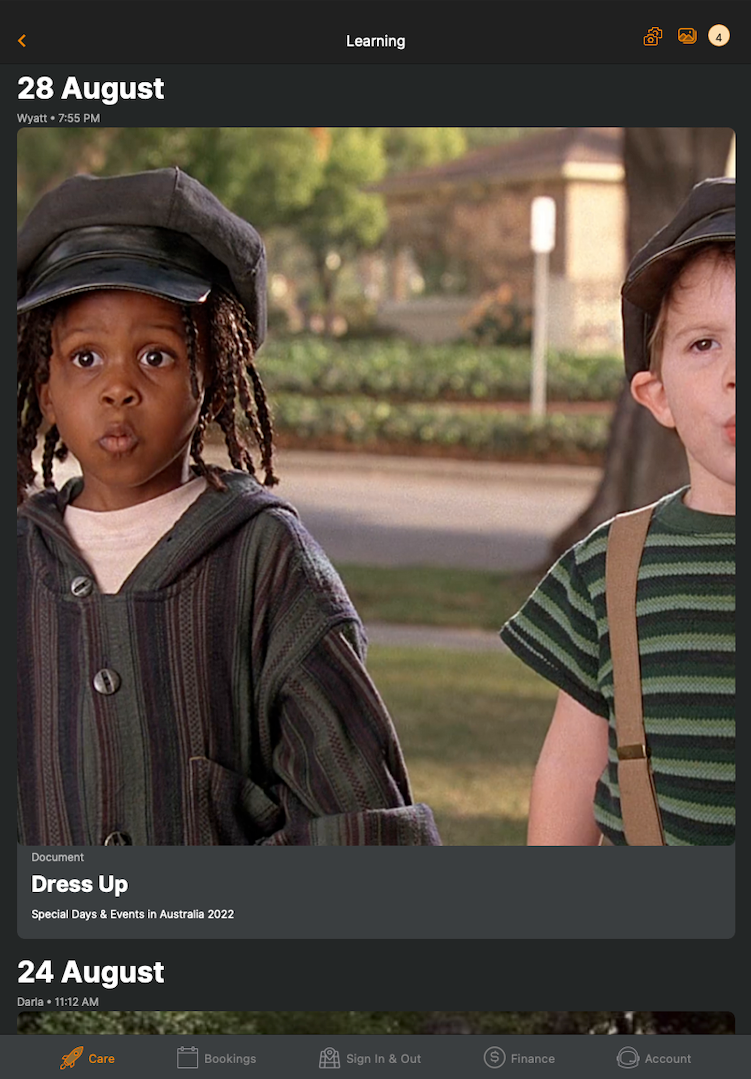
Using the Home App, you can view documentation that your child has been tagged in by the service. You can also interact with educators and other parents of tagged children through public comments.
Documentations contain updates and insights shared by educators about activities and learning experiences at the service.
To view documentation, go to the Care tab and select View All next to Learning.
Each documentation may include:
Title and Description – A summary written by the educator explaining the activity or learning experience.
Learning Outcomes – The learning goals or outcomes being achieved through the post.
Tagged Children – The first names of other children who have been included in the documentation.
Comments – Messages from educators and other parents whose children are tagged in the post.
Note: This feature will only display information if the service your child attends uses Playground.
Creating Moments
Messages & Inbox
Messages allow families and educators to communicate directly within the Home App.
To view or send messages, go to Account > Inbox in the Home App.
You will notice the following indicators in your Inbox:
Service logo – Shows messages sent by educators from the service.
Green circle – Indicates a new or unread message from an educator.
Orange initials – Indicates a message sent by the account holder to educators.
Add Bank Details & Make Payments
If your child is enrolled at an Xplor Pay/Debitsucess service, you can add your bank details to Home to set up your direct debits, make payments and stay on top of your payments automatically.
Notifications
Notifications in the Home App provide updates from your service, such as messages, admin posts, health updates, and documentation posts. These will appear in your Notifications tab.
If you would like to adjust which notifications you receive as push notifications, tap the cog icon in the top-right corner to open Notification Settings.
Within this screen you can:
Turn a notification type on by tapping the toggle so it appears orange.
Turn a notification type off by tapping the toggle again.
Enable or disable all notifications by using the Notifications toggle at the top of the screen.
Selecting System Notifications will open your device’s system settings, where you can further customise how notifications appear.
Was this article helpful?
That’s Great!
Thank you for your feedback
Sorry! We couldn't be helpful
Thank you for your feedback
Feedback sent
We appreciate your effort and will try to fix the article