TABLE OF CONTENTS
Download the App from your relevant App Store:
- Search for "daycaremobile" in the Apple App Store or Discover Childcare in the Google Play Store.
- Install the app and when prompted, allow Discover to send you notification
- Open Discover and enter "0000" to access the one time setup authentication
- Put in your email address and secret token which can be found in Centre/Service Set Up > Setup Tablet.
Enable Tasks:
- Go to Centre/Service Settings
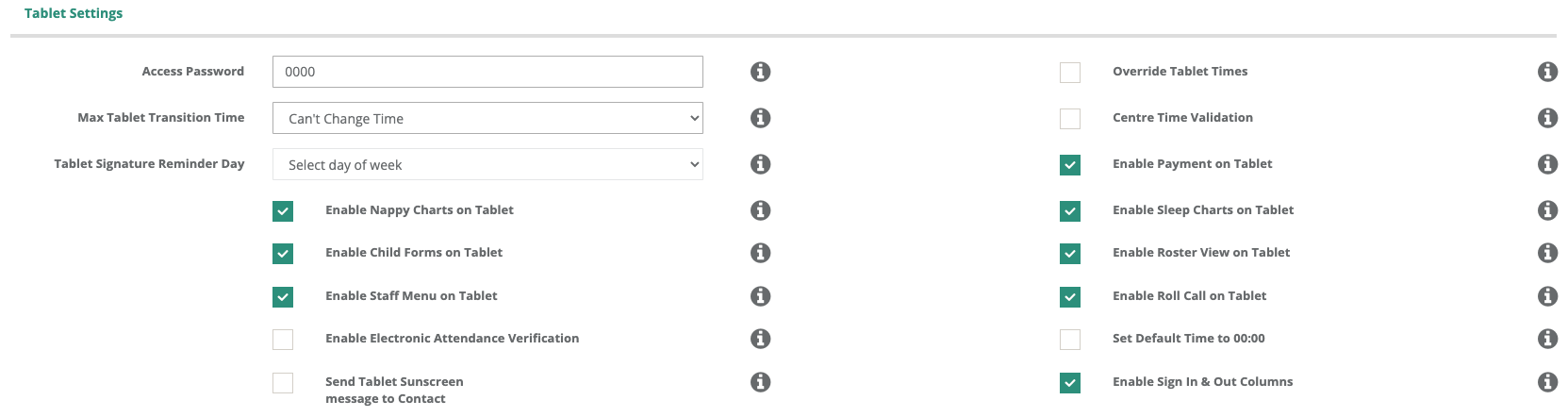
- Scroll down to Tablet Settings:
Tick the box next to the relevant option for each one you want to be able to use.
- Signing Children In/Out (Both Teachers and Parents/Guardians and Contacts)
- Conducting Roll Calls
- Marking Absences
- Completing Checklists
- Logging Sleep and Nappy Checks
- Logging Payments
- Sending Messages to Parents/Guardians
- Staff Sign-In/Out
This menu can also be used to update/change the Centre PIN.
Click 'Save' at the bottom of the settings screen after making any changes.
To issue Staff Pins:
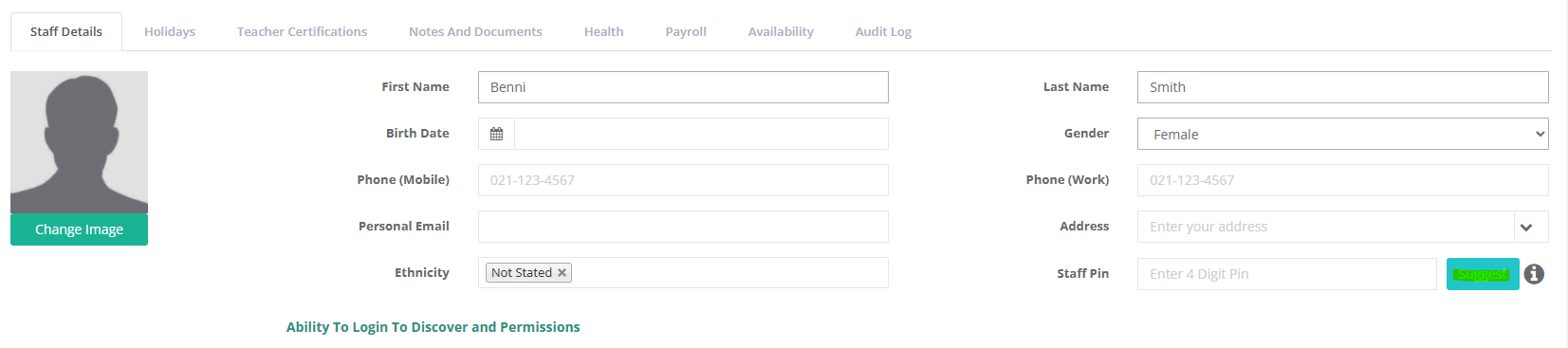
Go to the Staff/Teacher Profile
Select the first Teacher
Next to Staff Pin select Suggest
This will generate a pin
and scroll to the bottom and select save
Do this for each staff member that requires a pin
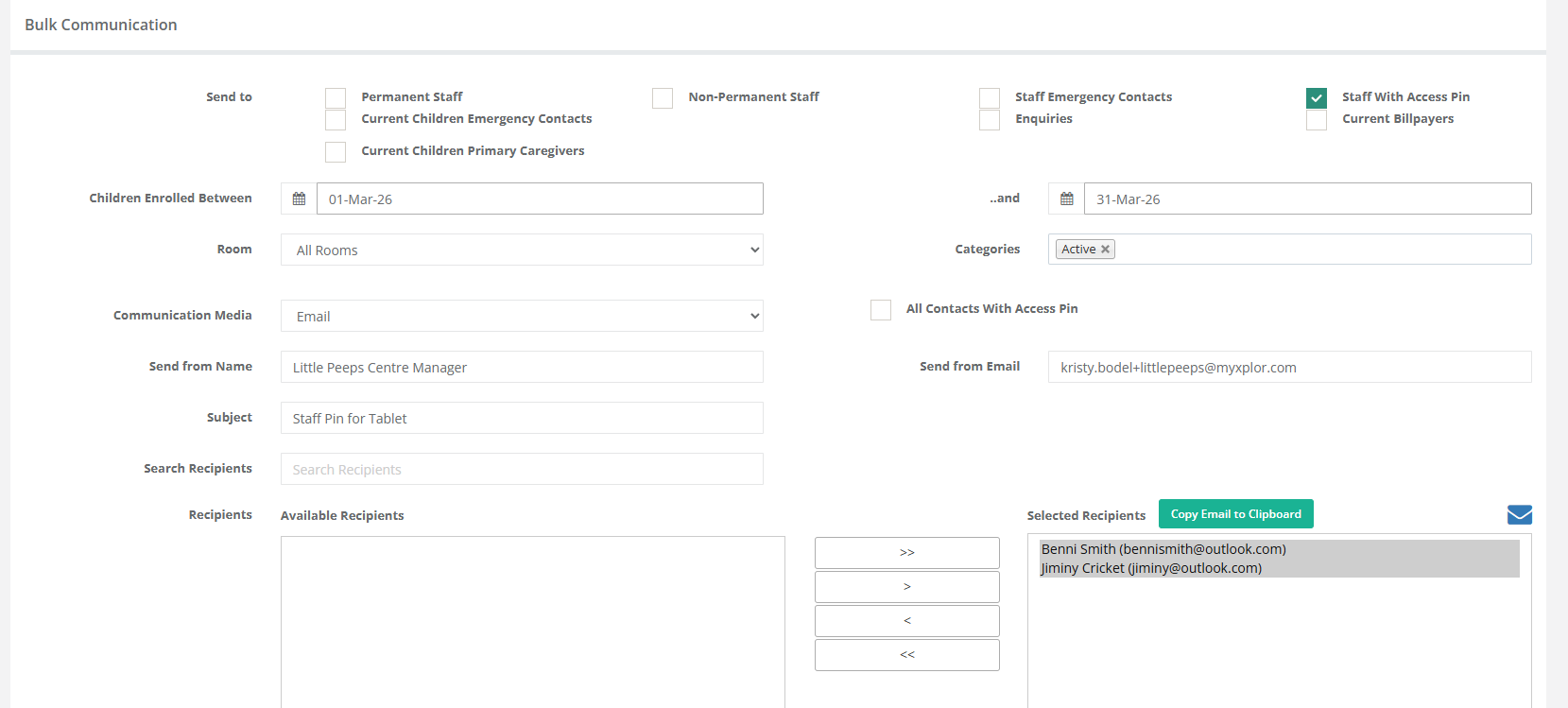
Go to Bulk Communication:
- Select Staff with Access Pin
- Change the Subject of the email if you choose
- Push all Staff with Pins and Email addresses over by >>
Copy and paste below into Notepad first then the Bulk Communication Window
[Accesspin]
[ManagerFirstNameLastName]
Select Send
When you preview the email you can see
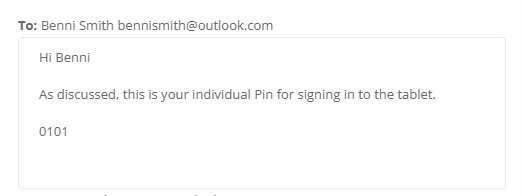
- [FirstName] will populate with the first name of the Staff Member
- [AccessPin] will populate the pin saved in their staff profile
[ManagerFirstNameLastName] will populate the name saved in the Centre Settings: Contact Name
To issue Contact Pins for Families:
Go to Bulk Communication:
- Select Current Emergency Contacts & Primary Contacts
- You can change the Subject of the Email
- Push all Email Addresses over by using the >>
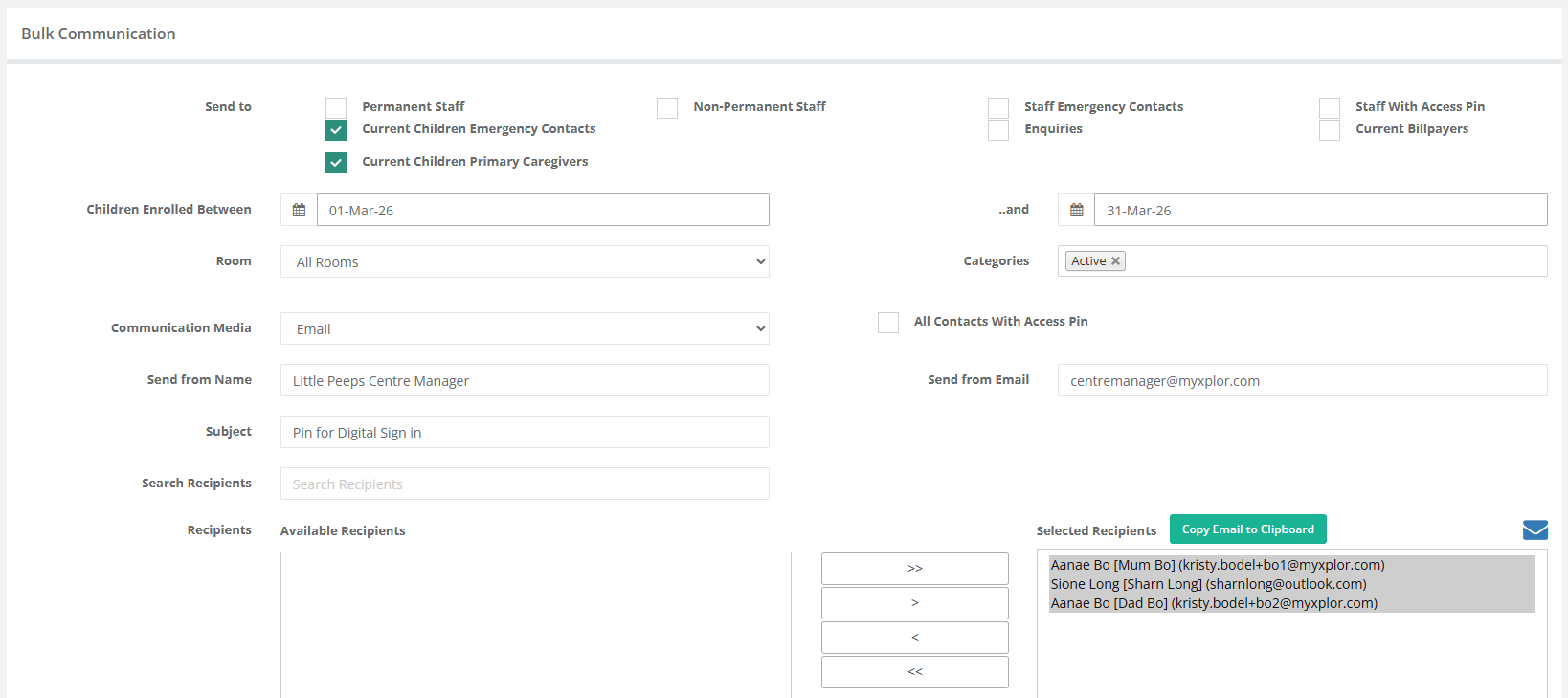
Copy and paste below into Notepad first then the Bulk Communication Window
Replace Centre Name with your actual Centre Name
The rest will auto populate inbetween the [ ]
Dear [FirstName],
[ManagerFirstNameLastName]
Then select Send
When you preview the email being sent
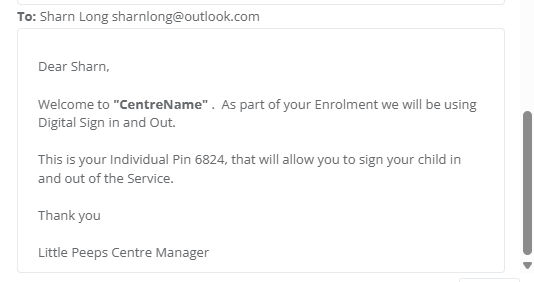
- [FirstName] will populate the first name of the contact
- [AccessPin] will populate the pin saved in their contact profile
- [ManagerFirstNameLastName] will populate the name saved in the Centre Settings: Contact Name
Each Contact at the Centre/Service will then have their own personalised Email with their Tablet Pin sent to them.
Was this article helpful?
That’s Great!
Thank you for your feedback
Sorry! We couldn't be helpful
Thank you for your feedback
Feedback sent
We appreciate your effort and will try to fix the article