Roster Tasks
When a service in Discover is setup it comes with a selection of predetermined Shift Types and Tasks that you can choose between. However, you are able to add additional Shift Types and Tasks if required.
To Navigate to the Roster Tasks Set Up Screen
- Go to Centre Settings
- Select Centre Set Up
- Select the Roster Tab Across the top
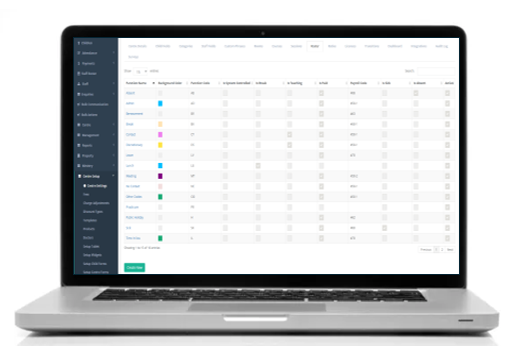
You can select an already created shift type/task and overview it or you can create a new one.
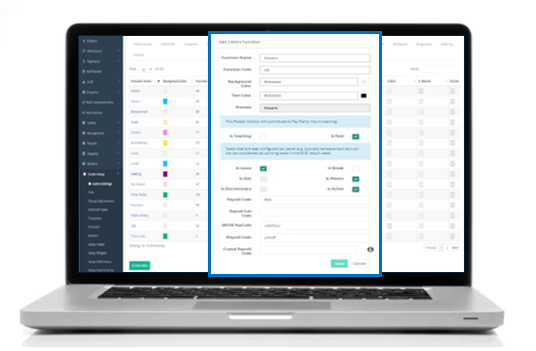
For example:
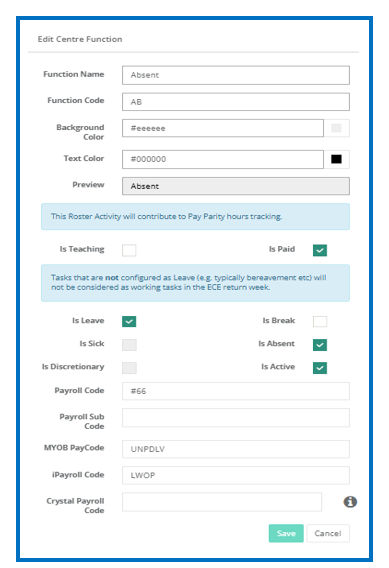
Below is the Absent Task.
If you would like to upload a Roster Report into your Payroll Software, you can add the relevant absence code from your Payroll Software to the Absent task in Discover so the codes match correctly.
Within Function Name enter a Shift Type / Task name.
- Within Function Code enter a chosen code.
- Within Background Colour, choose your desired colour for this task.
- Within Text Colour, ensure that a colour code has been chosen.
- Specify if the Task being created Is Teaching and if it Is Paid or not. For example, you could create a Shift Type that is not teaching but is still paid.
- Use the Task Boxes to specify the details of the task being created.
- Add Payroll Codes if required.
- Select 'Save'.
Adding Shift Types/Tasks
To set up shift types/tasks for your roster, navigate to Centre Settings > Roster.
- Select 'Create New' at the bottom left of the screen.
- Within Function Name enter a Shift Type / Task name.
- Within Function Code enter a chosen code.
- Within Background Colour, choose your desired colour for this task.
- Within Text Colour, ensure that a colour code has been chosen.
- Specify if the Task being created Is Teaching and if it Is Paid or not. For example, you could create a Shift Type that is not teaching but is still paid.
- Use the Task Boxes to specify the details of the task being created.
- Add Payroll Codes if required.
- Select 'Save'.
Please Note: Creating shift types that are room-specific can be an easy way of tracking tasks and staff assigned to a specific room.
Was this article helpful?
That’s Great!
Thank you for your feedback
Sorry! We couldn't be helpful
Thank you for your feedback
Feedback sent
We appreciate your effort and will try to fix the article