TABLE OF CONTENTS
- Invoice Contents
- Quarterly Statements
- Quarterly Statements will include
- Examples
- Sending Quarterly Statements
- To Customise the Family Boost Email
- More Information regarding the Family Boost Quarterly Statements
Invoice Contents
Invoices include the below, per Family Boost requirements:
- Child's official full name
- Licence number of centre
- Name of centre
- Address of centre
- IRD/GST number
- Bill payer full name
- Invoice issue date
- Start and end date of fee period
- Final amount invoiced (after subsidies and donations have been removed)
Quarterly Statements
If specified, Discover will automatically email bill payers a 3-month statement at the end of each quarter, at 1:00pm NZT on:
- 1st October
- 6th January
- 1st April
- 1st July
Please allow 72 hours from the beginning of the Quarter for Families to receive their Statements.
These dates may change due to public holiday's. We will notify you prior to the end of the quarter if this is the case.
Quarterly Statements will include:
- Header "Quarterly Statement" in the top-right
- Official full name of child/ren
- Summary of all fees and any credits or discounts that were created or applied during the quarterly statement date range only (regardless of the period they relate to).
- Statement Issue date
- Statement period
- License number
Invoices, credits and discounts are included in the Quarterly Statement based on the 'Issued Date'.
Not the Care Dates for the Quarter.
This is the date in the far left column on the child's Account screen or the bill payer's Transactions screen.
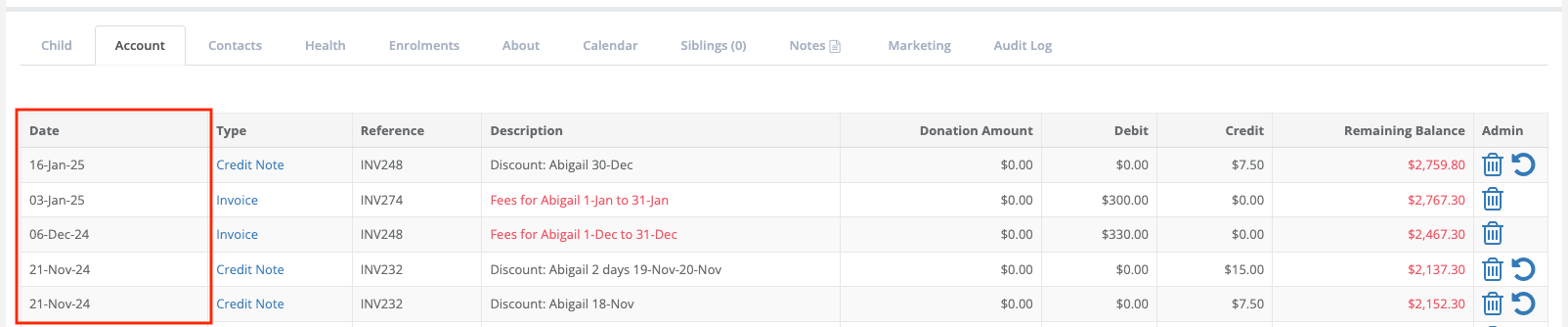
Examples
- An invoice is issued on 01-Jan-25
- The invoice is for the Enrolment week of 23-Dec to 29-Dec 2024
- This invoice will be included in the Quarterly Statement for the Jan-Mar quarter because the issued date is 01-Jan-25
- A credit note issued on 31-Dec-25 for 06-Jan-25 will be included in the Quarterly Statement for the Oct-Dec quarter because the issued date is 31-Dec-24
** It is also important to remember that if your invoicing did not run, or that you have $0 invoices, these will not be included in the Invoice total of the Quarterly statement.**
To Customise the Family Boost Email
To customise the email Family Boost quarterly statements will be attached to, navigate to
Centre Setup
Templates
Select: Family Boost Quarterly Statement
You can add extra information into the Template so it will read as follows:
"Dear [BillPayer],
Attached to this email you will find your quarterly statement for FamilyBoost. This statement contains all the necessary information for you to upload it to the Inland Revenue’s MyIR portal.
Remember, invoices are generated based off the Invoiced date, not the date of care provided or parent payments made.
If you have any questions or need further assistance, please do not hesitate to contact us.
Kind regards,
[CenterName]
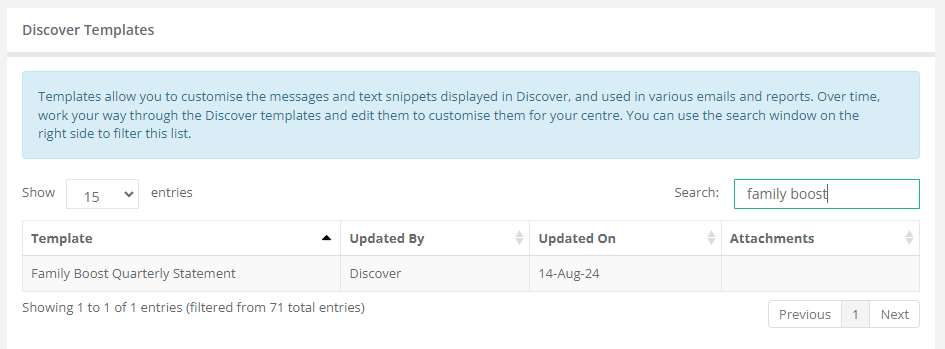
Click the template name and type in your adjustments in the text editing field before clicking 'Save'.
Sending Quarterly Statements
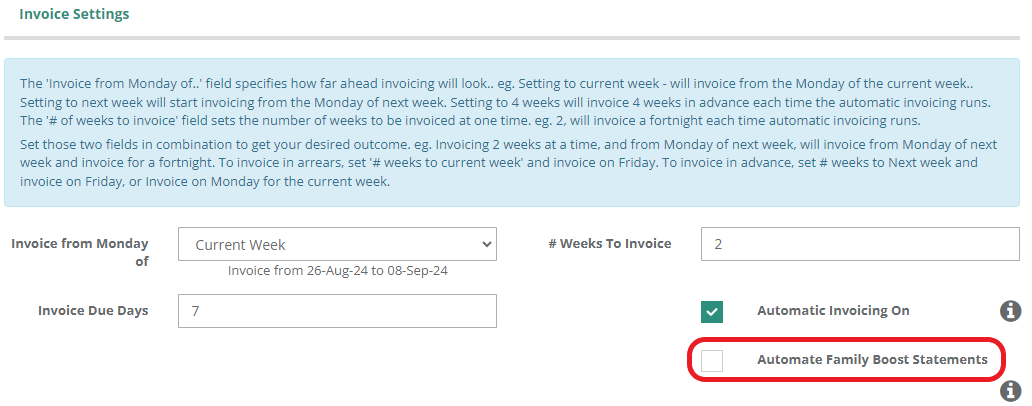
Automate Family Boost Statements
To switch on automatic quarterly statements:
- Navigate to Centre Settings > Centre Details tab.
- Scroll to Invoice Settings.
- Tick the checkbox next to 'Automate Family Boost Statements'
- Scroll down and click 'Save'.
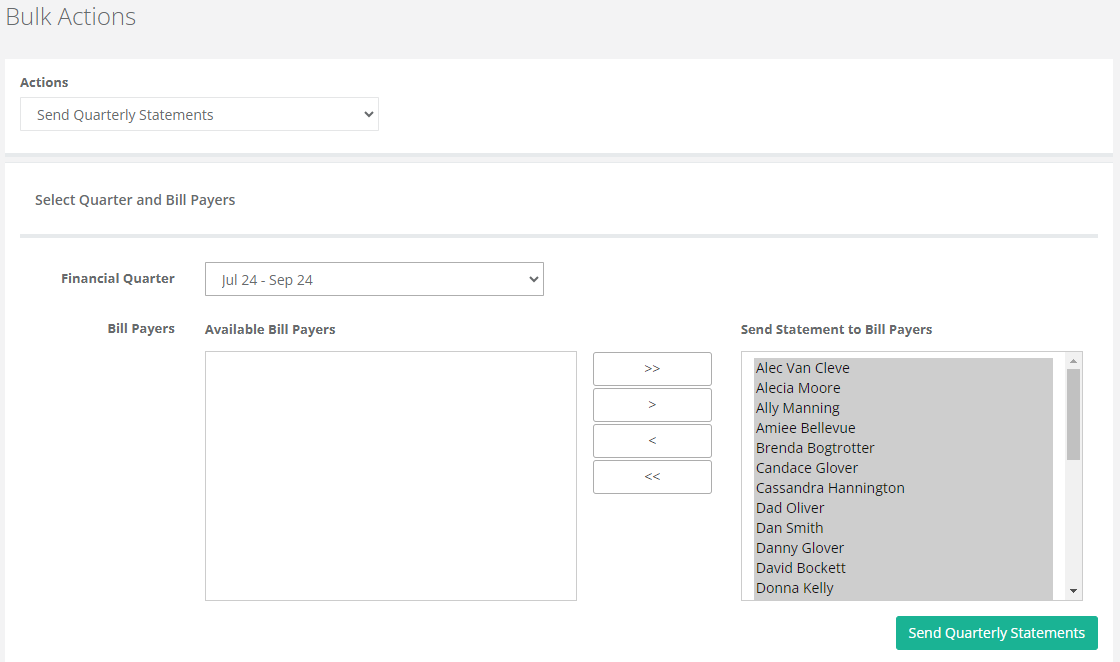
To manually send quarterly statements:
- Navigate to Bulk Actions > select 'Send Quarterly Statements'.
- Select the relevant Financial Quarter.
- Use the >> arrows to move all Bill Payers to the recipient list, or the > arrow to move individuals.
- Click 'Send Quarterly Statements'.
If a parent does not appear in this list they did not have any invoices charged that quarter, or they were not the child's bill payer.
Resend Quarterly Boost Statement
To resend Quarterly Statements for and individual family
1. Go to the Children Menu
2. Select the Billpayer
3. Go to the Notes Tab
4. Select the Quarterly Statement and download to resend.
To Customise the Family Boost Email
To customise the email Family Boost quarterly statements will be attached to, navigate to Centre Setup > Templates > Family Boost Quarterly Statement.
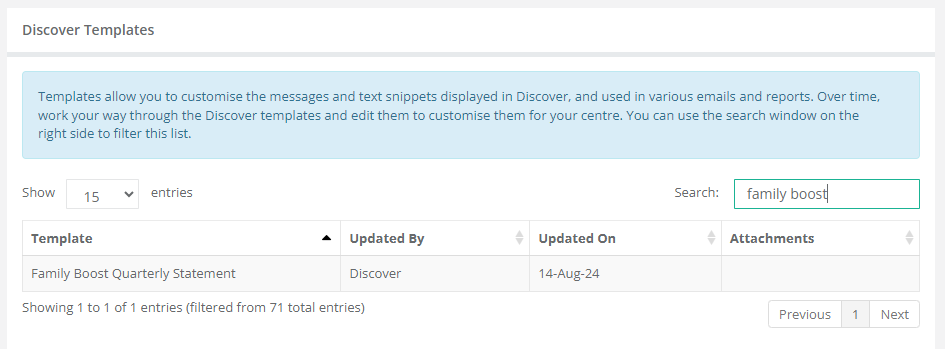
Click the template name and type in your adjustments in the text editing field before clicking 'Save'.
More Information regarding the Family Boost Quarterly Statements:
Under IRD regulations, the contents of a Quarterly Statement for a given period are calculated based on invoices (Fees and Ad-Hoc Items tagged for inclusion) issued within that quarter, minus any subsidies and discounts applied in the same quarter. The resulting Net Fees represent the parent portion and the claimable amount. This is not related to the total payments made.
If you would like to manually verify the totals, go to Account > Show Statement and run a statement for 1 October – 31 December. Add up all invoices issued within the quarter, then subtract the total discounts and subsidies to obtain the Net Fees.'
'Here is the computation for getting the total net fees.
Total Fees – Total Credits = Total Net Fees
When comparing the quarterly statement with your own manual calculations, please note the following:
Items excluded from the quarterly statement totals:
- Reversed invoices (enrolment, ad-hoc, late fees)
- Reversed receipts
- Reversed credit notes
- Holiday credits
- Donations
- Refunds
- Balance-forward invoices
Items that will show under Credits/Discounts on the Quarterly Statement:
- Debit Success transaction fees
- Credit notes with types "Others" or "Discount" (if dated within the period)
Credit notes excluded from the calculations:
- Credit notes with type "Debit Write-Off"
Additional notes:
- Holiday credits (Child & Centre) and eligible payment methods (WINZ, CPU, ELP, StudyLink) are included in the discount/credit calculations.
- All other payment types are excluded.
- If net fees result in a negative amount, the quarterly statement will display $0.
- Due to these rules, the totals on the quarterly statement may differ from a simple comparison of weekly fees versus payments, even though the system’s calculations are accurate.'
Was this article helpful?
That’s Great!
Thank you for your feedback
Sorry! We couldn't be helpful
Thank you for your feedback
Feedback sent
We appreciate your effort and will try to fix the article