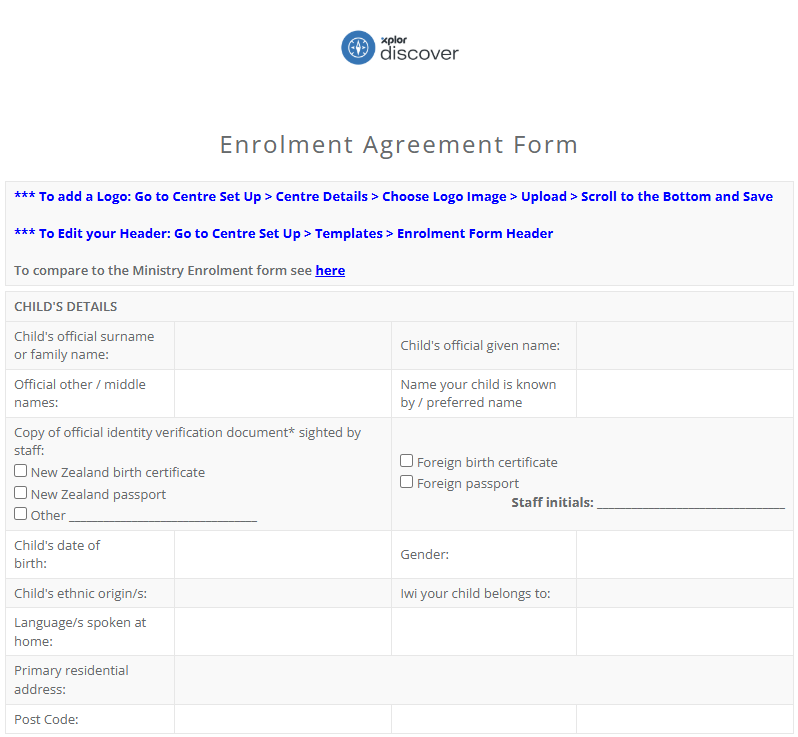
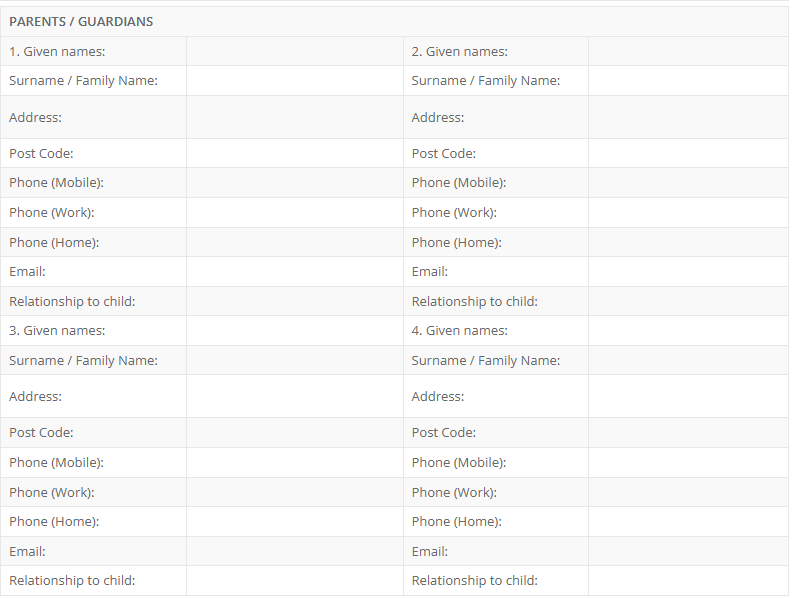
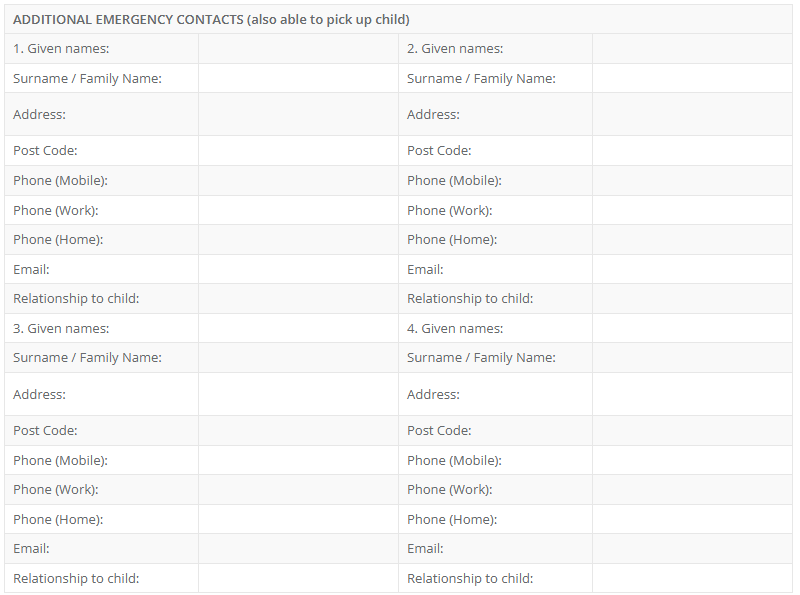
- Discover's Digital Enrolment Form has been designed to replicate the example form provided by the Ministry of Education.
- Fields within the example form with a diamond symbol within them cannot be modified or removed.
- The order that the fields and heading display in our Digital Enrolment Form cannot be modified.
- Discover keeps its Digital Enrolment form up to date as best as we can based on guidance provided by the Ministry of Education.
To preview your Enrolment Form, navigate to Reports > Children Reports > Blank Enrolment Form. This will present you with a blank Enrolment Form that you can print off directly and provide families with.
Adding a logo
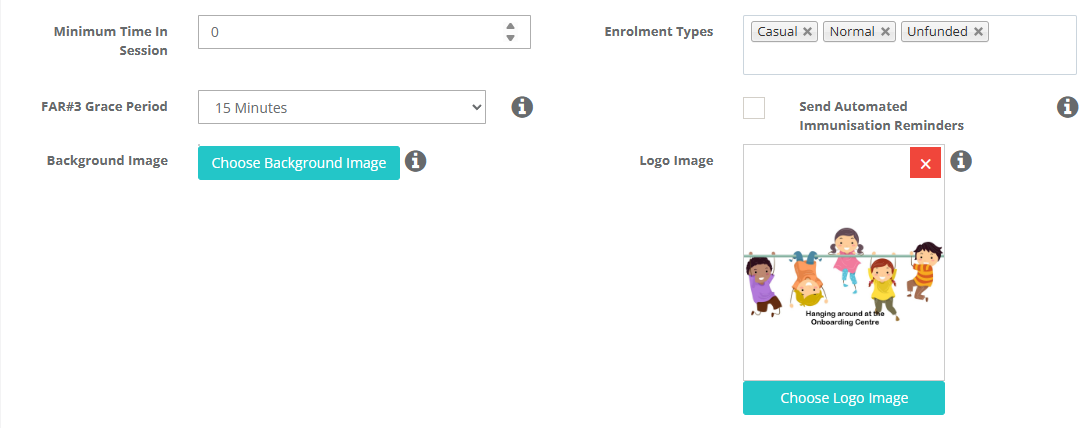
To add your Service or Provider logo to your Enrolment Forms navigate to Centre Setup > Centre Settings > Centre Details.
Select Choose Logo Image and upload your desired image. This logo will appear at the top of your Enrolment Form, as well as on your digital Enrolment and Enquiry Widgets, Invoices and Statements.
Custom Questions on an Enrolment Form
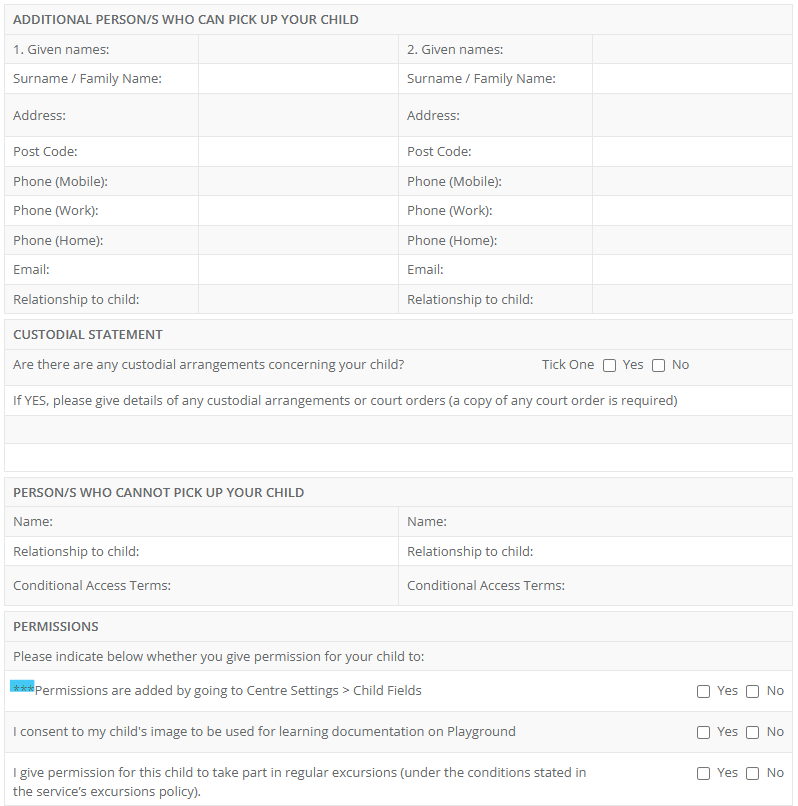
The Digital Enrolment form comes with predetermined question already added to it. Navigate to Centre Settings > Child Fields to find these. Each of these questions can be modified, changed or deleted to suit your needs as a service.
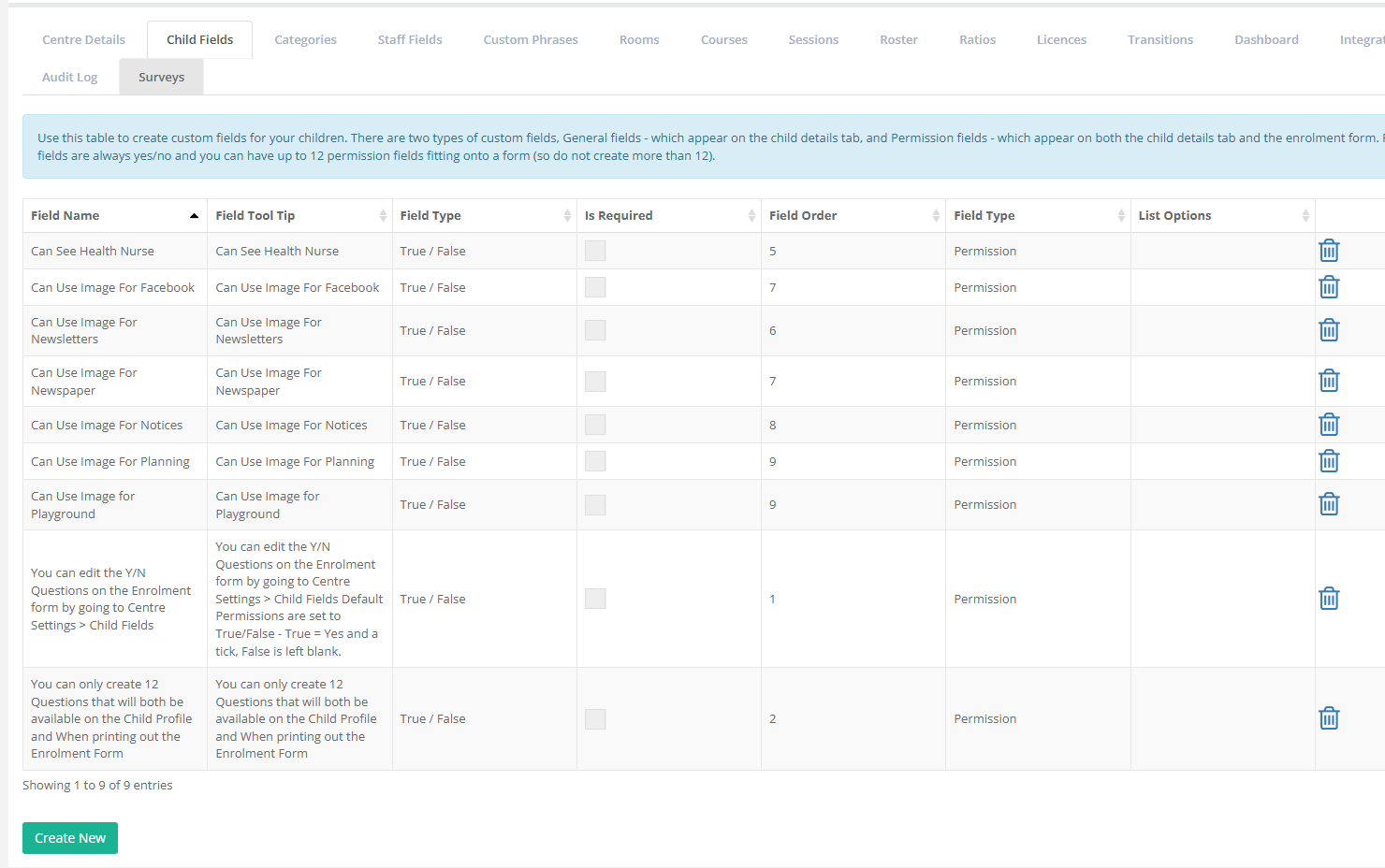
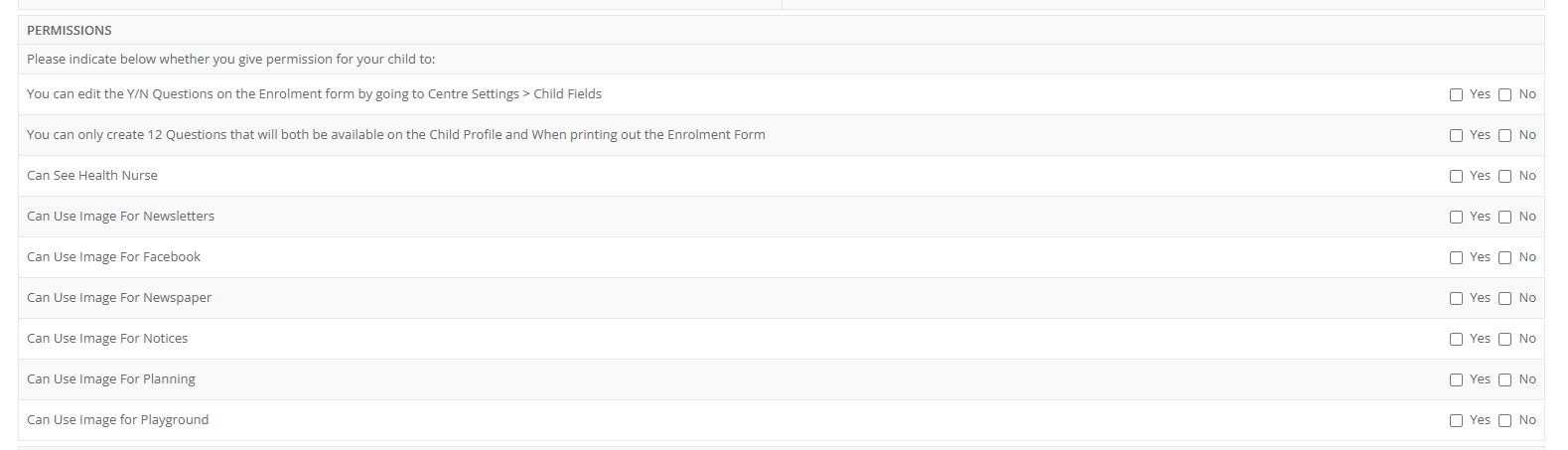
The placement of these fields cannot be modified on the Enrolment form.
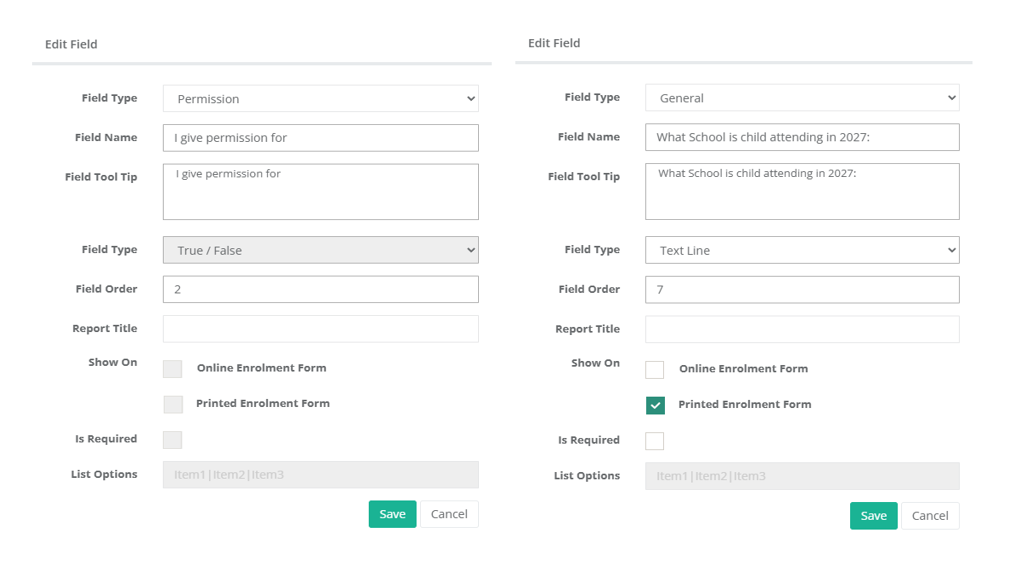
To customize or create your own custom questions:
Click Create New (or edit an existing field).
Select Permission as the field type.
Click Save.
Once saved, you can assign the Field Order, which determines the order the questions appear for parents on the enrolment form.
Permission Field Rules:
Permission fields can only be answered True/False (yes/no).
These fields automatically appear on both the Online Enrolment Form and the Printed Enrolment Form.
Permission questions appear under the section:
“Person/s Who Cannot Pick Up Your Child”The next section header will be Permissions.
A maximum of 12 permission fields can appear on the enrolment form.
Using General Fields for Additional Customisation
If you select Field Type: General, you have greater flexibility when creating questions.
General fields support the following answer types:
True/False
Text Answer
Date
List
The List option allows you to create predefined answer selections.
For example:
Green | Blue | Orange | Yellow
This allows parents to choose from a set of options instead of entering a free-text response.
General fields can also be configured for different purposes. They can be used:
As an internal record for staff to complete
On the Digital Enrolment Form only
On the Printed Enrolment Form only
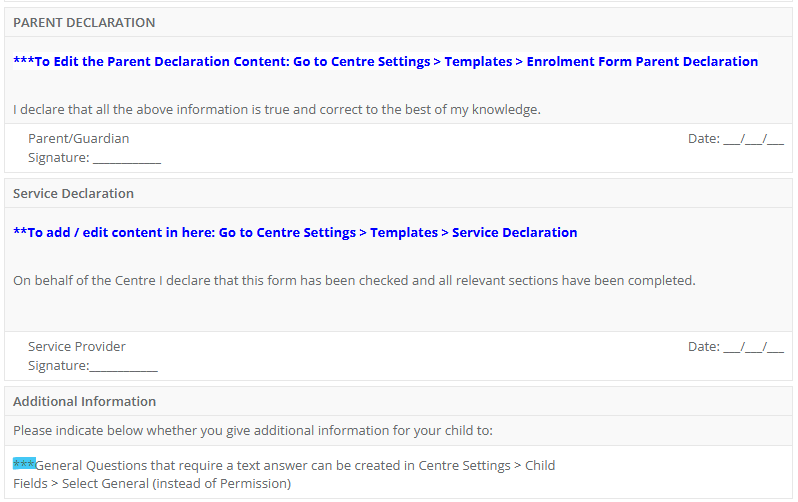
General questions will appear under Service Declaration in the Additional Information section of the enrolment form.
Customise your Enrolment Form
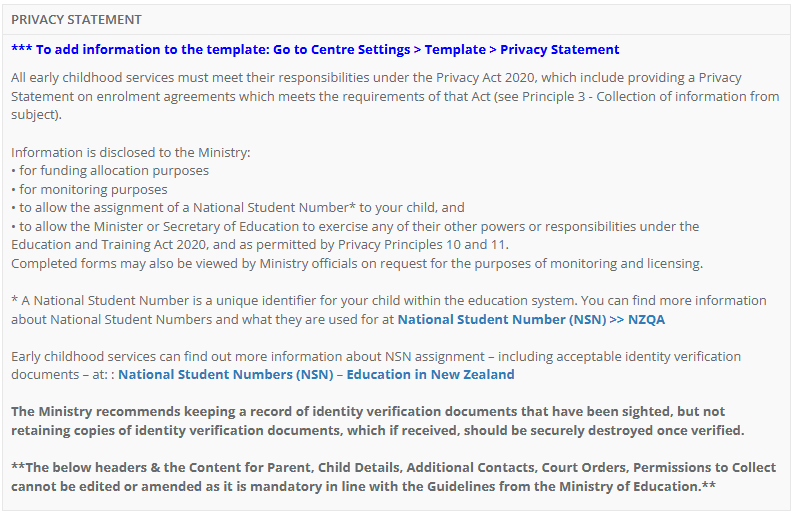
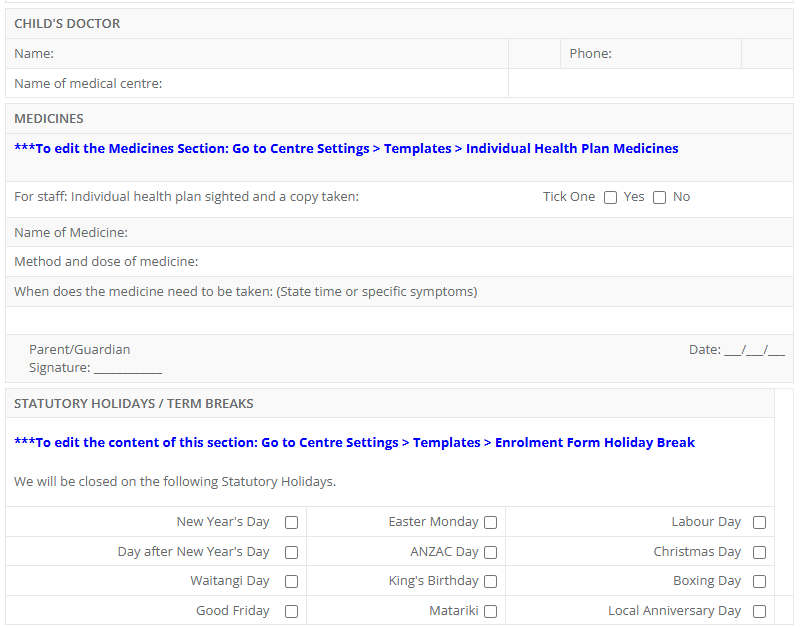
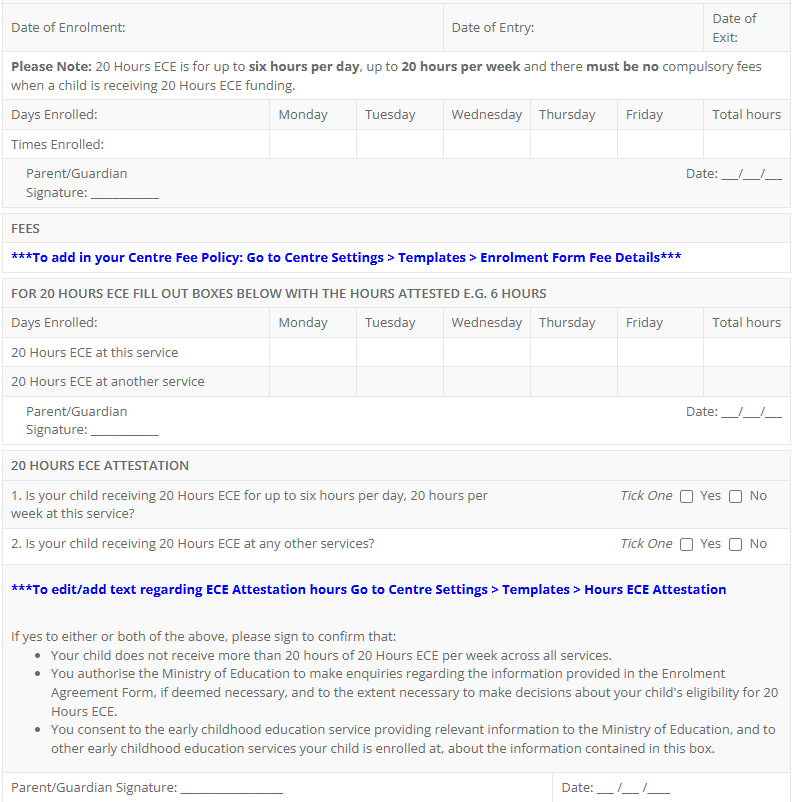
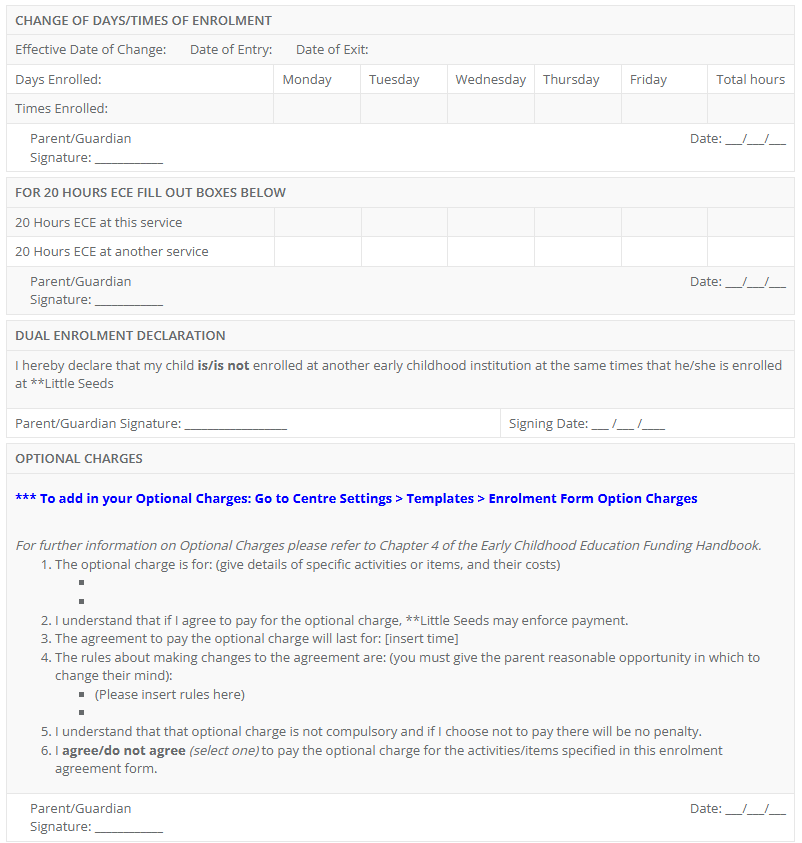
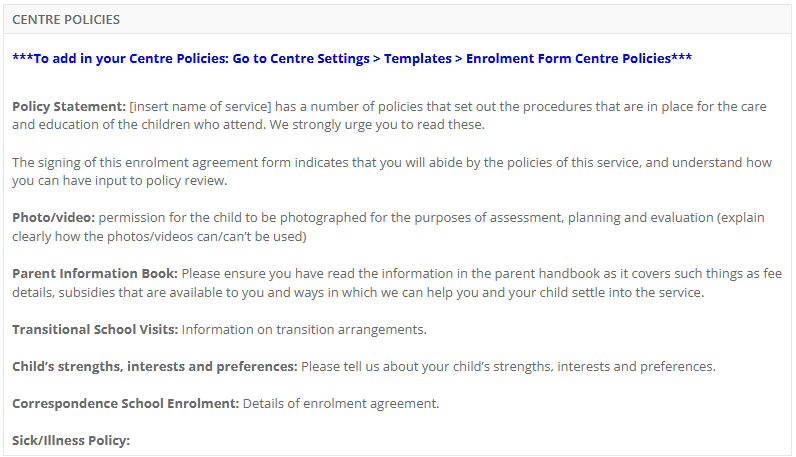
While the headers for these fields cannot be modified - the text inside these sections can be.
Centre Settings > Templates
These templates appear on the Enrolment Form, and allow the data to flow through to Discover.
MEDICINES
Enrolment Form Centre Policies
Enrolment Form Declaration
Enrolment Form Fee Details
Enrolment Form Header
Enrolment Form Holiday Break
Enrolment Form Option Charges
Enrolment Form Parent Declaration
Enrolment Form Uploads
Online Enrolment Form Message
Privacy Statement
Service Declaration
On 8 Jan 26, the regulation requiring Early Childhood Education centres (ECEs) to maintain immunisation records was revoked. This means that ECEs are no longer required to keep those records, but can choose to continue that practice if they wish.
More information on this can be found within the Early Learning Bulletin here.
The contents of the Health Section within your enrolment form and what is collected from it can be modified via Centre Setup > Centre Settings > Enrolment Settings.
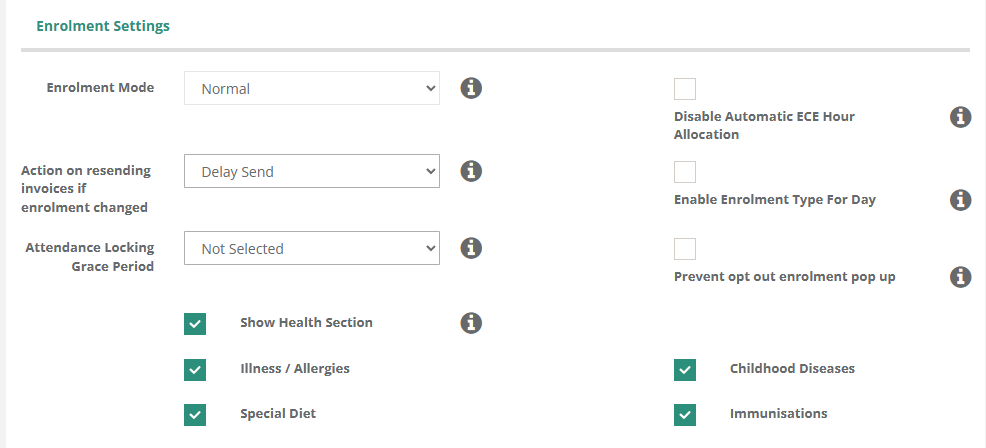
Unticking Show Health Section will remove the Health Section from your Enrolment Form entirely.
This will prevent the collection of any of the information contained within this section. However, you are able to customize your enrolment form to collect choice pieces of information that matches your services needs:
- Unticking Illness / Allergies will removethe Illness / Allergies section from the enrolment form.
- Unticking Special Diet will remove the Special Diet section from the enrolment form.
- Unticking Childhood Diseases will remove the Childhood Diseases section from the enrolment form.
- Unticking Immunisations will remove the ability to record Immunisation data on the enrolment form.
Removal of these sections within the Enrolment Settings will not prevent recording of these pieces of information within a Child's Health information on their profile after the fact.
Was this article helpful?
That’s Great!
Thank you for your feedback
Sorry! We couldn't be helpful
Thank you for your feedback
Feedback sent
We appreciate your effort and will try to fix the article