Some children attend on a rotating schedule rather than following the same bookings each week. This article explains how to set up, update and end alternating enrolment schedules, including weekly, fortnightly and every-other-week booking patterns.
TABLE OF CONTENTS
- Repeat Every Second Week (Resuming Existing)
- Repeat every second fortnight (Resuming Existing)
- Repeat every alternate week
- Ending an Alternating Enrolment
Repeat Every Second Week (Resuming Existing)
Use this option when a child alternates between two different weekly schedules:
- Week 1: Schedule 1
- Week 2: Schedule 2
- Week 3: Schedule 1
- Week 4: Schedule 2
Set Up the First Week’s Schedule
- Navigate to Children and select the child’s profile.
- Open the Enrolments tab.
- Select Change Enrolled Times.
- In Effective From, enter the Monday date when the first week’s schedule begins.
- In Effective Until, select the latest available date or choose Until Child Turns 5 from the dropdown.
- Enter the child’s booking times, fees and rooms for the first week’s schedule.
- Select Save. You will be returned to the child’s Enrolments tab.
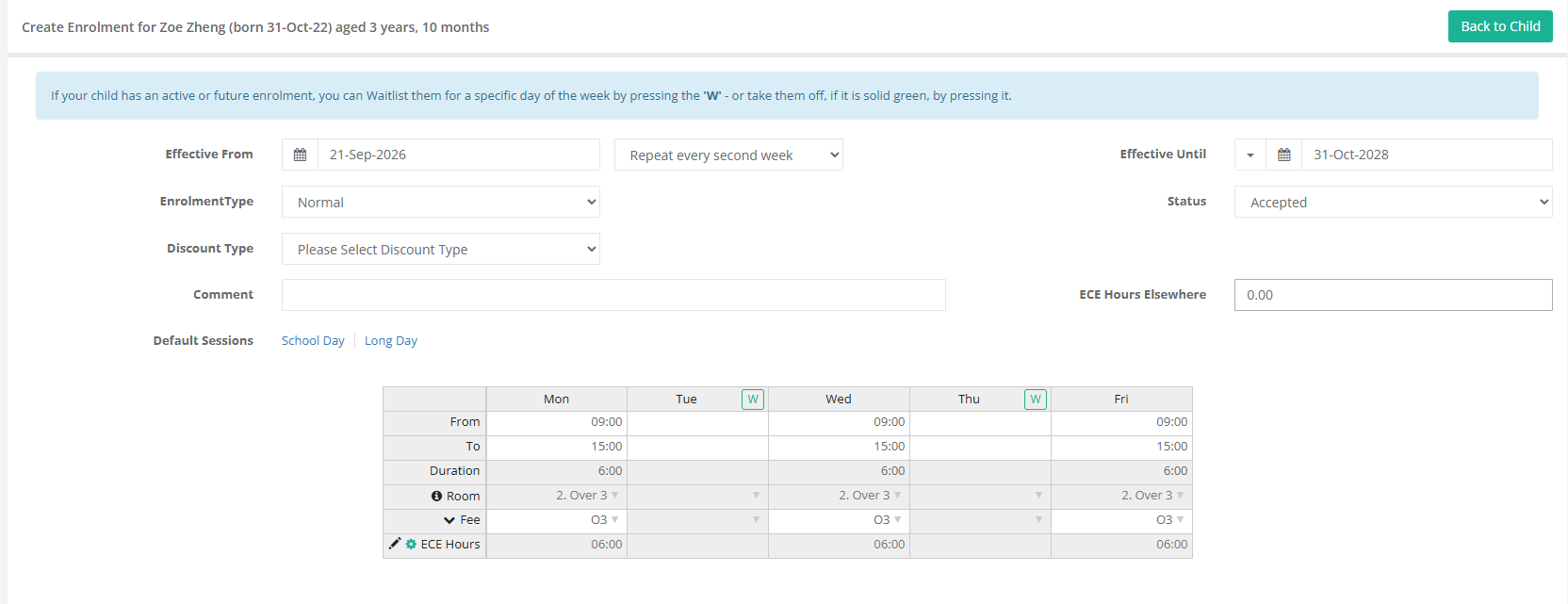
Set Up the Second Week’s Schedule
- Select Change Enrolled Times again.
- In Effective From, enter the Monday date when the second week’s schedule begins. This should be one week after the first schedule’s start date.
- Select Repeat Every Second Week (Resuming Existing) from the dropdown.
- In Effective Until, select the same end date used for the first schedule or choose Until Child Turns 5.
- Enter the child’s booking times, fees and rooms for the second week’s schedule.
- Select Save.
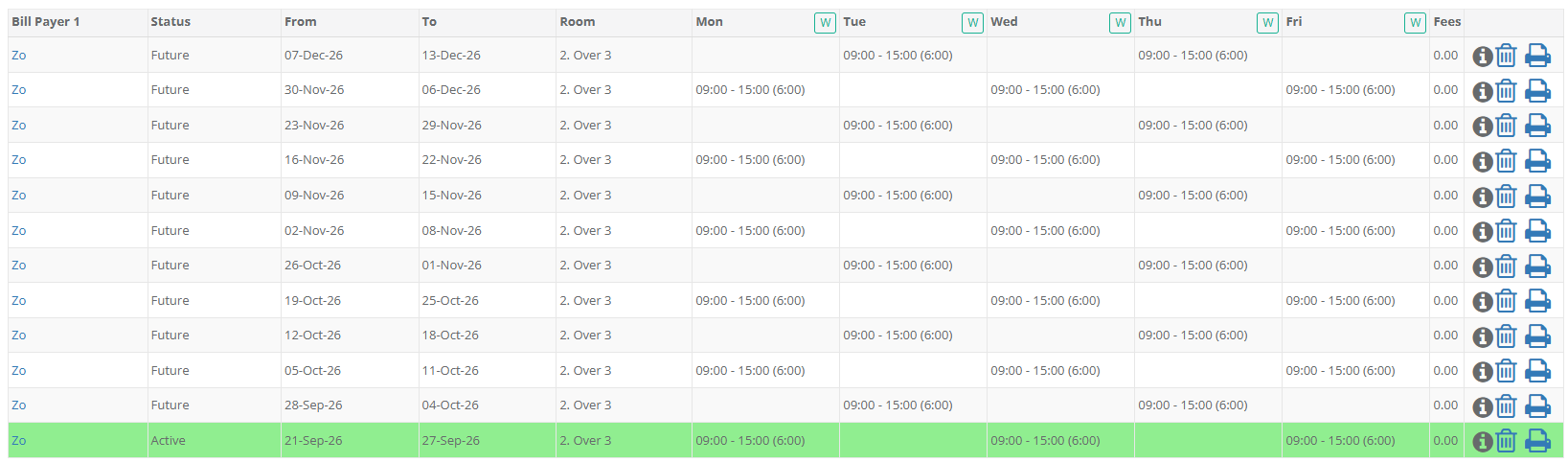
The two schedules will now alternate each week until the selected end date.
Result:
Repeat Every Second Fortnight (Resuming Existing)
Use this option when a child follows one schedule for two weeks and then a different schedule for the following two weeks:
Week 1: Schedule 1
Week 2: Schedule 1
Week 3: Schedule 2
Week 4: Schedule 2
Week 5: Schedule 1
Week 6: Schedule 1
Week 7: Schedule 2
Week 8: Schedule 2
Set Up the First Fortnight’s Schedule
Navigate to Children and select the child’s profile.
Open the Enrolments tab.
Select Change Enrolled Times.
In Effective From, enter the Monday date when the first fortnight’s schedule begins.
In Effective Until, select the latest available date or choose Until Child Turns 5 from the dropdown.
Enter the child’s booking times, fees and rooms for the first fortnight’s schedule.
Select Save. You will be returned to the child’s Enrolments tab.
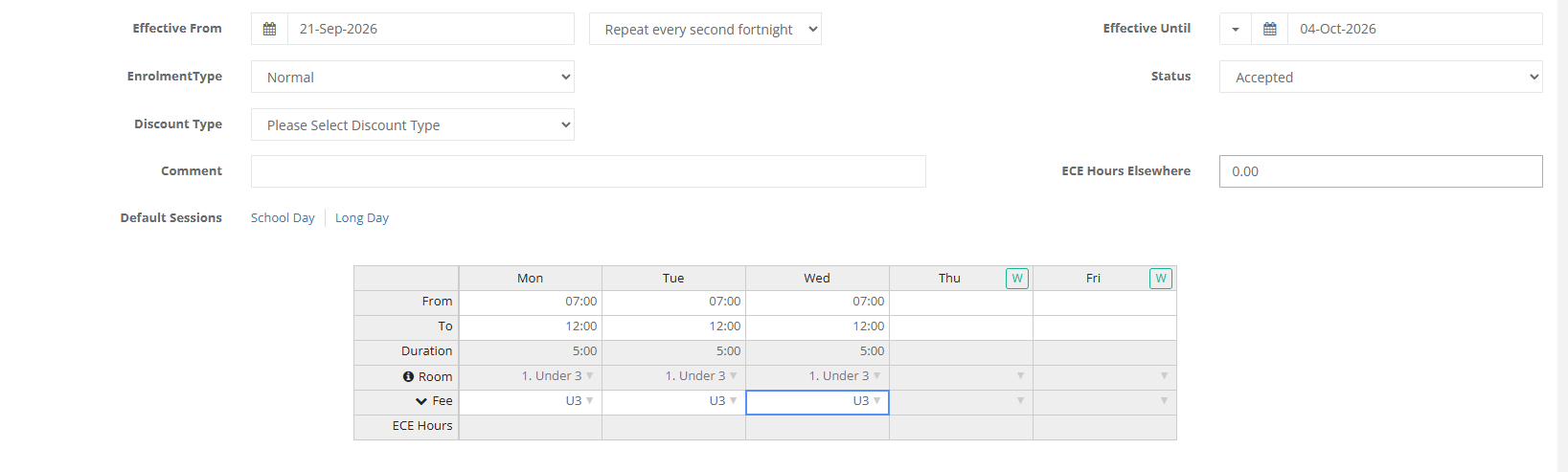
Set Up the Second Fortnight’s Schedule
Select Change Enrolled Times again.
In Effective From, enter the Monday date when the second fortnight’s schedule begins. This should be two weeks after the first schedule’s start date.
Select Repeat Every Second Fortnight (Resuming Existing) from the dropdown.
In Effective Until, select the same end date used for the first schedule or choose Until Child Turns 5.
Enter the child’s booking times, fees and rooms for the second fortnight’s schedule.
Select Save.
The two schedules will now alternate every fortnight until the selected end date.
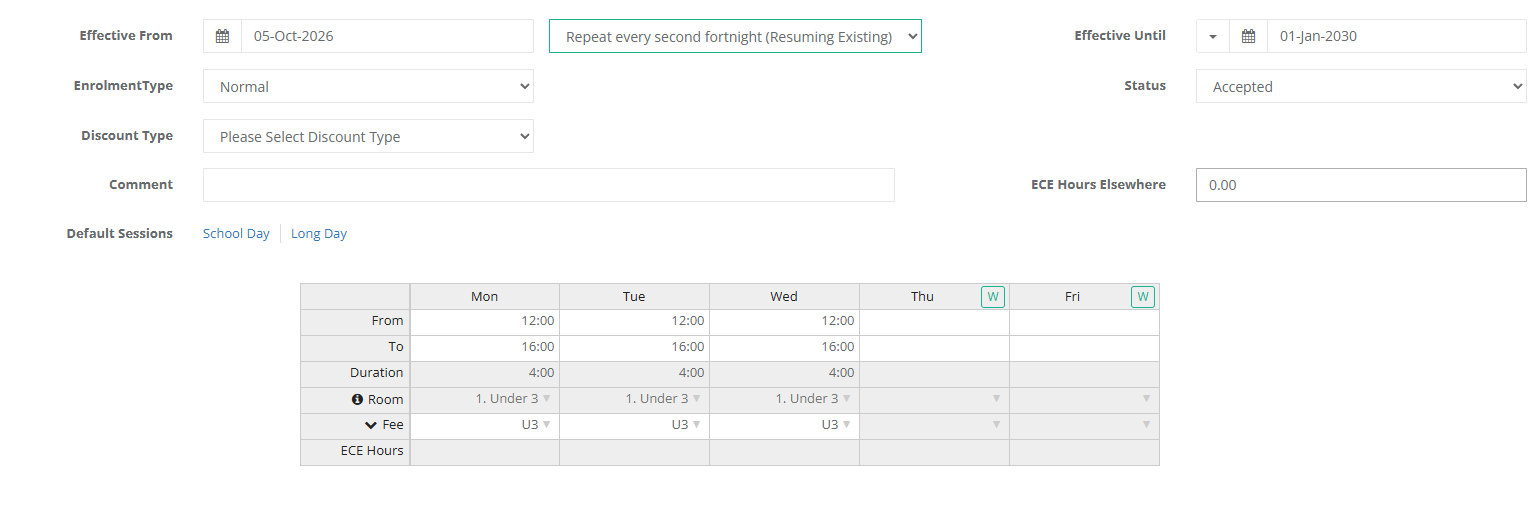
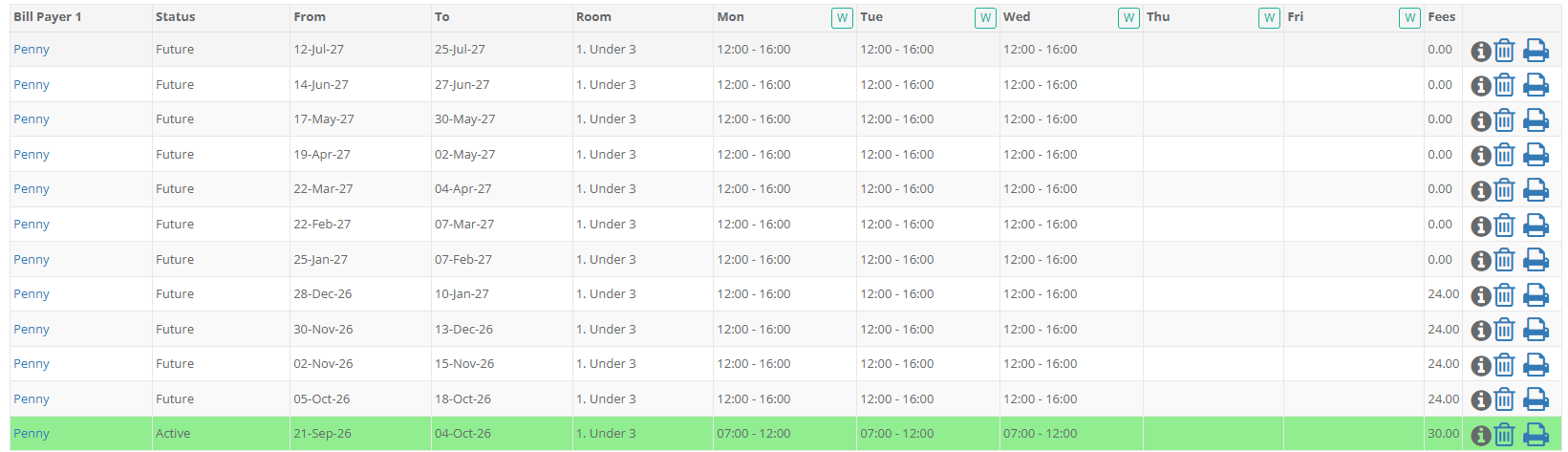
Result:
Repeat Every Alternat Week
Use this option when a child attends the service every other week:
Week 1: Scheduled bookings
Week 2: No bookings
Week 3: Scheduled bookings
Week 4: No bookings
To set up the enrolment:
Navigate to Children and select the child’s profile.
Open the Enrolments tab.
Select Change Enrolled Times.
In Effective From, enter the Monday date when the alternating schedule begins.
Select Repeat Every Alternate Week from the dropdown.
In Effective Until, select the latest available date or choose Until Child Turns 5.
Enter the child’s booking times, fees and rooms for the weeks they will attend.
Select Save.
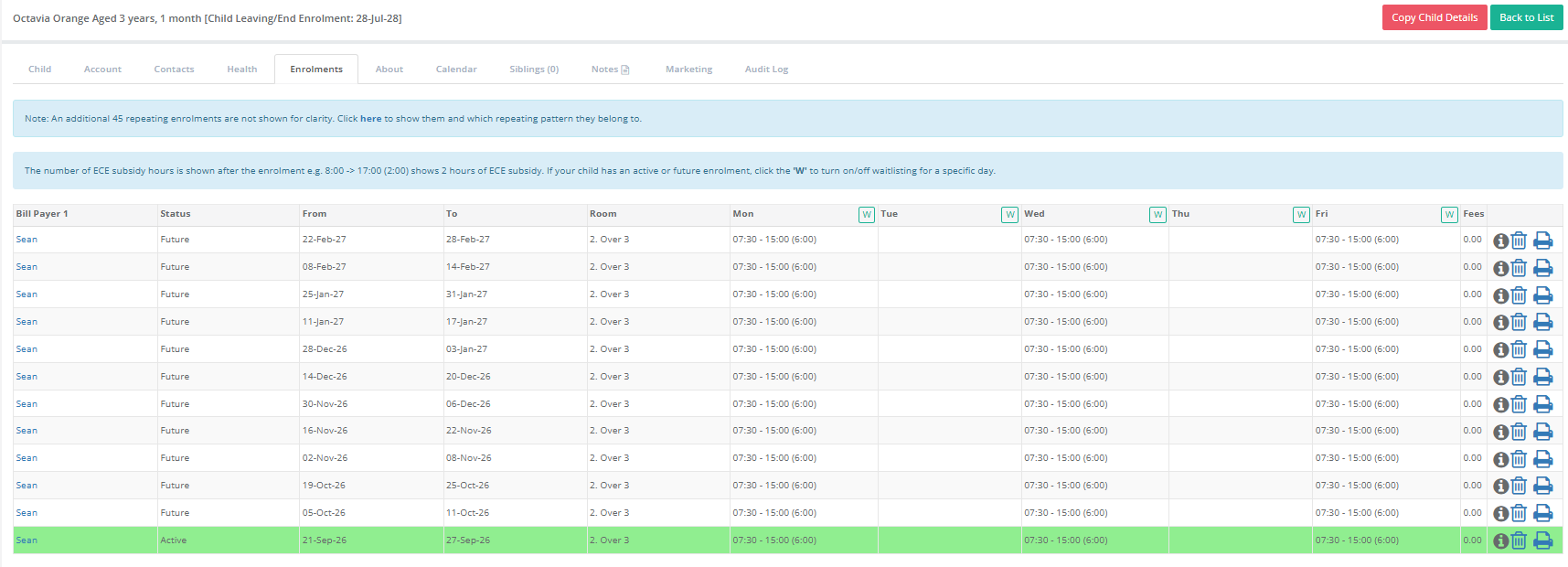
The schedule will repeat every other week, with no bookings created for the weeks in between.
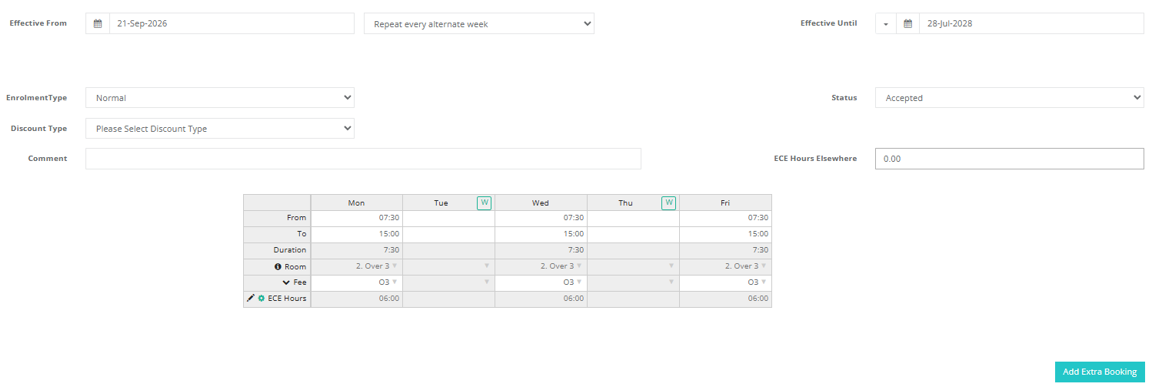
Result:
Ending or Replacing an Alternating Enrolment
To stop an alternating schedule and replace it with a standard enrolment:
Navigate to Children and select the child’s profile.
Open the Enrolments tab.
Select the active enrolment.
Update Effective Until to either:
Until Child Turns 5, or
The date the child’s enrolment at the service will end.
Change the repeat option to No Repeat. This will remove the alternating schedule and replace it with a standard enrolment.
Select Save.
If required, create a new alternating or standard enrolment using the relevant instructions.
Removing Multiple Enrolments Created in Error
If an alternating schedule was created incorrectly and generated multiple enrolments, you can remove them by temporarily adding a Leaving Date to the child’s profile.

Once saved, Discover will remove all enrolments dated after the selected Leaving Date, providing a blank slate from which to create the correct enrolment.
Was this article helpful?
That’s Great!
Thank you for your feedback
Sorry! We couldn't be helpful
Thank you for your feedback
Feedback sent
We appreciate your effort and will try to fix the article