Your Payments Onboarding Specialist can send invitation emails to parents on your behalf during setup. If you choose not to send them at that time, you can easily send them later from the Active Bill Payers tab.
To Customise the Billpayer Invitation Email
- Navigate to Centre/Service Set Up
- Templates
- Select Billpayer Missing Details.
- This is where you can customise the email that will be sent to parents from the next step.
When you are ready to invite families: - Go to Payments
- Integration
- Active Billpayer screen
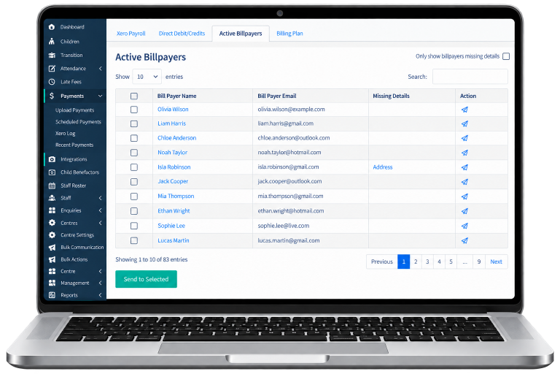
At the top of the list, tick Bill Payer Name to select all, or tick individual Bill Payers.
Click Send to Selected.
Once the email is sent, the Billpayer will receive an email with a link to fill out their payment information.
Sample Email from Discover:
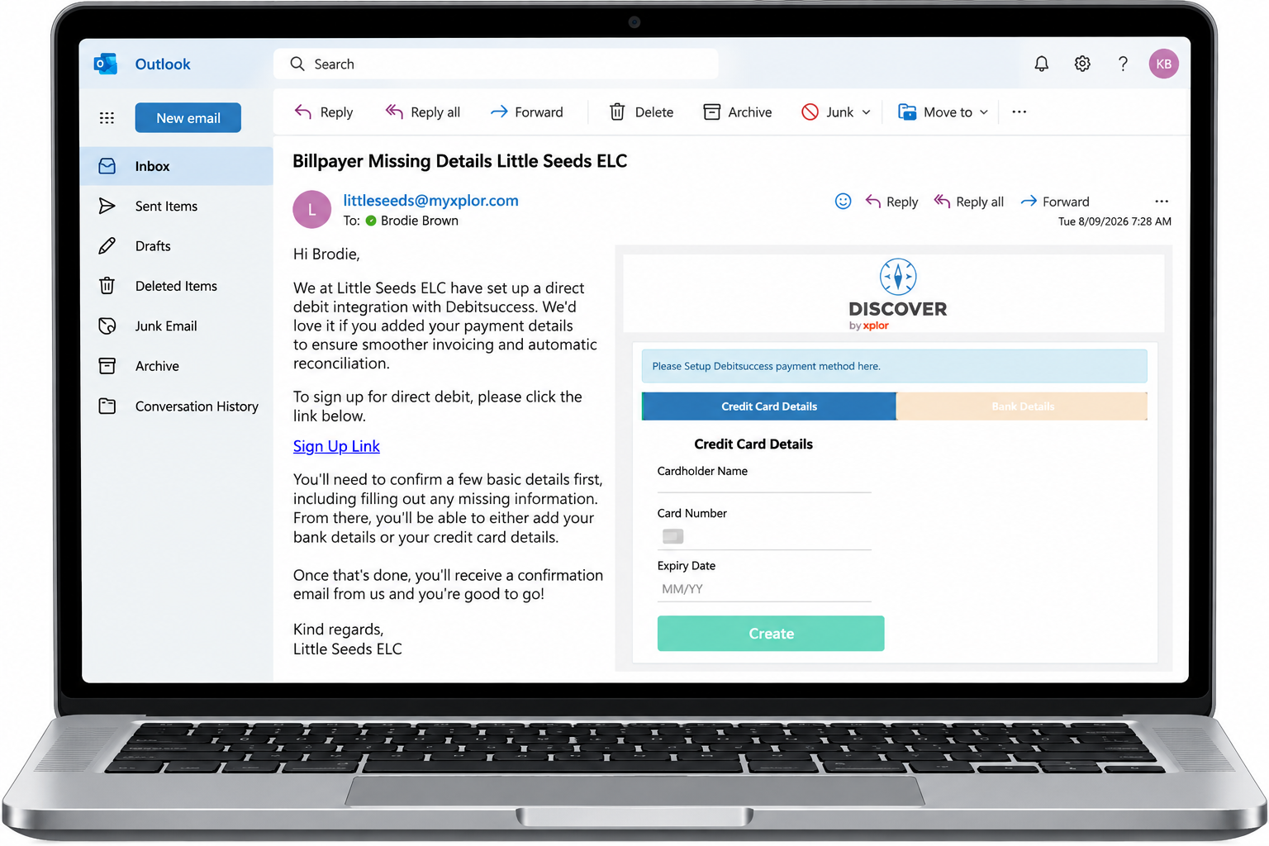
The Billpayer clicks on the link and sets up their billing information
Once Parents add in their Bank Account OR Credit Card Details, a payment will be picked up for the next week for the Selected day.
Note: If a Bill Payer accepts Terms & Conditions but does not add bank/card details, a payment will attempt but fail. Both the service and the parent will be notified, and Pay by Direct Debit will be unticked in their profile.
Was this article helpful?
That’s Great!
Thank you for your feedback
Sorry! We couldn't be helpful
Thank you for your feedback
Feedback sent
We appreciate your effort and will try to fix the article